
Camera motion detection for beginners
Tune your camera's motion settings so you stop missing real events and stop getting junk alerts.
By the end you will know how to set your camera's motion sensitivity and timers, and how to fix the most common mistakes.
What you need
- Access to your camera's own web page (the setup page inside the camera)
- Access to Silarius Cloud Admin
- A couple of hours to let the camera run and test
Step by step
- Check Silarius Cloud Admin first
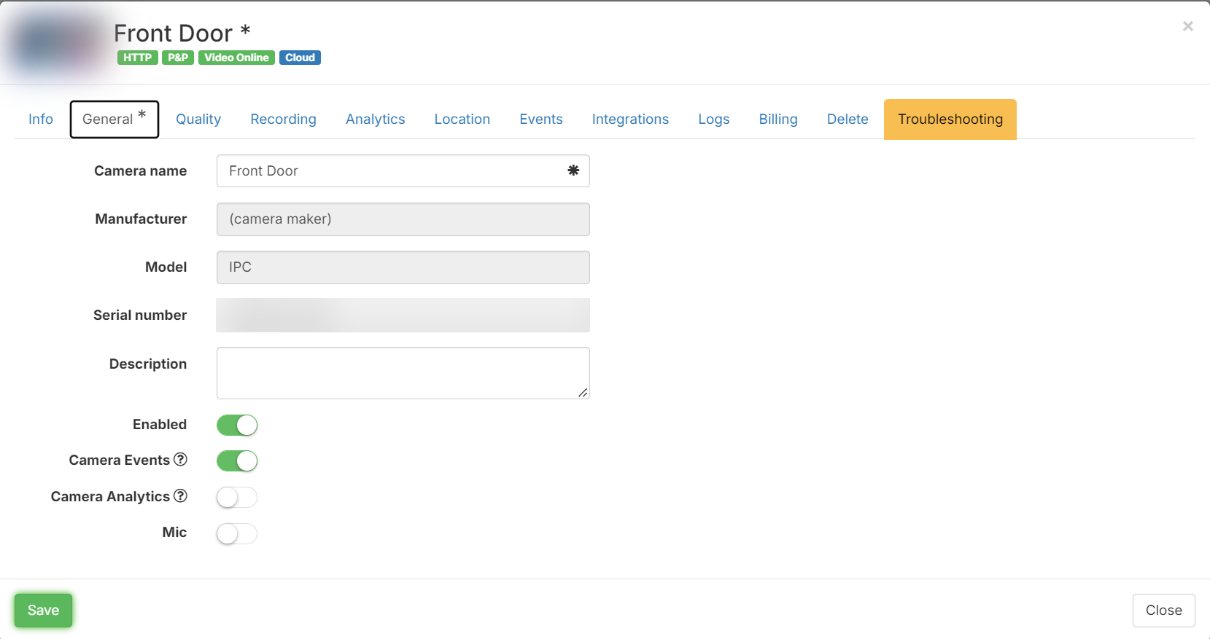
Open the camera in Silarius Cloud Admin. The Camera events slider must be green. If the camera has a Motion Detection tab, check that the motion area and sensitivity fit the scene.
- Open the camera's own web page
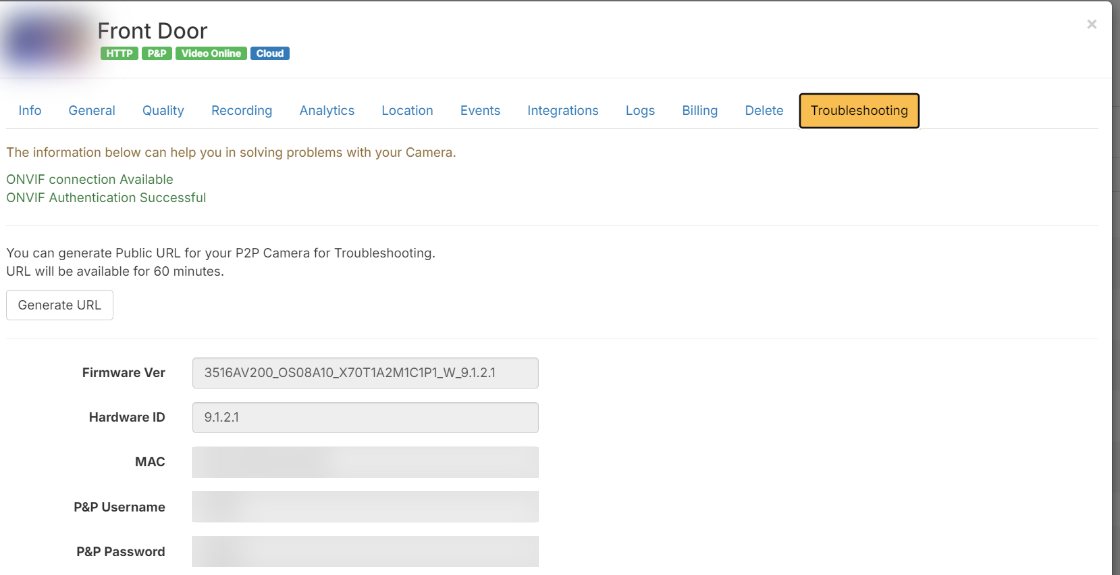
In the camera's settings, open the Troubleshooting tab and make a link to the camera's web page. You can also type the camera's IP address (its number on your network, like a house number) into a modern web browser.
- Make sure motion detection is on
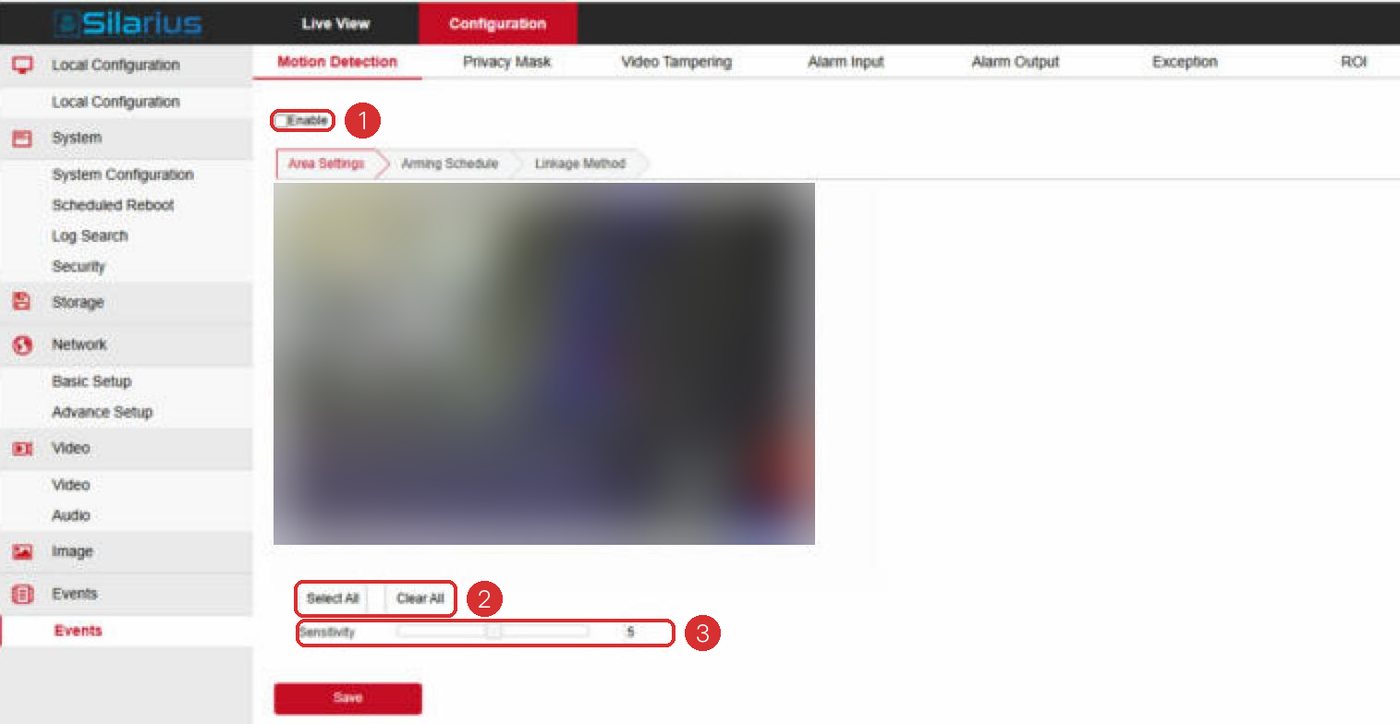
In the camera's web page, find the motion detection settings. Turn motion detection on if it's off.
- Use the grid mode
Some cameras offer a Grid mode and an Area mode. Pick Grid. On those cameras, Area mode can't be controlled over ONVIF, so the camera may send no events at all.
- Draw big, solid zones
Select the boxes where motion really happens. Use big solid zones. Avoid scattered single boxes with lots of holes.
- Set sensitivity and timers
Set sensitivity to about 75%. If there's an ignore timer like Suppress Alarm, lower it to about 5 seconds.
- Turn off extras that get in the way
On some cameras, extra smart motion features stop plain motion events. If plain motion doesn't work, try turning those extras off. Some other cameras need a motion app turned on inside the camera first.
- Test it
Walk in front of the camera. Then open the web app and check that events show up.
Two layers of filtering
Your video goes through two filters before you get an alert.
1. The camera decides if something changed enough to count as motion. 2. Silarius Cloud decides how sure it must be before it alerts you. This is the confidence number.
Both must be set right. A perfect confidence number can't fix a camera that doesn't see motion. And the cloud can only work with what the camera sends.
How a camera sees motion
Picture the camera image as a grid of small boxes. Each moment, the camera compares how bright each box is now to a moment ago. If enough boxes change enough, the camera calls it motion.
Sensitivity controls this. On most cameras it controls both how big a change counts and how many boxes must change. Many cameras also have timer settings. On a lot of cameras the timers do nothing at all. So the sensitivity slider is doing most of the work.
The timer that hides real events
Some cameras have a timer that tells the camera to ignore new motion for a few seconds after an event ends. It may be called Suppress Alarm, alarm off delay or something similar.
Here is how it can hurt you: 1. A light flickers. The camera sends a false motion event. 2. The event ends. The ignore timer starts. 3. Two seconds later, a real car drives in. 4. The camera ignores it, because the timer is still running.
The fix: lower that timer. The lowest value catches the most events. About 5 seconds has tested well. Some cameras ship with it set as high as 15 seconds.
Finding the right sensitivity
There is no one magic number. It changes by camera model and even by software version.
- Start at 75%.
- Let it run for a couple of hours.
- Check the web app. Are there too many events or too few?
- Adjust in small steps.
If you get nonstop events when nothing moves, the camera is too sensitive. Lower it. Some cameras need to go as low as 25 to 30%.
If you get no events at all, the camera may only work in a very narrow range. Try 90%, then go up 1 or 2% at a time and test each time.
Be patient with a new camera
Default settings work fine most of the time, but not always. A new camera may send no events or nonstop false ones at first.
Some cameras even come with motion detection turned off. If the camera is used for real security, you must tune its sensitivity and motion areas. Don't leave it on factory settings.
Common mistakes
- Motion detection is turned off in the camera after setup. Turn it back on.
- The camera's schedule is empty or backwards. The camera then misses events or sends them at the wrong hours. Turn on the schedule and set the right hours.
- Line crossing points the wrong way. You miss the important direction and get alerts for the other one. Think about which way people or cars go.
- The wrong object types are picked in your AI rule. Pick what matters for each camera. No one setting fits every camera.
Good to know
- Most of the time, the default confidence of 60% is fine. Busy or hard scenes may need a change.
- Still missing events? Note the camera ID, take a screenshot of the motion settings and contact Silarius support: get free remote setup help or email us.
Common questions
Is my camera broken if it misses events?
Almost never. It's usually a setting.
Why does my camera say it's set up right but sends nothing?
Some cameras keep separate settings for Grid and Area mode. Silarius Cloud sees the Grid settings, but the camera may be using Area mode. Switch it to Grid in the camera's web page.
Still stuck? We'll do it with you, free.
Silarius customers can get free remote help: sign in, click one button, and a Silarius technician joins your computer.