
Add a user
Give someone their own sign-in to Silarius Cloud.
By the end you will have added a new person to Silarius Cloud with their own sign-in and the right access.
What you need
- An owner or admin sign-in for Silarius Cloud Admin
- The new person's name and email address
- A role for them (you can add it later)
Step by step
- Open Users
In Silarius Cloud Admin, click Users, then Add.

- Fill in their details
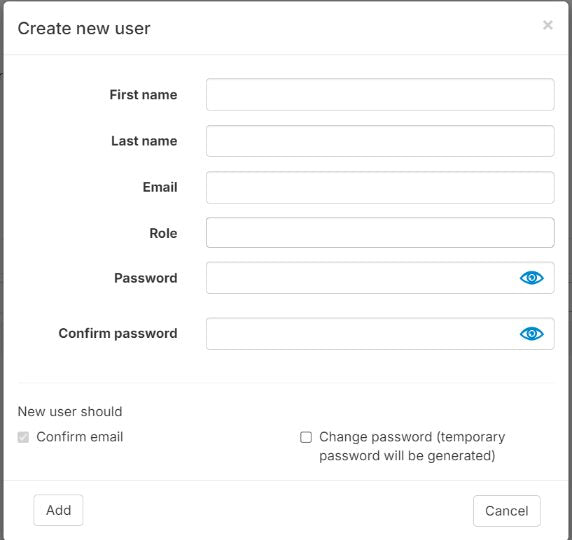
Type the person's name and email address. Their email is their username unless they change it later.
- Pick a role
Choose a role for them. If you haven't made the role yet, leave it blank and add it later.
- Choose the extras
If you like, check Require email confirmation or Require password change on first login.
- Save
Save the user. They now show in your Users list. Click a name any time to open that person's settings.
How many users can I add?
There is no limit. You can still decide exactly what each person can see and do with roles.
More than one account with one email
Each user needs a different email address. You can make more from the same inbox with a plus sign. Add a plus sign and a word before the @.
- Your email: you@yourcompany.com
- A guard account: you+guard@yourcompany.com
- A test account: you+test@yourcompany.com
Use only letters and numbers between the + and the @. No spaces or other symbols. All emails still arrive in your normal inbox. This trick works on most email services.
Good to know
- Admins can only add guard users. To add another admin, ask the owner.
Common questions
Can a user see only some cameras?
Yes. Give them a role that has only those cameras. See Roles: who can see and do what.
Can I turn off a user without deleting them?
Yes. See Edit, disable or delete a user.
Still stuck? We'll do it with you, free.
Silarius customers can get free remote help: sign in, click one button, and a Silarius technician joins your computer.