
Sign in to Silarius Cloud
Sign in, get the mobile app, and reset a forgotten password.
By the end you will be signed in to Silarius Cloud and know what to do if you forget your password.
What you need
- Your username (usually your email address)
- Your password
- A modern web browser, or a phone
Step by step
- Go to the sign-in page
Go to silariussecurity.com/login.
- Log in to Silarius Cloud
Click Log in to Silarius Cloud. The Silarius Cloud sign-in screen opens.
- Type your details
Type your username and password. Your username is your email address, unless you made your own username.
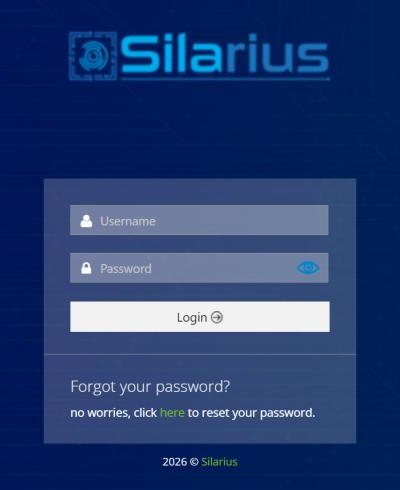
- Enter your code if asked
If you turned on two-factor sign-in, type the 6-digit code from your authenticator app.
Forgot your password?
On the sign-in screen, click Forgot your password? and follow the steps. You will get an email with a link to make a new password.
On your phone
Get the Silarius Cloud mobile app from our sign-in page: Sign in. It is on the App Store and Google Play. Use the same username and password.
Who can open what
- Owners and admins can use the web app, the mobile app and Silarius Cloud Admin.
- Guards can use the web app and the mobile app only.
You use the same username and password everywhere.
Common questions
Why was I signed out?
The web app signs you out after 30 minutes with no activity. Just sign in again.
My email stopped working as my username. Why?
You (or your admin) may have set a custom username. Once you do, only that username works, not your email. See Your profile, password and username.
I still can't get in.
Ask the owner or an admin on your account to reset your password. Or contact Silarius support: get free remote setup help or email us.
Still stuck? We'll do it with you, free.
Silarius customers can get free remote help: sign in, click one button, and a Silarius technician joins your computer.