
Roles: who can see and do what
Understand owners, admins and guards, and make roles that control which cameras people see.
By the end you will understand the three kinds of users, and you will be able to make a role that limits which cameras a person can see.
Step by step
- Open Roles
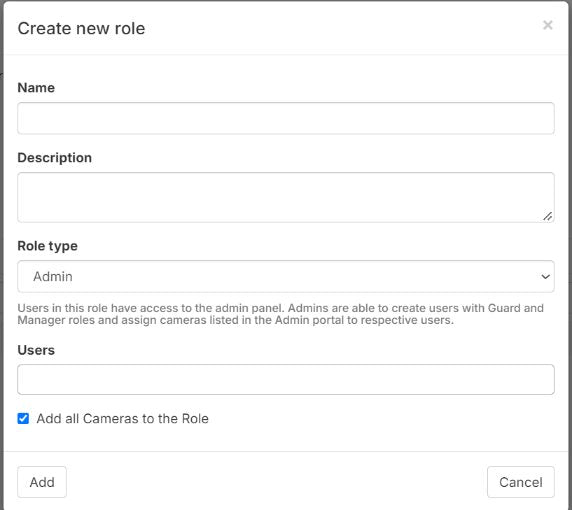
In Silarius Cloud Admin, click Roles, then Add.
- Name the role
Type a name and a short description. Use names people will understand, like a site name.
- Pick the role type
Choose Admin (Silarius Cloud Admin and the web app) or Guard (web app and mobile app only).
- Choose the cameras
Leave Add all cameras to the role checked to include every camera. Or uncheck it and pick cameras one by one.
- Save and set permissions
Save the role. Then click it in the Roles list to change its cameras and what people can do with each one.
- Add people to the role
Open the role's Users tab. Pick the people for this role and click Add.
Three kinds of users
- Owner: the main account user. There is only one per account. The owner can see all cameras on the account.
- Admin: can use Silarius Cloud Admin and the web app. Admins help the owner manage cameras and people. They can add new cameras. They can only manage the cameras in their roles. They can only add guard users, and can only change users and roles they made.
- Guard: can use the web app and the mobile app only. Guards watch the cameras they are given. Depending on their role, they can save clips, move PTZ cameras and share cameras.
What a role is
A role is a named group of cameras, plus what people may do with each camera. Then you give that role to people.
For each camera in a role, you can allow things like:
- Watching it
- Changing its settings
- Saving clips
- Sharing it
- Using PTZ controls (moving the camera left, right, up, down and zooming)
The same camera can be in many roles, with different permissions in each.
Rules to remember
- A role is either an Admin role or a Guard role.
- A person can have many roles, but they must all be the same type.
- The first role you give someone sets their type.
- To switch someone from guard to admin (or back), remove all their roles first. Then add the new ones.
- Shared Cameras roles are the exception. They can go to anyone.
- A guard can't delete clips made by another guard. A clip made by a guard can be deleted by that guard, by an admin who may save clips on that camera, or by the owner.
Example
Make a role called "Lobby guards" with only the two lobby cameras. Allow watching and saving clips, but not sharing. Give it to your front desk staff. They will see only those two cameras.
See who can see a camera
Open the camera in Silarius Cloud Admin and scroll down to Roles. Click it to open it. It lists every role that can see that camera.
Common questions
Can I make a guard account that sees only some cameras?
Yes. Make a Guard role with just those cameras, and give it to that person.
Can I stop someone from saving clips or sharing?
Yes. Turn off those permissions for that camera in their role.
Can I make someone else the owner?
Yes. Open an admin user and click Set as owner. The old owner becomes an admin. See Edit, disable or delete a user.
Still stuck? We'll do it with you, free.
Silarius customers can get free remote help: sign in, click one button, and a Silarius technician joins your computer.