
Build and save a layout
Make a screen that shows the cameras you want, in the shape you want, and open it every time you sign in.
By the end you will have your own saved layout. A layout is the way camera boxes are arranged on your screen, like 4 boxes in a square. You will also set one layout to open every time you sign in.
What you need
- You are signed in to the Silarius Cloud web app
Step by step
- Pick a screen pattern
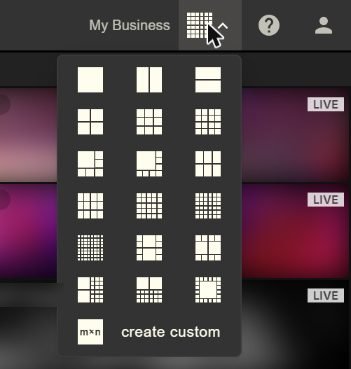
Open the Layout menu. Click a pattern, like 2 x 2. Empty boxes appear on the screen.
- Fill the boxes with cameras
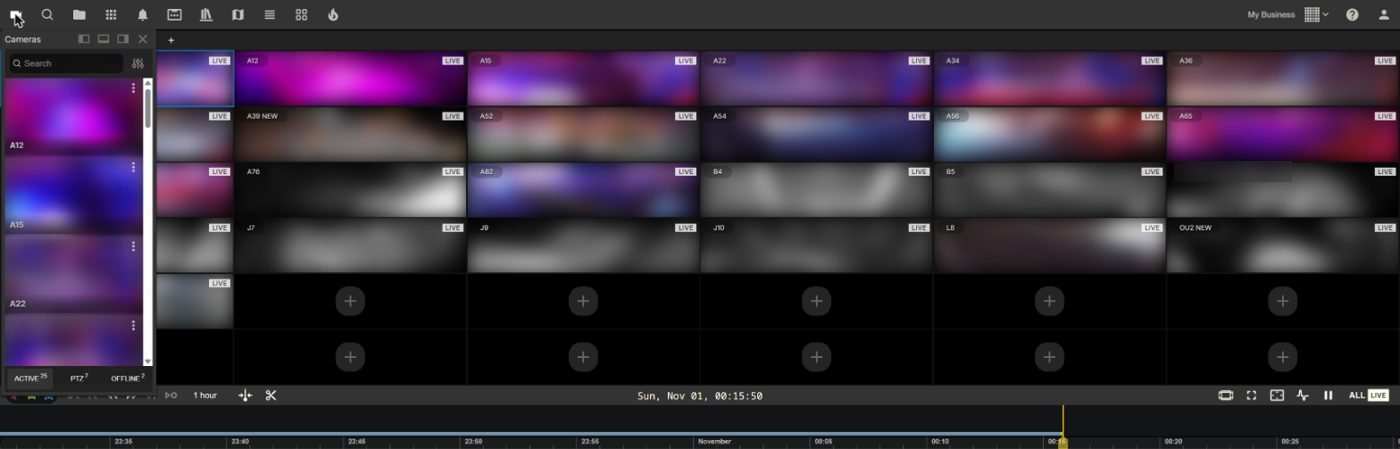
Drag a camera from the Cameras menu into a box. Or click the + (plus) button in a box and pick a camera from the list. Drop a camera on a full box to swap it.
- Save your layout
When all the boxes are filled, save the layout. You can save over the layout you started from, or save it as a brand-new one. A star by the layout name means you have changes that are not saved yet.
- Set your default layout
Open the Groups menu. Click the three dots on the same line as the layout you want. Choose to make it the default. Now this layout opens first every time you sign in.
Make a custom size (M x N)
None of the patterns fit? Pick the MxN option in the Layout menu. M is the number of rows. N is the number of columns.
A small window opens. When rows and columns are linked, you pick rows and the columns match. To pick any size you want, unlink them and type both numbers.
Merge boxes into one big box
You can join boxes to make one bigger box. Drag across the boxes you want to join, then click merge. To split them again, select the big box and click unmerge.
Switch between saved layouts
Open the Groups menu. Click the name of any saved layout to open it.
Good to know
- Press Ctrl + P to search for a layout by name.
- Layouts you build here also show in the Silarius Cloud mobile app. Layouts can only be made in the web app.
Still stuck? We'll do it with you, free.
Silarius customers can get free remote help: sign in, click one button, and a Silarius technician joins your computer.