
Find and open your cameras
Use the Cameras menu to find any camera and put it on your screen.
By the end you will be able to find any camera in your list. You will also know how to open it on its own or add it to a box on your screen.
What you need
- You are signed in to the Silarius Cloud web app
Step by step
- Open the Cameras menu
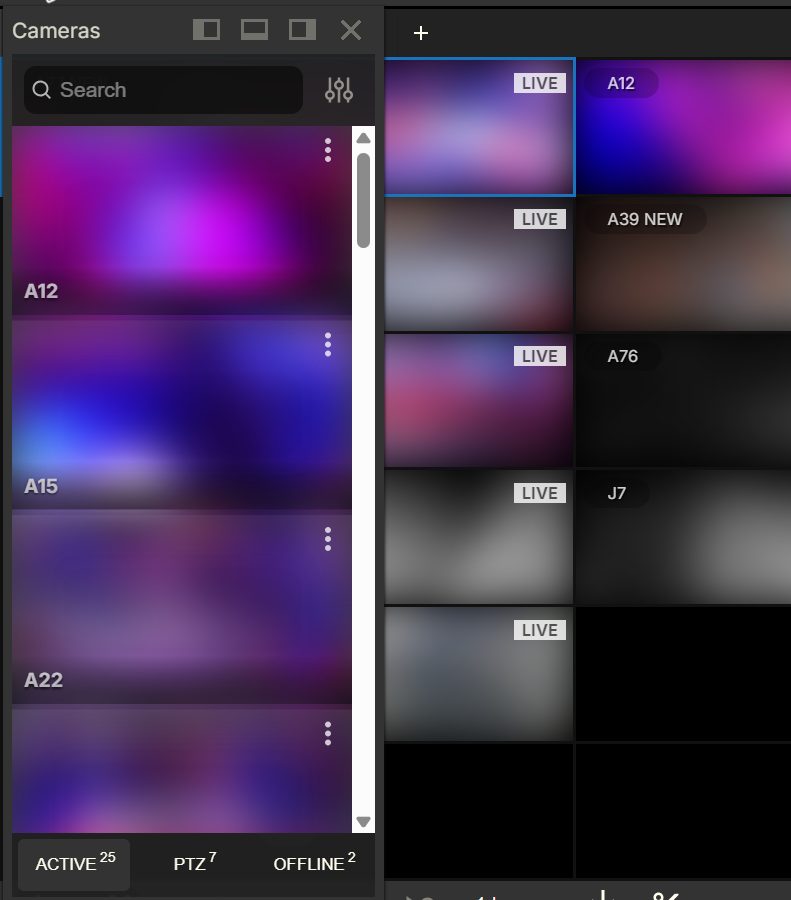
Click Cameras in the top menu bar. A list of your cameras opens.
- Pick a tab
At the bottom of the list are three tabs: Active, PTZ and Offline. Click a tab to see only those cameras. Click the same tab again to see all cameras in one list.
- Search by name
Type part of the camera name in the search bar. You don't need the full name. The list gets shorter as you type.
- Open one camera
Click a camera in the list. It opens by itself on the screen.
- Or drag it into a box
Drag a camera from the list and drop it on any box in your layout. The box can be empty, or it can already have a camera. A dropped camera replaces the old one.
What the tabs mean
- Active: cameras that are online right now.
- PTZ: cameras you can turn and zoom from the web app. PTZ means Pan (turn left and right), Tilt (up and down) and Zoom.
- Offline: cameras that are not sending video right now.
Move or close the camera list
The camera list has three small buttons at the top:
- Undock: makes the list float. Then you can move it and resize it any way you like.
- Change side: moves the list to another edge of the screen.
- Close: closes the list. You can also click Cameras in the top bar again.
More options for each camera
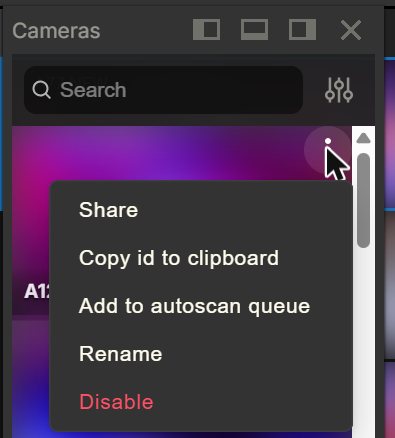
Each camera in the list has three dots in its top right corner. Click them for more options, like Share. See Share a camera, event or clip.
Good to know
- Press Ctrl + P from any menu to jump straight to a search for a camera or layout.
Common questions
A camera is missing from my list. Why?
You only see cameras your user role allows. Check the Offline tab too. If it is still missing, ask your account owner or admin.
Can I add my recorder (NVR or DVR) to the list?
Yes. Each camera on the recorder shows up in the list on its own, once you add the recorder through the Silarius Gateway. See Connect your NVR or DVR.
Still stuck? We'll do it with you, free.
Silarius customers can get free remote help: sign in, click one button, and a Silarius technician joins your computer.