
Change a camera's ONVIF sign-in or address
Update the username, password or address Silarius Cloud uses for an ONVIF camera.
By the end Silarius Cloud will have your camera's new ONVIF username, password or address, so video keeps coming in.
What you need
- The camera's new ONVIF username and password, or its new address
- An owner or admin sign-in for Silarius Cloud Admin
Step by step
- Open the camera
In Silarius Cloud Admin, click Cameras. Click the camera's name.
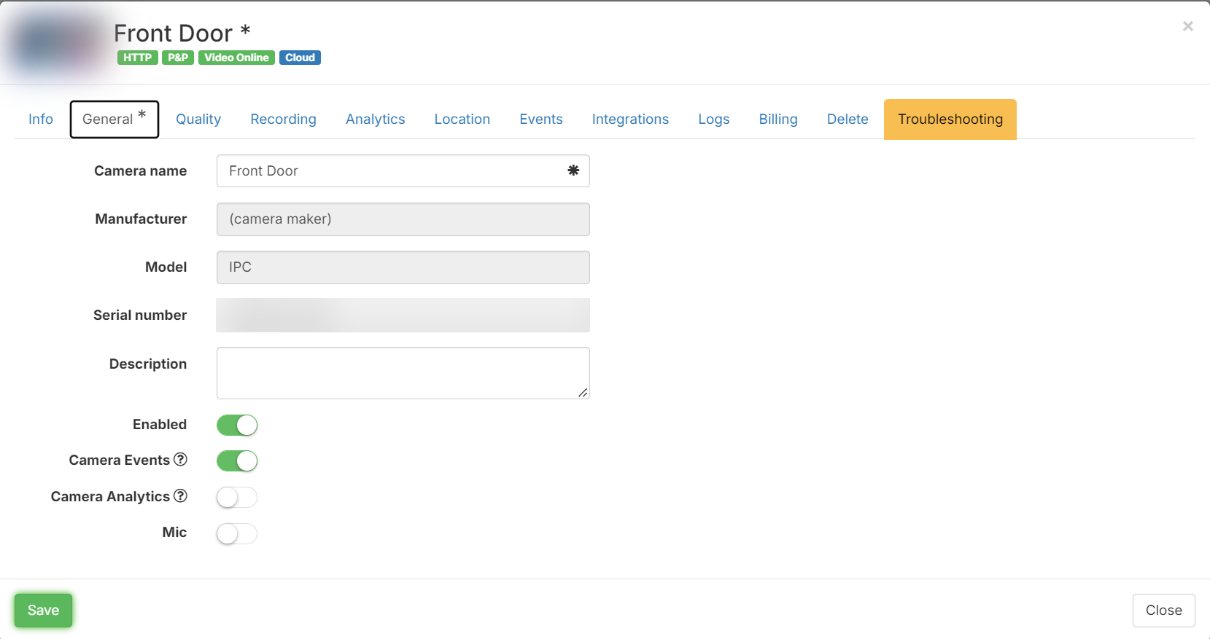
- Go to the Network tab
Click the Network tab.
- Change the address if needed
If the address changed, type the new IP address and port in the HTTP access URL box. Click Ping to test it. You will see a message if it worked. Skip this if the address is the same.
- Change the sign-in
Click Change credentials. New boxes open. Type the new ONVIF username and password.
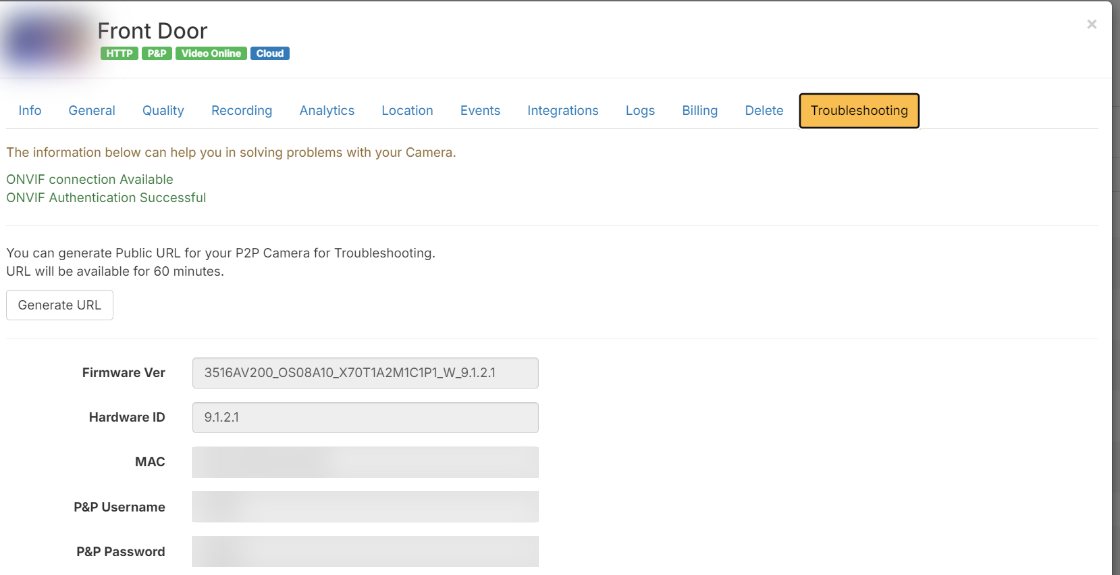
- Check the connection
Click check connection. If the details are right, the camera settings update.
- Confirm the video settings
Silarius Cloud asks you to confirm the camera's settings. Check the stream profile, resolution, FPS, image quality and bitrate, then confirm.
Good to know
- You can change the sign-in any time, even if the old one still works.
Still stuck? We'll do it with you, free.
Silarius customers can get free remote help: sign in, click one button, and a Silarius technician joins your computer.