
Replace a broken camera and keep its recordings
Swap a broken ONVIF camera for a new one without losing its old video.
By the end your new camera will take the old camera's place in Silarius Cloud, and you will still have the old camera's recordings.
Don't delete the old camera to add the new one. Deleting a camera erases all of its recordings, and they can't be brought back.
Step by step
- Swap the camera
Take down the broken camera and put up the new one.
- Use the same address
Set the new camera to the same local IP address and ports as the old one. Or change your router's port forwarding rules so they point to the new camera.
- Open the camera in Silarius Cloud Admin
Click Cameras, then the old camera's name. Wait. Silarius Cloud notices that the camera's ONVIF setup changed.
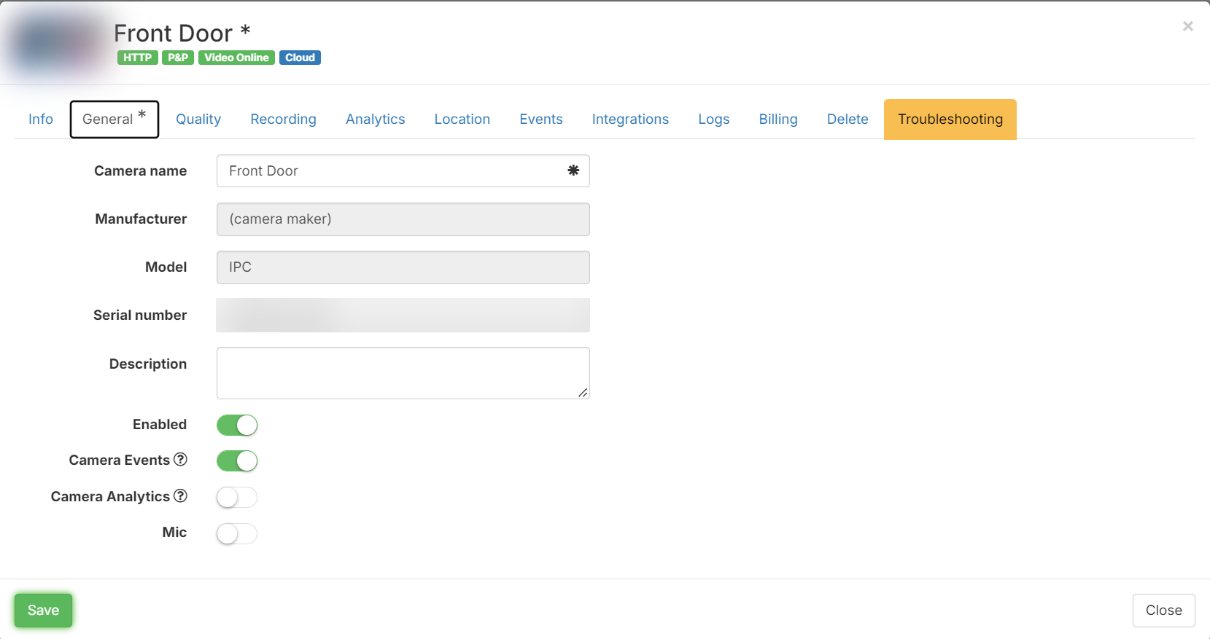
- Overwrite the old settings
When asked, choose to overwrite the old setup with the new camera's.
- Adjust the settings
Check the Quality, Recording and Analytics tabs and set them the way you want.
Who this is for
These steps are for cameras added by ONVIF URL. For any other camera, contact Silarius support: get free remote setup help or email us.
Still stuck? We'll do it with you, free.
Silarius customers can get free remote help: sign in, click one button, and a Silarius technician joins your computer.