
Save, find and download video clips
Cut a piece of recorded video into a clip, keep it in the Library, and download it to your computer.
By the end you will save a piece of recorded video as a clip. You will find it in the Library and download it to your computer.
What you need
- You are signed in to the Silarius Cloud web app
- Your user role allows saving clips
Step by step
- Pick the camera
Click the camera you want, so it has the colored border.
- Start a clip
Click the Create clip button in the bottom toolbar. Or press C two times. Part of the timeline turns bright. That is your clip.
- Set the start and end
Drag the handles at each end of the bright part. Or set the start and end times in the calendar above the timeline. A clip can be from 30 seconds to 1 hour long.
- Save and name it
Click Save. Type a name for your clip and click OK. Click Cancel to go back and change it.
- Open the Library
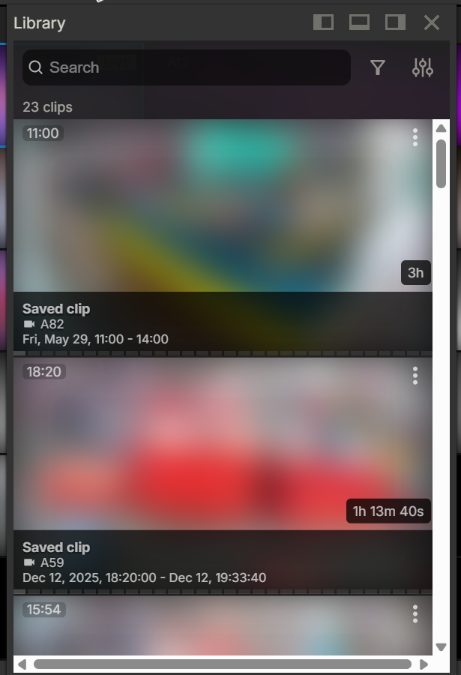
Click Library in the top menu bar. Type the clip name in the search bar to find it.
- Download it
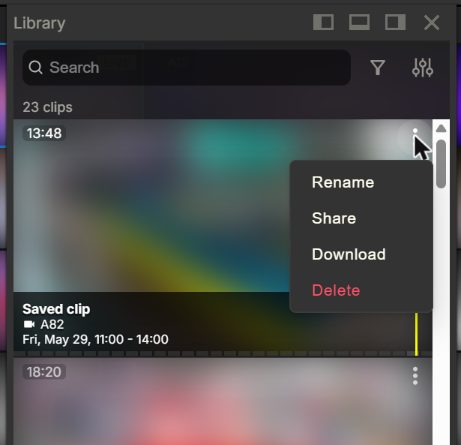
Click the three dots at the top right of the clip. Click Download. A window with a Download button appears. The first time, it can take from a few seconds to a few minutes to get ready. You can keep working while you wait. A message pops up when it is ready.
More things you can do in the Library
- Preview: rest your mouse on a clip without moving. It plays a short preview.
- Watch: click a clip to open it full screen.
- Clips and Timelapse tabs at the bottom show just one kind.
- The three-dot menu lets you Rename, Share, Download and Delete.
- The settings icon next to the search box lets you sort by newest, oldest, or A to Z. You can also set the number of columns to Auto, 1, 2 or 3.
Need more than 1 hour? Make a timelapse
A timelapse squeezes a long time into a short video. After you click Create clip, choose Timelapse. Or press C then T. Pick from 2 to 48 hours of video. It becomes a video from 30 seconds to 5 minutes long. For a project that lasts weeks or years, see Long-term timelapse.
Who can see my clips?
A clip belongs to the camera, not to you. Anyone who is allowed to see that camera can see its clips in the Library.
For example: user A can see 4 cameras. User B can see only 2 of them. If user A saves one clip from each camera, user B sees only the 2 clips from the cameras they can see.
Your role decides which cameras you see and if you may save clips.
Good to know
- Clips stay in the Library until you delete them, or until the camera is deleted.
- Making a clip takes some time. Longer clips take longer. Some timelapses can take 10 to 15 minutes.
- A clip is only prepared once. After that, downloads and share links start right away.
- Saved clips use cloud storage, which counts toward your account. For billing questions: Contact Silarius: request a quote or email us.
- If your camera only keeps video when there is an event, video with no event is removed soon after it is recorded (about 30 minutes). If you need that video, download your clip right away.
Good to know
- Press C twice for a clip, or C then T for a timelapse.
- Clips can only be made in the web app, not in the mobile app.
Still stuck? We'll do it with you, free.
Silarius customers can get free remote help: sign in, click one button, and a Silarius technician joins your computer.