
Watch recorded video with the timeline
Use the timeline and the bottom toolbar to go back in time and find what happened.
By the end you will be able to go back to any time in your recorded video. You will read the colors on the timeline and jump straight to events.
What you need
- You are signed in to the Silarius Cloud web app
- A camera open on your screen
Step by step
- Click a time on the timeline
Click anywhere on the blue line. The video starts playing from that time. The scrubber (the marker that shows where you are) moves there.

- Zoom the timeline in or out
Point your mouse at the timeline and roll the mouse wheel. You will see more hours or fewer minutes. You can also click the time in the bottom toolbar and pick a scale from the list.
- Slide to another time
Click and hold on the timeline, then drag left or right. This shows earlier or later times.
- Jump to a date with the calendar
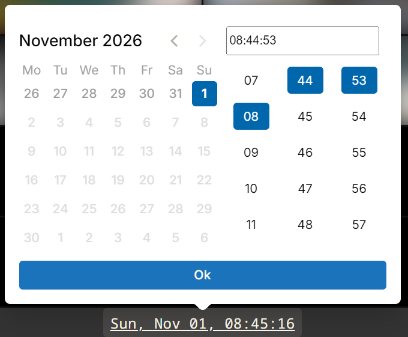
Click the date or time in the bottom toolbar. A calendar opens. Pick the date on one tab and the time on the other. Click OK. The video plays from that moment.
- Play an event
Click a darker blue part of the timeline. The video plays from the start of that camera event.
- Go back to live
In the bottom toolbar, click the button that sets all cameras to live video.
What is the timeline?
The timeline is the blue line at the bottom of the screen. It shows the recorded video (also called the archive) for one camera.
If you have many cameras on the screen, the timeline shows the selected camera. That is the one with the colored border. Click a camera to select it.
- Blue: recorded video you can watch.
- Darker blue: an event the camera itself reported, like motion, a line being crossed, or someone entering an area.
- Black gaps: times the camera was off or had no internet.
What do the colored dots mean?
Dots above the timeline show things the system spotted:
- Pink dots: a person.
- Green dots: a vehicle.
- Blue dots: anything else, like animals, boats, bags or hard hats.
Click a dot to play from the moment that thing was spotted. Dots need object detection turned on for the camera.
Hide some kinds of dots
The small pictures (pictograms) in the bottom toolbar stand for each kind of object. Click one to hide that kind. It turns grey. Click it again to show it. It gets its color back.
This helps when you use the jump buttons. They skip anything you have hidden.
The jump buttons
The bottom toolbar has buttons that move the selected camera for you:
- Jump back to the last object spotted, or forward to the next one.
- Jump back to the last camera event, or forward to the next one.
- Jump back or forward by a set amount of time. Click the time shown between these buttons to pick how much.
- Center on the scrubber: brings the playing spot back to the middle of the timeline.
Good to know
- Use the Playback speed button on the camera toolbar to watch from half speed up to 16 times faster.
- Press Shift and / together to see timeline keyboard shortcuts.
Common questions
Why is part of my timeline black?
Black means there is no recording for that time. The camera was off or had no internet then.
Why are there no colored dots?
Dots only show for cameras with object detection turned on. They also only show from the time it was turned on.
Still stuck? We'll do it with you, free.
Silarius customers can get free remote help: sign in, click one button, and a Silarius technician joins your computer.