
Find events with the Events menu
See what your cameras noticed, filter by camera, object, time and color, and act on any event.
By the end you will find any event your cameras caught. An event is something a camera noticed, like motion, a person or a car. You will filter the list and share or open what you find.
What you need
- You are signed in to the Silarius Cloud web app
- Cameras with detection (analytics) turned on
Step by step
- Open the Events menu
Click Events in the top menu bar. The newest events show in a list.
- Open the filter
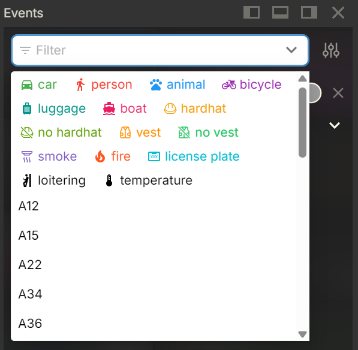
Click the filter option at the top of the tab. The filter box opens.
- Pick cameras and objects
Pick one or more cameras. Then pick one or more object types, like person or vehicle.
- Pick the time
Pick a date and time, or a range from one time to another.
- Set the confidence
Move the confidence slider. Confidence is how sure the system is about what it saw. Higher means fewer but surer results.
- Pick colors (optional)
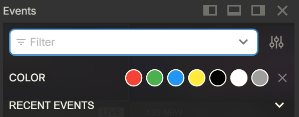
Pick colors to find, like a red car. You must pick at least one object type for color to work.
- Use an event
Click the three dots on an event. You can preview it, share it, or copy its Event ID or Camera ID. You can also drag an event into a box on your screen to play it there.
The three tabs
The Events menu has three tabs:
- ALL: objects spotted, motion, line crossing and people entering an area.
- Face Recognition: faces that were spotted. If names have been added for faces, the name shows too.
- License Plates: car plates the system read.
The Face Recognition and License Plates tabs only fill up if those features are turned on for your cameras.
Show events as a list or a grid
Make the Events menu wider. Drag either side edge of the menu. When it is wide enough, a hidden icon shows next to the filter box. Click it to switch between a list and a grid.
The event log in Silarius Cloud Admin
Owners and admins can also see a log of all events in Silarius Cloud Admin, in its Events menu. This log shows the event type (like motion or line crossing), not the kind of object. To filter by object, use the Events menu in the web app.
- Pick By Time or By Period at the top, then pick the From and To dates on the calendar.
- Use Columns to choose which columns show.
- Click the up-down arrow next to a column name to sort by it.
- Reset filters clears your filters. Reset settings brings back the normal view.
Good to know
- The color filter works as "or". An object of a picked color can show up even if you did not pick its object type.
- Drag an event into a layout box, then use Synchronize to see the same moment on other cameras.
Common questions
Why is my Events list empty?
Events only show for cameras with detection turned on. Also check your filters. Try a wider time range or a lower confidence.
How do I send an event to someone?
Use the Share option in the three-dot menu. See Share a camera, event or clip.
Still stuck? We'll do it with you, free.
Silarius customers can get free remote help: sign in, click one button, and a Silarius technician joins your computer.