
Share a camera, event or clip with someone
Send a safe web link so another person can watch a camera, an event or a clip, with or without a password.
By the end you will send someone a link to a camera, an event or a clip. They can watch it in a web browser without a Silarius Cloud account. You will also know how to protect the link with a password.
What you need
- You are signed in to the Silarius Cloud web app
- Your user role allows sharing
Anyone who has a link without a password can watch until it ends. Only send it to people you trust.
Step by step
- Share a camera: open the camera menu
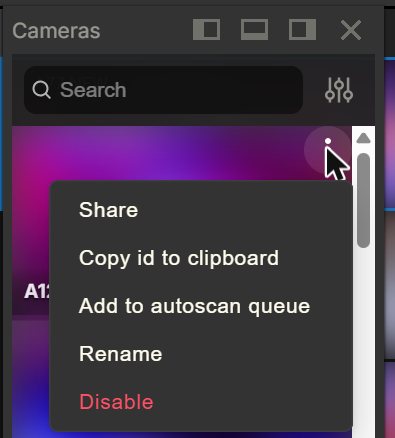
Open Cameras. Click the three dots in the top right corner of the camera. Click Share. A window opens.
- Pick cameras and add a title
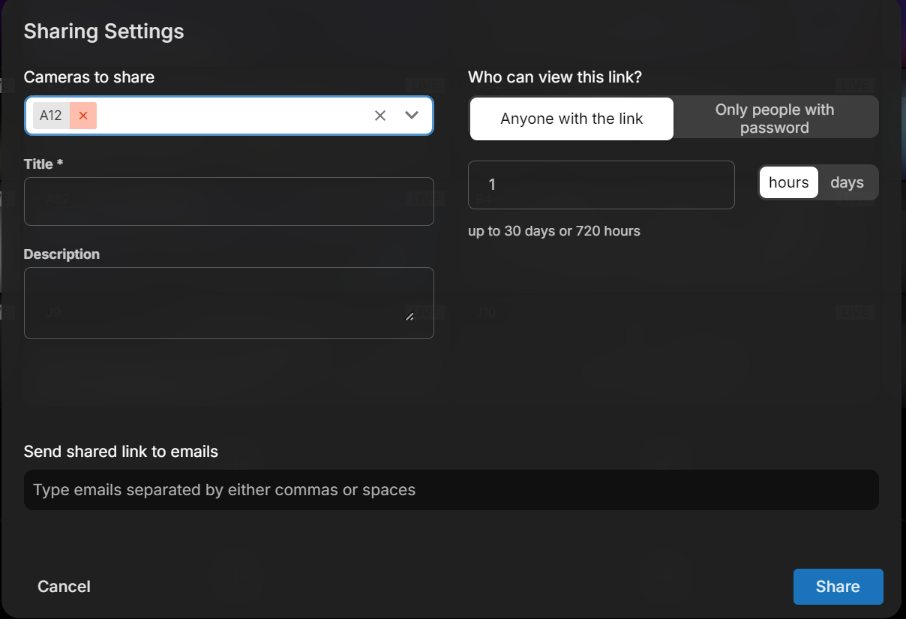
To share more than one camera, pick them in the Cameras to Share box. You can share up to 5 cameras in one link. Type a title. Add a description if you like.
- Choose how safe the link is
Choose Anyone with the link, or require a password. A password must be at least 6 characters. A link with a password can last up to 3 months. A link without one must end sooner. Pick when the link stops working.
- Send it
Type the email address of each person. Click Share. They get an email with the link. If you set a password, the email has it too. You can also leave the email box empty and just copy the link.
- Copy the link
A window shows the link and a short version of it. Click to copy either one. Paste it into a text or a chat.
Share an event or a clip
- For an event: open Events. For a clip: open Library.
- Click the three dots in the top right corner of the event or clip. Click Share.
- Add a title and a description if you like. The title shows at the top of the page the other person sees.
- Without a password, the link can last up to 7 days. With a password (at least 6 characters), up to 3 months.
- Click Share, then copy the link.
The link may not work right away. The system needs time to get the video ready. This can take from less than a minute to a few minutes, depending on how long the video is.
What the other person can do
- Camera link: watch the camera, look back through its recorded video, see past events and see clips made from it.
- Event or clip link: play and pause, change the volume and go full screen. The three dots in the bottom right let them download it as an .mp4 video file, change the speed, or watch it in a small picture-in-picture window.
They only see what you shared. Nothing else in your account is shown. If you set a password, they must type it first.
Share from Silarius Cloud Admin
Owners and admins can also share from the Share menu in Silarius Cloud Admin. This menu also keeps a list of every share you have made. Click Share and pick:
- Link: a web link, like above. Up to 5 cameras per link.
- Widget: a piece of web page code (HTML) that puts a live camera on your own website. Pick the camera, add a name, pick the options to show, click Save, then copy. Paste the code into your website.
- Camera: share a camera with another Silarius Cloud account. See Share cameras with another Silarius Cloud account.
To see every time a link or widget for a camera was used, open the camera's properties in Silarius Cloud Admin and look at its sharing history.
Good to know
- Use a password for anything private. It also lets the link last longer.
- In the mobile app, press and hold a camera to pick up to 5 cameras for one link.
Still stuck? We'll do it with you, free.
Silarius customers can get free remote help: sign in, click one button, and a Silarius technician joins your computer.