
Create alerts for camera events
Get an email or phone message when your cameras see motion, a person, a car or other events.
By the end you will have an alert that tells the right people, at the right times, when your cameras spot something.
What you need
- Access to Silarius Cloud Admin
- Cameras that send events (and detection rules, if you want AI alerts)
- The Silarius Cloud mobile app, if you want phone push messages (Sign in to get it)
Don't set your phone to put the Silarius Cloud mobile app to sleep when it's not used. That stops push messages.
Step by step
- Open Alerts
In Silarius Cloud Admin, open the Alerts tab. If you manage more than one customer, pick the customer first.

- Start a new alert
Click Create Sensor Event. A window opens with a few tabs.
- Name it
Type a name. It will show in the title of the email or push message, so make it clear.
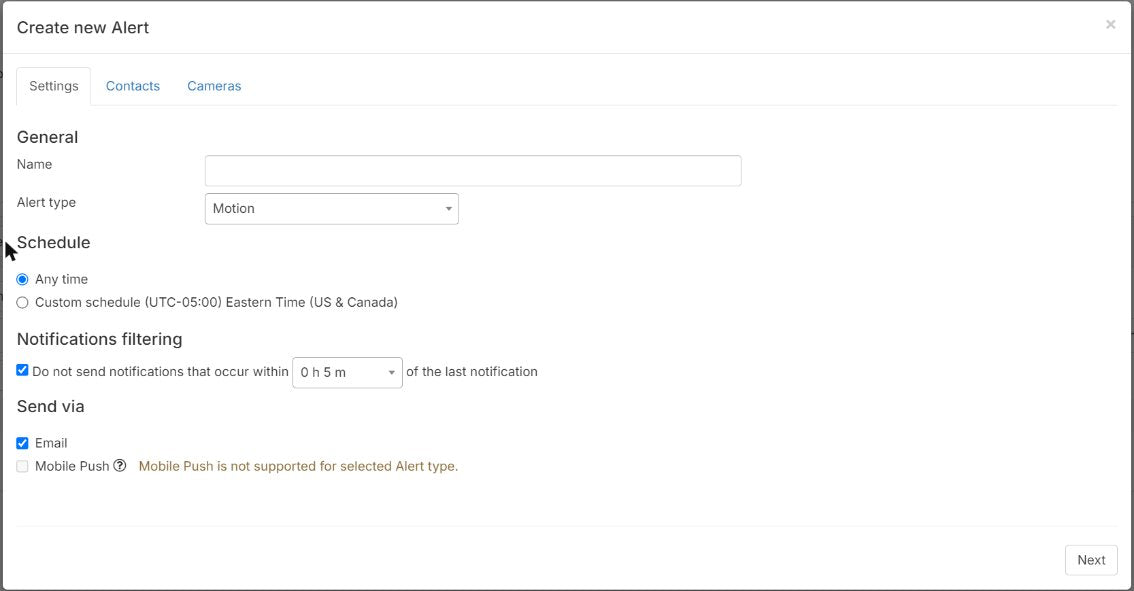
- Pick the alert type
Pick what sets off the alert from Alert type. Make sure the camera is set up to detect it.
- Pick objects (for AI alerts)
If you chose Object Detection, pick which objects send the alert. For example, the camera can find cars and people, but you can alert only on people.
- Set the schedule
Leave it on all the time, or pick Custom Schedule. Click the squares to set days and hours. Orange squares are on. White squares are off.
- Group alerts if you want
Turn on Notification filtering to bundle events into one message. You can choose from 5 minutes up to 12 hours. Leave it off to get each message right away.
- Pick email, push or both
Choose how the message is sent. Push only works for object detection and face recognition alerts.
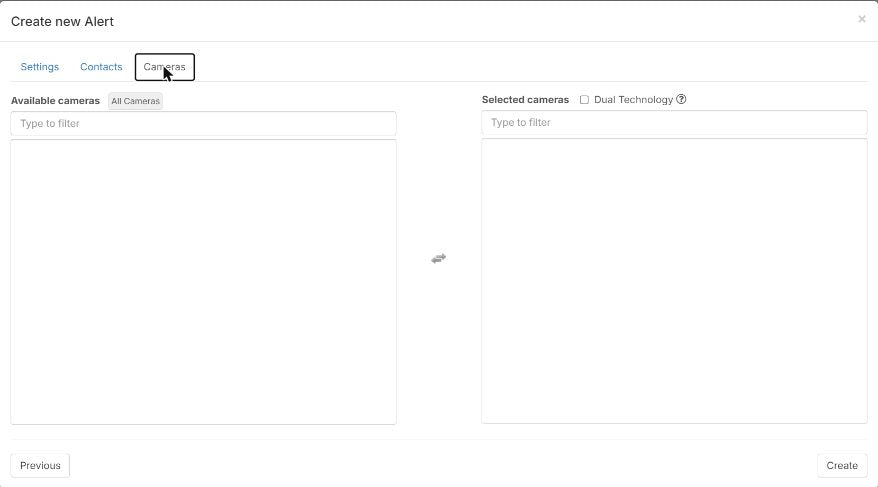
- Add cameras
Click Next. Click camera names on the left to add them, or click All Cameras. Click a name on the right to remove it.
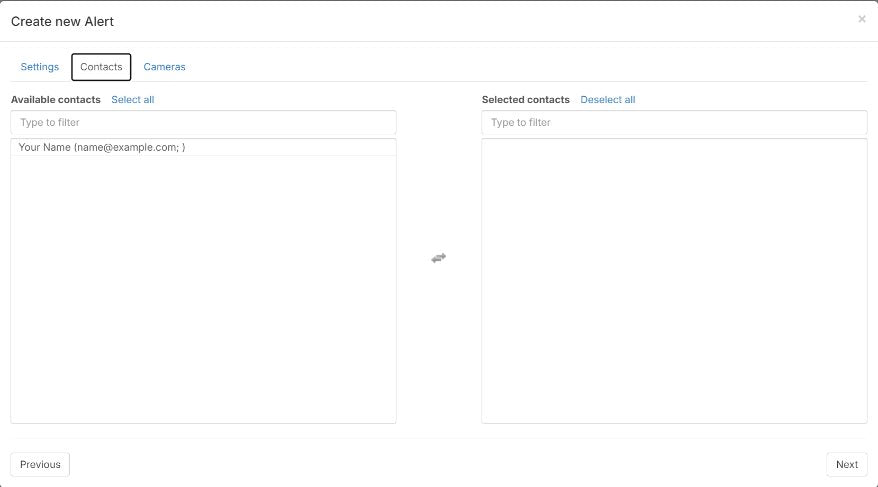
- Add people
Click Next. Click each person to add them, or click Select All. Click a name on the right to remove it.
What is a sensor alert?
A sensor alert sends a message when a camera event happens. That can be motion, line crossing, intrusion, AI object detection, face recognition and more. Any event your camera can send over ONVIF can be used.
One alert can cover as many cameras and as many people as you like.
Email or phone push?
- Email works for every kind of event.
- Push messages (pop-up messages on your phone) work only for events made by Silarius Cloud's AI: object detection and face recognition. Plain camera events, like motion, can only send email.
For push messages, each person must install the Silarius Cloud mobile app and sign in with the same user that's on the alert.
Good to know
- Dual Technology sends an alert only when every camera on the list sees the event at the same time. It's great for two cameras watching the same spot from different angles. It cuts false alerts.
- For object detection alerts, the camera list only shows cameras with AI turned on. You still need detection rules on each one.
- Only people in the same customer account as the cameras can get the alert.
Common questions
Can I get one email with all events instead of one email per event?
Yes. Turn on Notification filtering and pick a time from 5 minutes to 12 hours. This works for push messages too when object detection is on.
Why does my bundled-alert time look limited?
If you use a custom schedule, the longest bundle time can't be longer than your shortest "on" period.
Why don't I get push messages for motion?
Push works only for AI object detection and face recognition. Motion alerts come by email.
Still stuck? We'll do it with you, free.
Silarius customers can get free remote help: sign in, click one button, and a Silarius technician joins your computer.