
Put a live camera on your website
Show one camera on your own web page with a widget, so visitors can watch it live.
By the end you will put one live camera on your own website. This is called a widget. A widget is a small video box that you paste into your web page. People who visit your page can watch the camera.
What you need
- You are an owner or admin in Silarius Cloud Admin
- Someone who can edit your website
- A talk with Silarius first: widgets cost extra and change how the camera is billed
Every visitor who watches the widget uses data. Many visitors can mean a big bill for that camera. Talk to Silarius before you turn a widget on: request a quote or email us.
Step by step
- Open Share
Go to silariussecurity.com/login and sign in to Silarius Cloud Admin. Click the Share tab. Then click the green Share button.
- Pick Widget
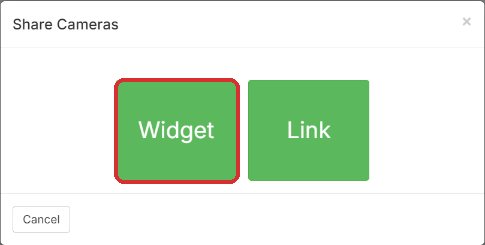
A window opens with two choices. Click Widget.
- Pick the camera and name it
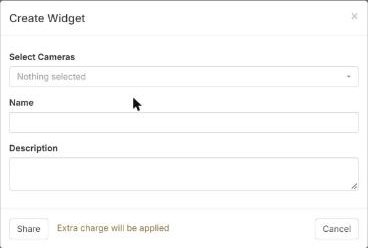
Click Select Cameras and pick one camera. A widget can show only one camera. Type a Name so you remember what the widget is for. The Description is optional.
- Click Share
Click Share to make the widget. You will see a note that an extra charge applies.
- Choose the options
Turn on only what you need: - Autoplay: the video starts by itself when the page opens. - Timeline: visitors can go back and watch recorded video. - Events: visitors can see the camera's events. - Hide the camera title: hides the camera's name. - PTZ: visitors can turn and zoom a PTZ camera. - Autopause: stops the video when a visitor leaves the page open and walks away. Keep this on to save data. - Disable live mode: plays in a slower, steadier mode for slow computers or slow internet.
- Copy the code into your website
At the bottom of the widget window there is a short piece of code. Copy it. Paste it into your web page where you want the video to show. Ask your website person if you are not sure how.
- Change it later in one place
To change the options later, change them in Silarius Cloud Admin. You do not need to change the code on your website again.
Make the video box bigger or smaller
The code has a width and a height. They are measured in pixels (tiny dots on the screen).
- To make it 560 wide and 315 tall, set width="560" and height="315".
- To keep the picture's shape, set only the width and set the height to auto.
Setting both numbers by hand can stretch the picture if the shape does not match the camera.
How much data does a widget use?
A camera at about 750 Kbps uses about 0.005 GB for each minute one person watches.
- 100 people watching for 1 minute: about 0.5 GB.
- 100 people watching for 1 hour: about 32 GB.
That is why Autopause matters. See How to estimate how much data you will use.
Good to know
- Only one camera fits in one widget. Make more widgets for more cameras.
- Delete a widget you no longer use, so it stops using data.
Common questions
Can I share a camera without putting it on my website?
Yes. Send a link instead. See Share a camera, an event or a clip.
Still stuck? We'll do it with you, free.
Silarius customers can get free remote help: sign in, click one button, and a Silarius technician joins your computer.