
How much internet speed your cameras need
Work out how much upload speed your site needs, or how many cameras your internet can handle.
By the end you will know how to check if your internet is fast enough for your cameras. You will also know how many cameras one connection can carry.
What you need
- Your internet upload speed (run a speed test on a computer at the site)
- How many cameras you have, and their picture size (for example 1080p or 4K)
If your upload is too low, cameras drop frames, lose events and disconnect.
Upload speed is what matters
Your cameras send video up to the cloud. That uses your upload speed, not your download speed.
Most internet plans brag about download speed. Upload speed is often much lower. For example, a plan sold as 150 Mbps might only give you 5 Mbps of upload. Mbps means megabits per second. It is a way to measure internet speed.
So always look at the upload number when you plan cameras.
Quick guess: speed per camera
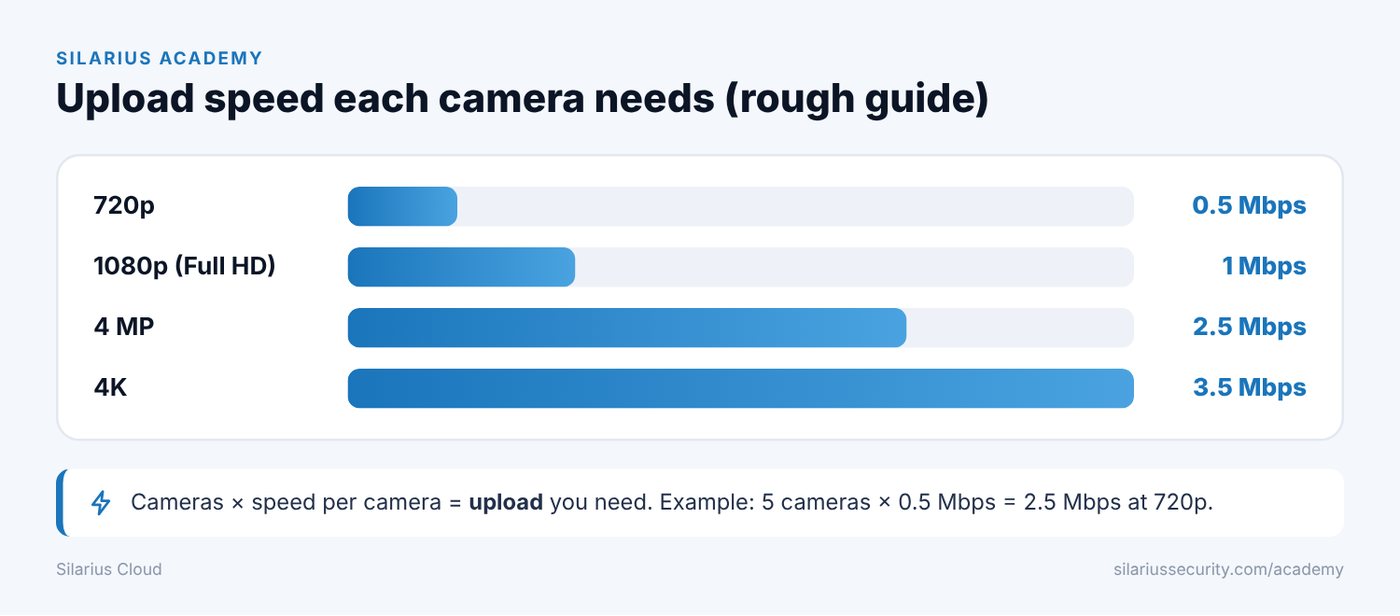
Use these rough numbers for each camera:
- 720p: about 0.5 Mbps
- 1080p (Full HD): about 1 Mbps
- 4 MP: about 2.5 Mbps
- 4K: about 3.5 Mbps
Real numbers change with the camera, its settings and how busy the scene is. But these are good enough to start.
For most 1080p cameras, plan on at least 0.7 Mbps (700 Kbps) for smooth video. Kbps means kilobits per second. 1,000 Kbps is 1 Mbps.
How many cameras can my internet handle?
Divide your upload speed by the speed per camera.
- 10 Mbps upload ÷ 0.5 Mbps = about 20 cameras at 720p.
- 10 Mbps upload ÷ 2.5 Mbps = about 4 cameras at 4 MP.
How much upload do I need?
Multiply the number of cameras by the speed per camera.
- 5 cameras × 0.5 Mbps = 2.5 Mbps at 720p.
- 5 cameras × 3.5 Mbps = 17.5 Mbps at 4K.
A more careful way to plan
Use this when you want fewer problems.
- Find each camera's average bitrate. Bitrate is how much data the camera sends each second. You can see it in the camera's settings in Silarius Cloud Admin.
- Double it. Cameras send a full picture every couple of seconds. These full pictures make short bursts that can be twice the average.
- Multiply by the number of cameras with that setting. Add up each group of cameras.
- Add a little extra for events and health checks. Across many cameras, this can add a few hundred Kbps.
- Add 3 to 4 Mbps for the other people and devices that share your internet.
Example: 6 cameras at 700 Kbps and 4 cameras at 400 Kbps. (700 × 2 × 6) + (400 × 2 × 4) + 4,000 = 15,600 Kbps. That is about 15.5 Mbps of upload.
A very steady connection used only for cameras might get by with 8 to 9 Mbps. But running that close to the limit can cause dropped frames and cameras that keep reconnecting.
Another simple rule: 1 Mbps extra for every 5 cameras
Multiply the average bitrate by the number of cameras. Then add about 1 Mbps for every 5 cameras.
Example: 7 cameras at 750 Kbps on their own internet line. 7 × 750 Kbps = 5.25 Mbps. Add 2 Mbps of extra room (more than 5 cameras, fewer than 10). You need about 7.25 Mbps of upload.
If your internet goes up and down, or other people share it, leave much more extra room.
Good to know
- Run your speed test at the site, on the same network as the cameras.
- Face recognition and license plate reading need more detail, so they need more upload speed.
- Very quiet scenes with little detail can use far less, sometimes as low as 50 Kbps.
Still stuck? We'll do it with you, free.
Silarius customers can get free remote help: sign in, click one button, and a Silarius technician joins your computer.