
Talk through your camera (two-way audio)
Speak through a camera's speaker from the web app, and fix it when it doesn't work.
By the end you will talk through a camera's speaker from your computer. This is called two-way audio. You talk into your computer's microphone, and people near the camera hear you.
What you need
- A camera that has a speaker and a microphone
- A microphone on your computer
- You are signed in to the Silarius Cloud web app
Step by step
- Turn on the camera's Mic
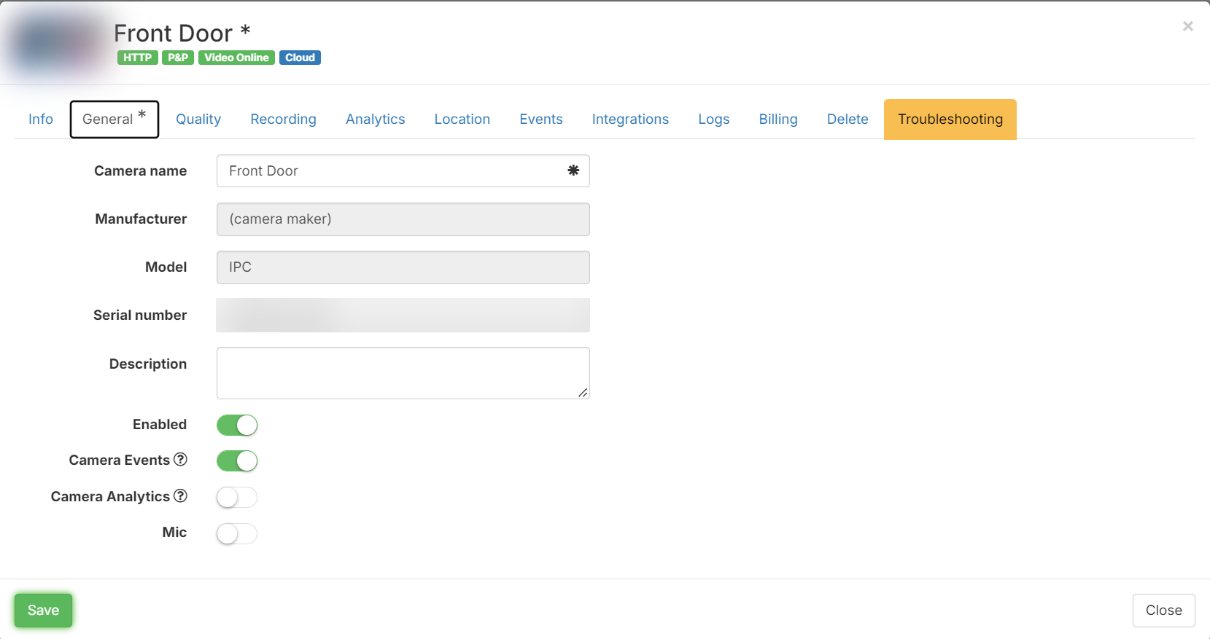
In Silarius Cloud Admin, open the camera. On the General tab, turn on Mic so it shows green. Click Save.
- Set the audio type on the camera
On the camera's own page, set the audio compression to G.711U. Make sure the camera's speaker is turned on there too.
- Press the microphone button
In the web app, open the camera live. Click the microphone button. A small bar appears and moves when you talk. That means it works.
- Allow your microphone
Your web browser may ask to use your microphone. Click Allow.
There is no microphone button
- Check that the camera really has a speaker, and that the speaker is on in the camera's own page.
- Check that Mic is green in Silarius Cloud Admin.
- Restart the camera after you change these.
The sound bar doesn't move
- Check that your computer's microphone works in your computer's settings.
- Check that your web browser is allowed to use the microphone. Click the lock next to the web address and allow the microphone.
- Close other programs that might be using the microphone, like a video call.
The sound is too quiet
On the camera's own page, turn up the input and output levels (sometimes called gain).
Still stuck? We'll do it with you, free.
Silarius customers can get free remote help: sign in, click one button, and a Silarius technician joins your computer.