
Search events by color
Find a person or car in your events by the color they were wearing or painted.
By the end you will be able to filter your events by object color, like finding every red car from today.
What you need
- A camera with smart AI detection turned on
- The Silarius Cloud web app
Step by step
- Open Events
In the Silarius Cloud web app, open the Events menu.
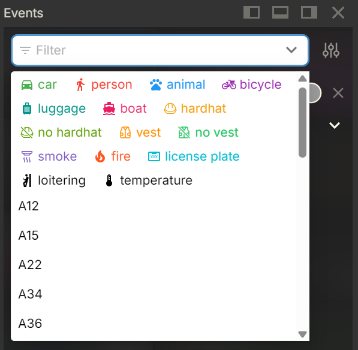
- Pick an object type
Pick the kind of thing you're looking for, like a person or a car. You can pick more than one.
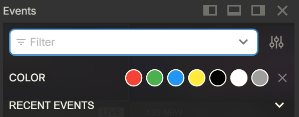
- Pick colors
After you pick an object type, the color panel shows up. Pick one or more colors.
- Look at the results
The events list now shows only matches. If you picked more than one color, an object only needs one of those colors to show up.
Good to know
- If a scene has several objects, just one of them needs the color you picked for the event to show.
Still stuck? We'll do it with you, free.
Silarius customers can get free remote help: sign in, click one button, and a Silarius technician joins your computer.