
AI search: find video by typing what you saw
Type everyday words like "red pickup truck" and find matching recorded events across your cameras.
By the end you will find recorded video just by typing what you are looking for, like "person with a red backpack".
What you need
- You are signed in to the Silarius Cloud web app
- The Advanced Video Analytics add-on turned on for the cameras you want to search
Results are leads, not proof. A match does not show who someone is or what they meant to do. Always check the recording.
Step by step
- Open the search
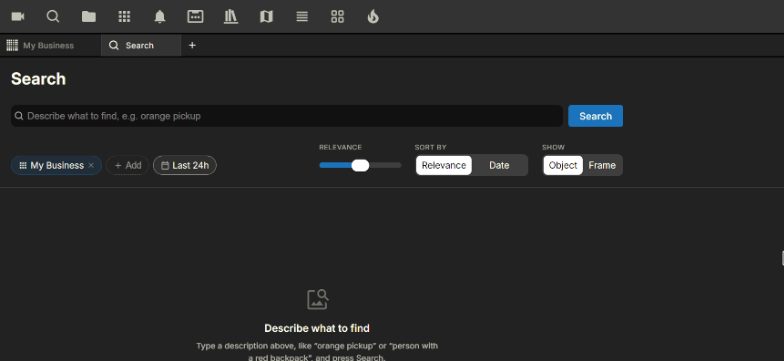
Click the Search icon (a magnifying glass) in the top toolbar. The search opens in a new tab. Your normal view stays where you left it.
- Pick cameras
Use the camera picker to choose cameras. Select All Shown picks every camera in the list. + Add adds whole camera groups.
- Pick the time
Click the time filter. Choose Last hour, Last 24h, Last 7 days, or Custom with your own start and end.
- Type and search
Type what you are looking for in the box. Click Search. Each result shows the camera, the date and time, and a percent for how well it matches.
- Narrow the results
Move the RELEVANCE slider right for fewer, closer matches, or left for more. Use Sort by (Relevance or Date) and Show (Object close-up or full Frame).
- Watch results
Click a result to play it in the floating player. To watch several, tick the box in the top left of each one and click Open In Layout at the bottom.
- Search again or close
Click the X inside the search box to clear it and type something new. Click the X on the search tab to close the search.
What it searches
This search looks through recorded analytics events. Those are things the system spotted, like a person or a vehicle. It does not search all your recorded video. It also does not search motion events made by the camera itself.
Only cameras with the Advanced Video Analytics add-on give results. To add it: Contact Silarius: request a quote or email us.
What you can type
You can mix any of these:
- Things: a vehicle, a bike, a bag.
- People: and what they look like.
- Looks: colors and types.
- Actions: riding, cleaning, smoking.
- Where or how: "from a car window", "in a parking lot".
Examples:
- orange pickup truck: orange trucks.
- cyclist riding without helmet: bike riders to check for helmets.
- white SUV cleaning in parking lot: a vehicle plus an action.
- person manipulating vehicle door: events worth checking if cars keep getting broken into.
- person smoking a cigarette from a car window: a person doing something in a vehicle.
Spot things that keep happening
You can search many cameras over many days. So you can spot patterns, like the same thing happening in the same place again and again. Search across a wide time range, then sort by Date. Remember: these are leads to check, not answers.
Which AI search should I use?
- You can put it into words ("blue sedan"): use this text search.
- You can see the subject on a camera and want to find look-alikes: use AI search by picture.
Good to know
- Too many results? Add a detail, like the type of car. "Blue sedan" finds fewer than "blue car".
- Too few? Try simpler words or a wider time range.
- If you don't get what you expect, try saying it a different way.
Common questions
A camera never shows up in my results.
Check that the Advanced Video Analytics add-on is on for that camera.
I know the video exists, but search doesn't find it.
This search only looks at recorded analytics events, not all video. Use the timeline to look through the video yourself.
I can't close the search tab.
If it is your only open tab, open another tab first. Then close the search tab.
Still stuck? We'll do it with you, free.
Silarius customers can get free remote help: sign in, click one button, and a Silarius technician joins your computer.