
Watch one camera in a floating window
Pop a camera out into a window you can move, resize or send to a second screen.
By the end you will pop a camera out of its box into a floating window. You can move it, make it big, or put it on another screen, and send it back with one click.
What you need
- You are signed in to the Silarius Cloud web app
- A layout with at least one camera
Step by step
- Open the floating player
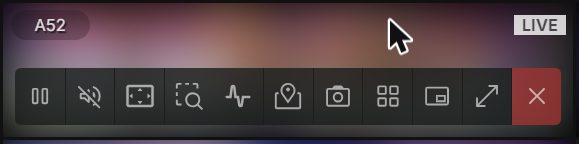
Move your mouse over a box that has a camera. Click Open in Floating Player on its toolbar. The video opens in a window on top of your layout.
- Move and resize it
Drag the window where you want it. Drag its edges to make it bigger or smaller.
- Use the timeline
The floating player has the full timeline with the colored event dots. Use it just like in your layout. Click Hide Timeline at the top right for more picture. Click Show Timeline to bring it back.
- Make it big
Click Maximize to fill the screen. Click Restore to go back to the size it was.
- Close it
Click X at the top right. The video goes straight back to its box.
Put it on a second screen
- Click Open in a separate window at the top right of the player.
- Drag the new window to your other screen and resize it.
- To bring it back, click Back to Tab in that window. The video stays in the floating player, back in your main tab.
- In a separate window, the X button's label says Back to layout.
What happens to the empty box?
While the camera floats, its box says Playing in the floating player. It has a Bring Back button. Click it any time to put the video back in its box.
Ways to use it
- Keep a close eye on one camera while you look at other layouts.
- Watch an event from search results without losing your live grid.
- Give one camera its own screen.
It works with live video, recorded video and events.
Common questions
I can't find Open in Floating Player.
Move your mouse over a box that has a camera in it. The button is on that box's toolbar.
The floating player disappeared.
Look for a separate browser window. It may be on your other screen. Click Back to Tab there.
The player covers other cameras.
Drag it somewhere else, make it smaller, or click Bring Back on its box.
Still stuck? We'll do it with you, free.
Silarius customers can get free remote help: sign in, click one button, and a Silarius technician joins your computer.