
Connect your NVR or DVR (and all its cameras)
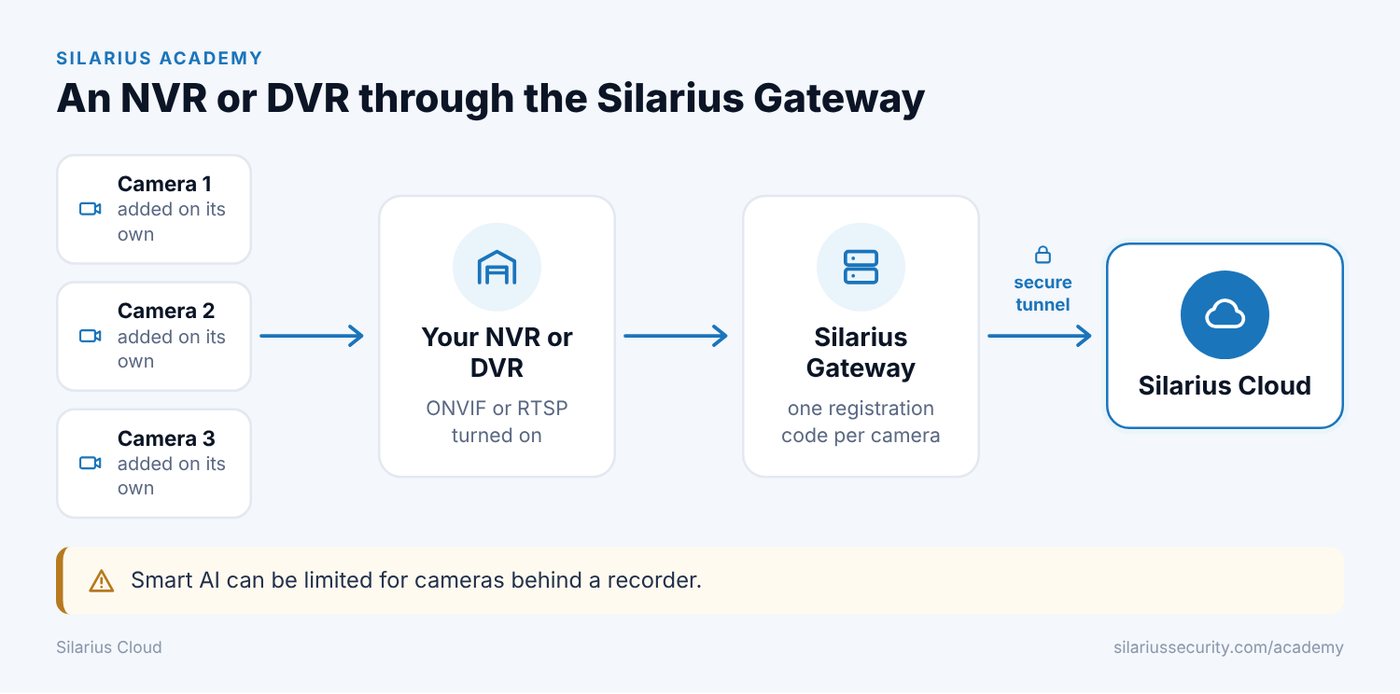
Keep the recorder you have. The Silarius Gateway adds every camera on your NVR or DVR to Silarius Cloud, one by one.
By the end, every camera on your recorder will show in Silarius Cloud, and your recorder keeps recording at the site too. You do it in 5 parts.
What you need
- A Silarius Gateway, already set up (see Silarius Gateway: from the box to live video, Part 1)
- Your NVR or DVR, plugged into the same network as the Gateway
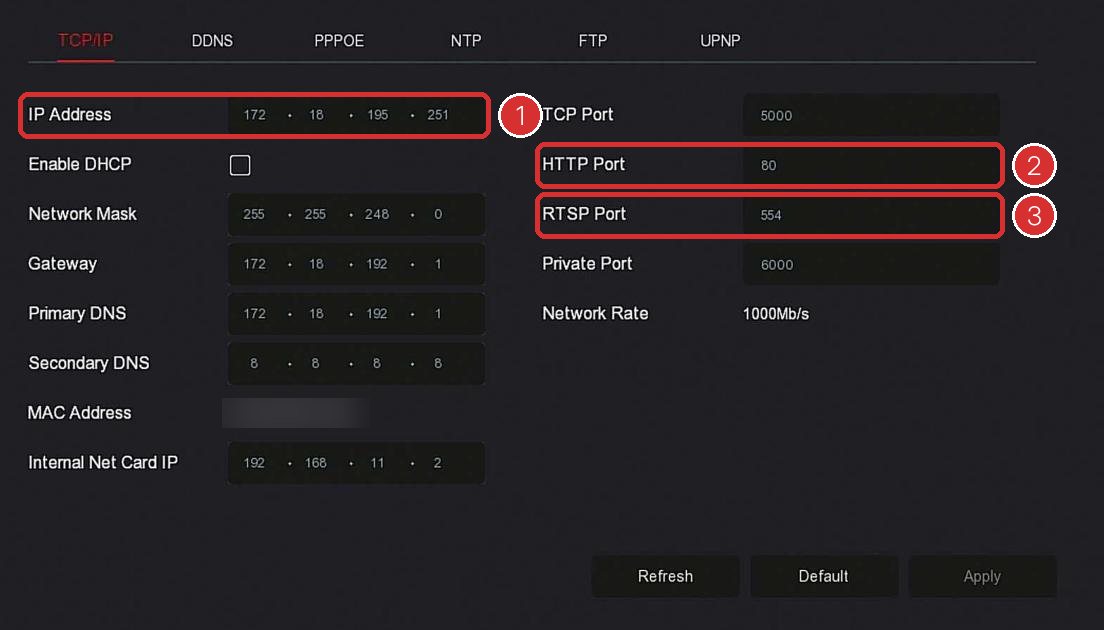
- The recorder's IP address (its number on your network, like a house number)
- The recorder's ports: HTTP (often 80) and RTSP (often 554)
- The recorder's ONVIF user name and password
- A list of which camera is on which channel (channel 1, 2, 3 and so on)
Each camera on the recorder counts as one camera on your Silarius Cloud plan.
Step by step
- Part 1 · Turn on ONVIF on the recorder
ONVIF is the common language the Gateway uses to talk to your recorder. On the recorder's menu or its web page, look under Network or Security for ONVIF and turn it on. Some recorders also make you create an ONVIF user with its own user name and password. Not sure where it is? Check the recorder's manual or get free remote help.
- Part 1 · Write down 4 things
Write down the recorder's IP address, its HTTP port, its RTSP port, and the ONVIF user name and password. You'll type them in the next parts.
- Part 2 · Open the Gateway's page
On a computer on the same network, open a web browser and go to camera-gateway.local. Sign in.
- Part 2 · Add the recorder once
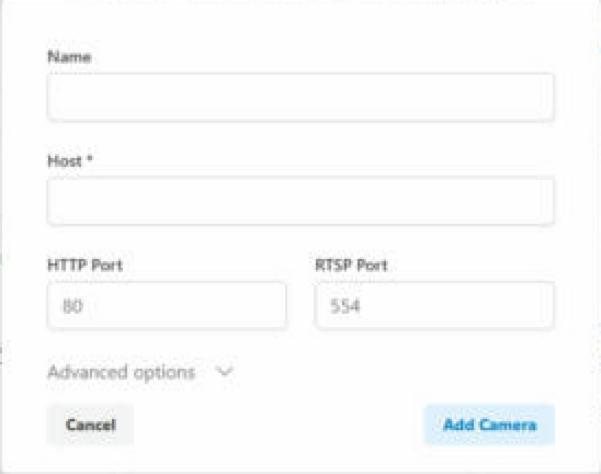
Click Add Camera. Type the recorder's IP address, its HTTP port and its RTSP port. Click Add Camera at the bottom.
- Part 2 · Add it again for each camera
Click Add Camera again and type the exact same IP address and ports. Do this once for every camera on the recorder. A recorder with 8 cameras gets added 8 times. That's normal.
- Part 2 · Copy the codes
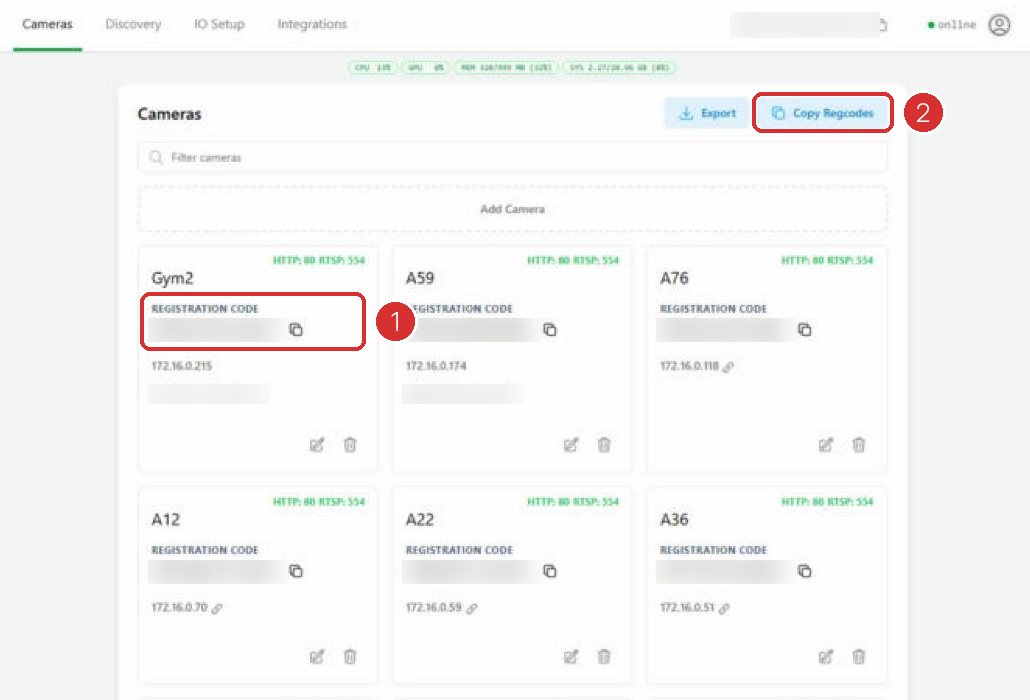
Click the Cameras tab. Each copy of the recorder now has its own registration code. One code = one camera. Write them down in order.
- Part 3 · Log in to Silarius Cloud Admin
Go to silariussecurity.com/login and sign in to Silarius Cloud Admin. Click Cameras, then the green Add button.
- Part 3 · Pick P&P Camera
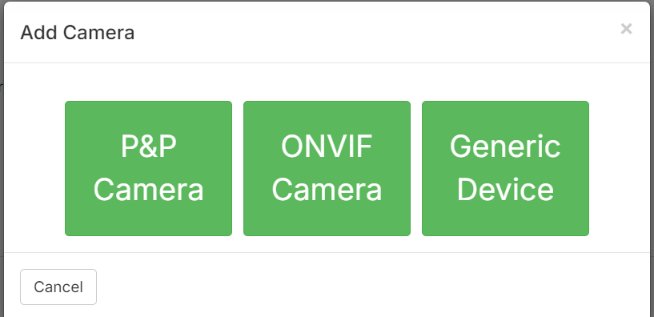
In the window that opens, click P&P Camera.
- Part 3 · Enter the first code
Keep New P&P Camera selected. Paste the first registration code. Give it a clear name with the channel number, like Front door (ch 1). Type the recorder's ONVIF user name and password. Click Create.
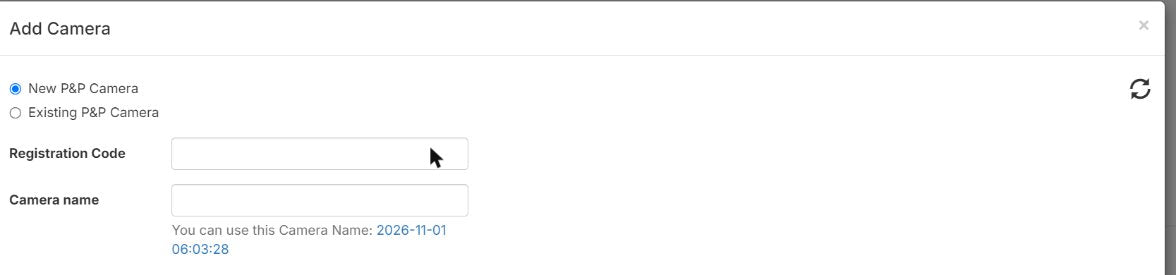
- Part 3 · Repeat for every code
Add each of the other codes the same way: ch 2, ch 3, and so on.
- Part 4 · Pick the right channel for each camera
Right now every copy may show the same picture. Open each new camera in Silarius Cloud Admin, go to its quality (streaming) settings, and pick the channel that matches its name. Front door (ch 1) gets channel 1, and so on. Save.
- Part 5 · Watch them in the web app
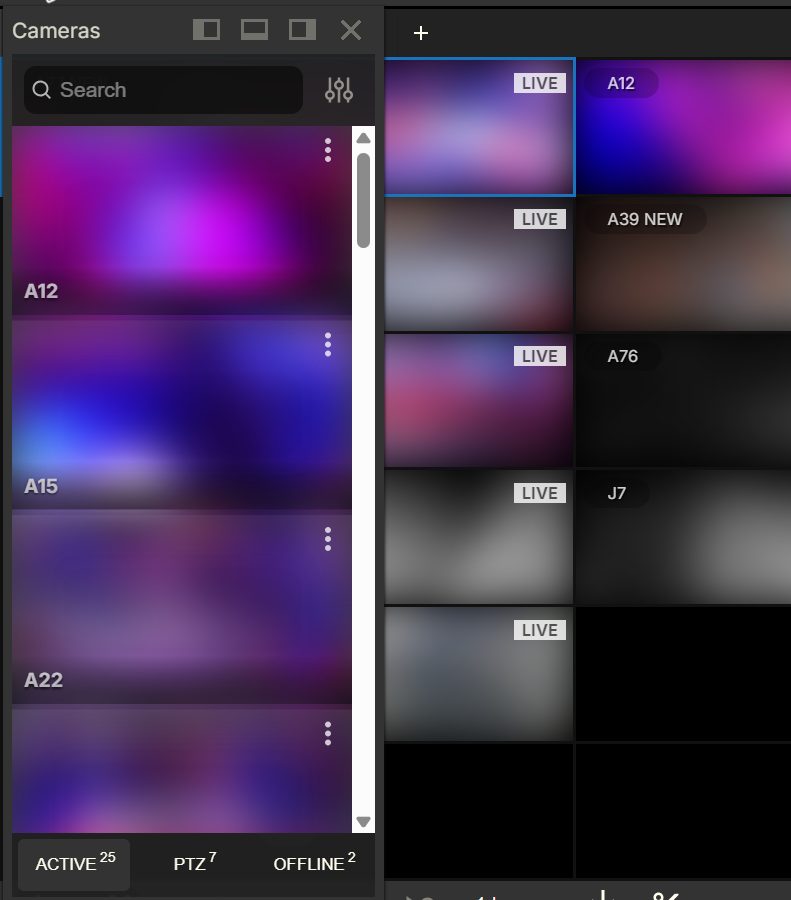
Go to silariussecurity.com/login and click Log in to Silarius Cloud. Open the Cameras list. Every camera from your recorder is there. Drag them onto your screen.
- Part 5 · Check that it records
Wait a few minutes, then click a moment in the past on the timeline. If you see video, you're done.
Good to know before you start
- Your recorder keeps recording. Silarius Cloud adds an off-site copy. If the recorder is stolen or breaks, your video is still safe in the cloud.
- Smart AI may be limited. Smart AI needs event data from the camera. Many recorders don't pass it on, so cameras behind a recorder may get video only. For full smart AI, connect the cameras straight to the Gateway, or use Silarius X cameras.
- Best setup. If you can, connect the cameras to the Gateway directly and let the recorder run beside them as a local backup.
- Old analog cameras work through a DVR. The DVR needs ONVIF or RTSP turned on.
Video won't start?
- Check the ONVIF user name and password. A wrong password is the most common problem.
- Check the HTTP and RTSP ports you typed in the Gateway.
- On some recorders, video only starts after you set RTSP sign-in to Digest/Basic in the recorder's settings.
- On the recorder, connect each camera by RTSP or at least ONVIF. That gives the cleanest video.
- Still stuck? Get free remote help.
Good to know
- Name each camera with its channel number. It makes Part 4 easy.
- A single Gateway can hold up to 50 cameras, including recorder channels.
Common questions
Do I still need my recorder?
No, but you can keep it. Many people keep it as a local copy.
Can I connect a recorder without a Gateway?
It's possible by opening ports on your router, but it's harder and less safe. The Silarius Gateway is the easy, safe way.
Will each camera cost extra?
Each camera on the recorder counts as one camera on your plan. Questions about your plan? Email us.
Still stuck? We'll do it with you, free.
Silarius customers can get free remote help: sign in, click one button, and a Silarius technician joins your computer.