
Fix camera problems on the Silarius Gateway
What to do when a camera connected through the gateway shows blank model info or won't work.
By the end you will know why a camera on the gateway may not work. You will have a list of fixes to try in order.
Step by step
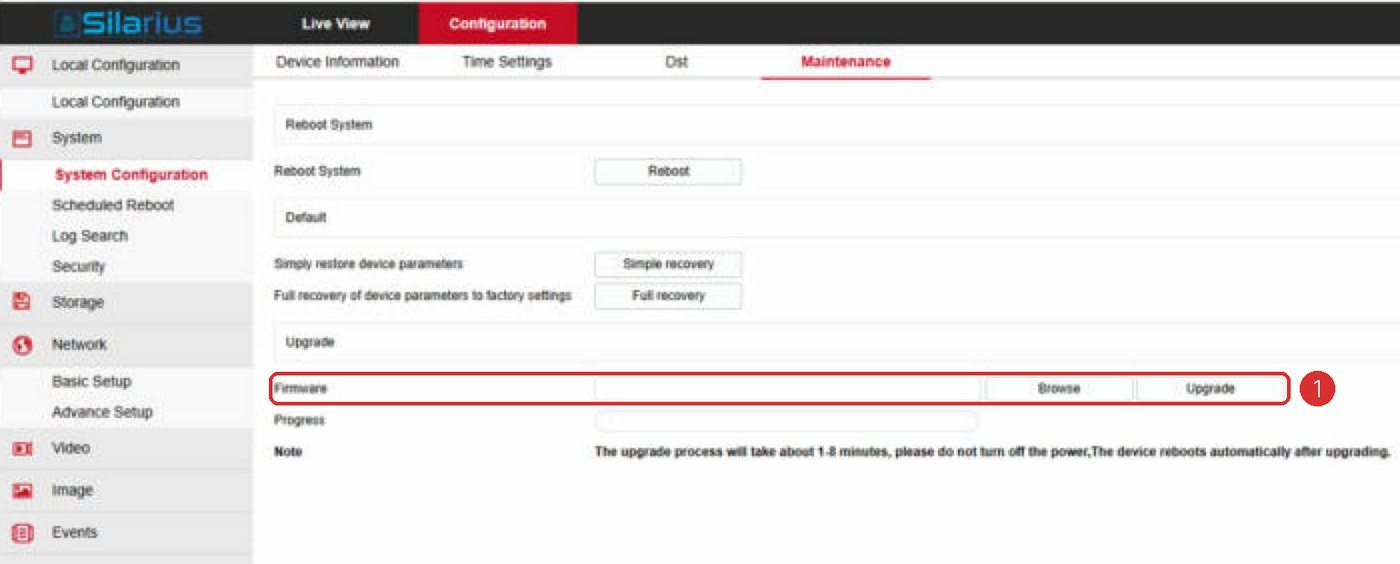
- Update the camera's firmware
Firmware is the camera's built-in software. Old firmware may not follow ONVIF properly. Update to the newest version from the camera maker.
- Try a simpler sign-in method
On the camera's own web page, open its security settings. Set the sign-in (authentication) method to basic. If Model and Serial number now fill in, sign-in was the problem.
- Raise security again step by step
Now raise the sign-in security bit by bit. Stop at the highest level where the camera still connects. Each camera model is different.
- Test the link to the camera
In Silarius Cloud Admin, open the camera's Troubleshooting tab and click Generate URL. If the camera's page opens, the gateway can reach it, and the problem is ONVIF. Go back to steps 1 and 2. If the page won't open, the camera may be offline.
- Check the HTTP port
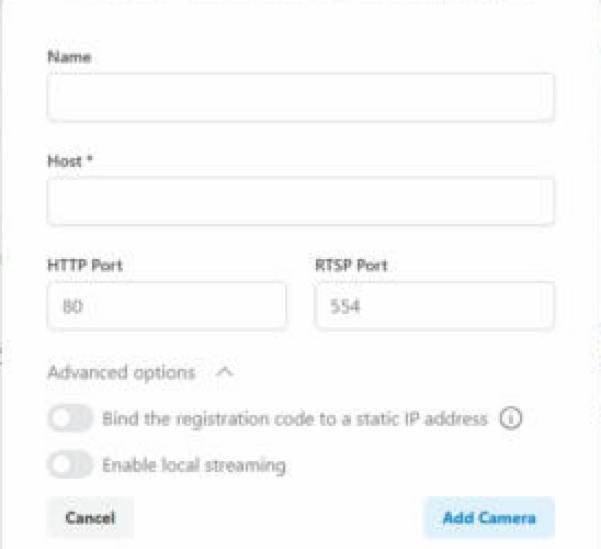
On the gateway, the camera's HTTP port should show green. A wrong HTTP port is a common cause. Fix it and try again.
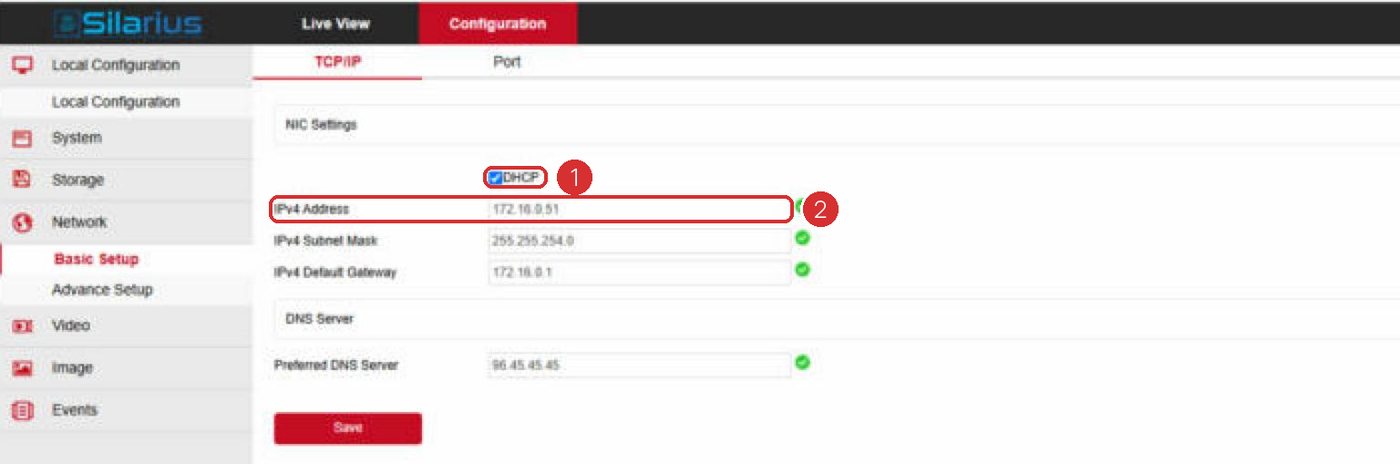
- Check the camera's network settings
Make sure the camera's settings fit your network. For example, if the camera has no default gateway (router address) set, its page may open but it won't work properly.
- Check firewalls and switches
A local firewall or a smart switch can block traffic. Let the gateway talk to the camera on your network. Allow the gateway to send traffic out on port 443.
- Use an ONVIF test tool
An ONVIF testing tool can connect to the camera and often shows what's wrong. Use the same user name and password as the camera. Sometimes the fix is simple, like picking a different time server for the camera's clock.
- Factory reset a used camera
If the camera was used with another video system before, do a full factory reset. Then set it up again and reconnect.
The sign: blank Model and Serial number
Open the camera settings in Silarius Cloud Admin and look at the General tab. If Model and Serial number are empty, the camera did not answer the cloud properly. The gateway reached the camera, but the camera didn't send back what was needed.
When the camera works, these fields are filled in.
Good to know
- Most of these problems come down to how well the camera follows ONVIF. A firmware update fixes many of them.
Still stuck? We'll do it with you, free.
Silarius customers can get free remote help: sign in, click one button, and a Silarius technician joins your computer.