
What the Silarius Gateway is (and common questions)
Learn what the Silarius Gateway does, how many cameras it handles, and answers to common questions.
By the end you will know what the Silarius Gateway does and whether you need one. You will also know where to put it and what to do if it stops working.
Step by step
- If it stops working: restart it
Unplug the power. Plug it back in and give it a few minutes to start.
- Re-seat the SD card
If that doesn't help, unplug the power. Take the SD card out of the gateway and push it back in. Power it on again.
- Ask for help
Still not working? Contact Silarius support: get free remote setup help or email us.
What it is
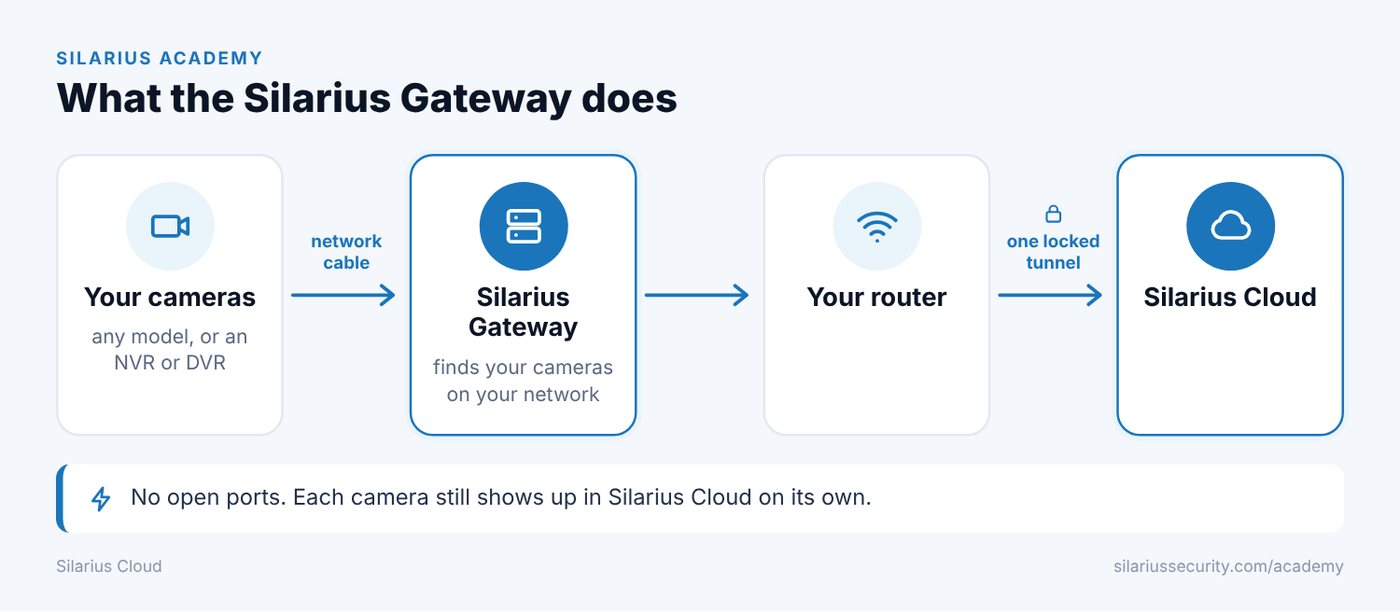
The Silarius Gateway is a small box you plug into your network. It connects your own existing IP cameras, any model, to Silarius Cloud.
It finds ONVIF cameras on your network by itself. ONVIF is a common language many IP cameras speak. Then it sends their video to the cloud through a locked, encrypted tunnel.
Have an NVR or DVR? Its cameras can connect through the Silarius Gateway too. See Connect your NVR or DVR.
Why use it
- It is the easiest and safest way to connect cameras you already have.
- You don't need port forwarding. Nothing on your network is opened to the internet.
- All video is encrypted on the way to the cloud.
- If your internet company changes your public address, the gateway reconnects by itself. You don't need to update anything.
Do I need it?
- Silarius X cameras: no. They connect straight to the cloud with no gateway and no recorder.
- Your own existing IP cameras: use the Silarius Gateway, or connect them by ONVIF.
How many cameras can it handle?
Up to 50 devices per gateway. The real number depends on how much video your cameras send:
- 720p cameras: about 30 to 40.
- Cameras sending about 1 Mbps: about 20 to 25.
- 4K cameras sending 3 to 4 Mbps: about 8 to 10.
In most places, your network speed is the real limit.
What it does and doesn't do
It finds cameras and makes the secure tunnel to the cloud. It does not run AI analytics. All analytics happen in the cloud.
It can also be set up to record a copy of video at the site. See Keep recording when the internet drops.
Where to put it
- Put it on the same local network as the cameras.
- Keep it indoors and dry. It is not water-resistant. Any water can damage it.
- Keep it between about 1 °C and 40 °C (34–104 °F).
- It is small and has no fan, so it fits in tight spaces.
Do the cameras need internet?
No. The cameras only need to be on the same network as the gateway. Do the basic camera setup: password, clock and picture settings.
If your network has a firewall, let the gateway reach the cameras. Also allow the gateway to send traffic out on port 443. You can block all internet traffic for the cameras themselves if you want.
Cameras at another site
Keep the gateway at the same site as the cameras. Linking far-away cameras to a gateway somewhere else would need port forwarding. That defeats the point. For a single far-off camera, it is simpler to connect it straight to the cloud by ONVIF.
If your sites are linked by a private network, one gateway can still reach them. See Cameras on different networks with one Silarius Gateway.
How long does setup take?
If the cameras are already installed, a tech can often finish in 15 to 20 minutes. The gateway comes with its software ready. It starts finding cameras a few minutes after you plug it in.
How the gateway shows up in Silarius Cloud Admin
If you register the gateway itself, it shows up as a camera that is always offline. That is normal. It is not a camera. You use it to open the gateway's settings from anywhere.
Good to know
- Power cuts, network outages and water are the most common reasons a gateway goes offline.
- Back up your gateway's camera list so you can move it to a new gateway. See Back up and copy gateway settings.
Still stuck? We'll do it with you, free.
Silarius customers can get free remote help: sign in, click one button, and a Silarius technician joins your computer.