
Daily health check: know when a camera goes offline
Get a daily report, or a fast alert, when a camera goes offline.
By the end you will get a daily report of cameras that went offline, and you can get faster alerts for the cameras that matter most.
Step by step
- Open Alerts
In Silarius Cloud Admin, click Alerts.

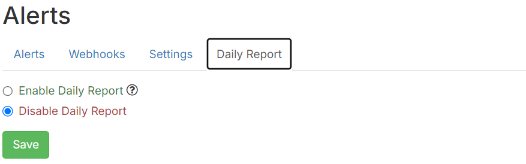
- Turn on the daily report
Open the Daily Report tab. Click each person's name to add them to the list of people who get the report.
- Create a system event alert
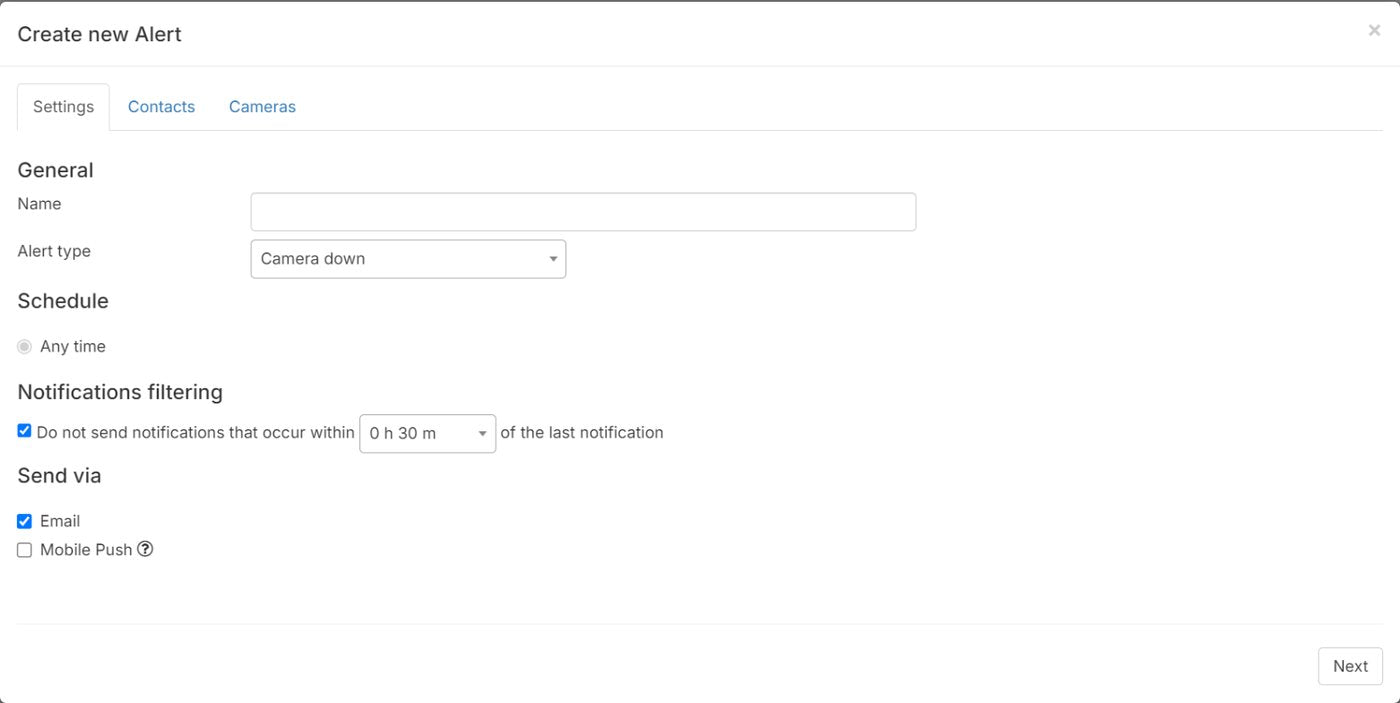
For faster alerts, click Create System Event. Give it a clear name, because it shows in the alert's heading.
- Pick cameras and people
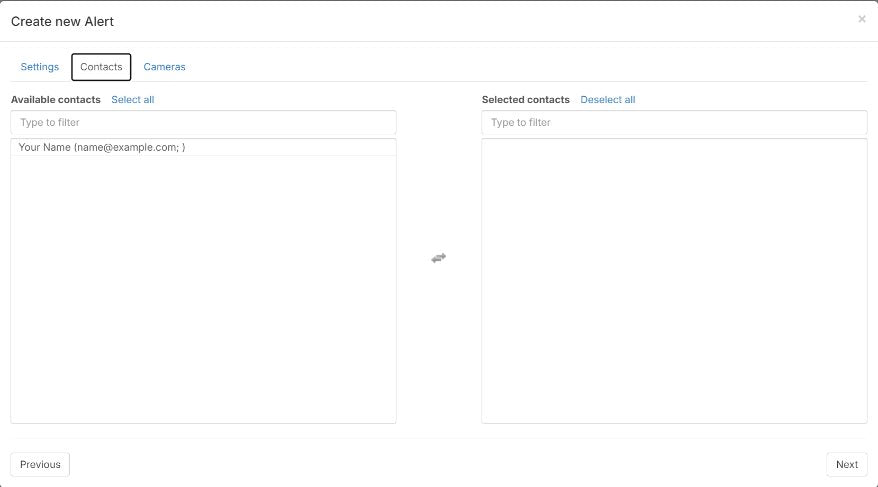
On the Cameras tab, click each camera to move it to the selected column. On the Contacts tab, do the same for the people who should get the alert. Click Create.
- Choose when it is on
On the Settings tab, set alerts to Armed (always on), On schedule, or off.
Two kinds of camera health alerts
- Daily report: one email each day. It lists every camera that was offline at some point in the last 24 hours. It is made at midnight.
- System event alert: a faster alert. You choose which cameras to watch and when the alert is on.
You can use one or both.
Good to know
- Turn on notification filtering to bundle many alerts into one message over a set time, instead of one message for each problem.
Still stuck? We'll do it with you, free.
Silarius customers can get free remote help: sign in, click one button, and a Silarius technician joins your computer.