
Set up your site, step by step
A start-to-finish checklist for setting up Silarius Cloud at one site or many.
By the end you will have a clear plan to set up Silarius Cloud from start to finish, whether you have one building or many.
What you need
- An owner sign-in for Silarius Cloud Admin
- A list of your cameras and where they are
- Internet at every site
Step by step
- Sign in to Silarius Cloud Admin
Go to silariussecurity.com/login, click Log in to Silarius Cloud, and sign in as the owner.
- Plan your camera names
If you have more than one site, put a short site code in every camera name, like "MAIN - Front Door". Then you can sort the camera list to show one site at a time.
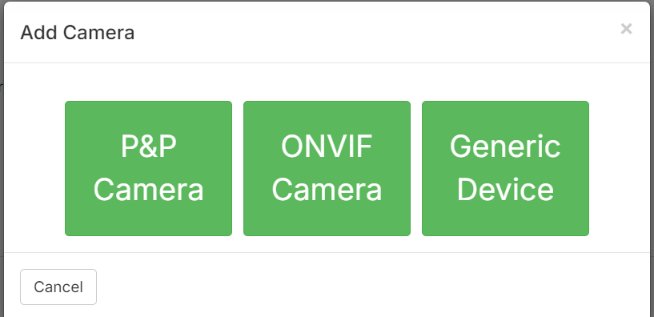
- Connect your cameras
Add Silarius X cameras with plug and play. Bring in your own existing cameras, any model, with the Silarius Gateway or ONVIF. See Ways to connect your cameras.
- Set up event detection
For each camera, open the Analytics tab. Set the area, lines and sensitivity (how easily it reacts). Turn on smart analytics if you want help filtering out false events.
- Test and adjust
Watch the events for a few hours or days. A little too sensitive is better than missing something. But too sensitive makes one never-ending event, which is hard to read on the timeline.
- Add your people
For a single home, the owner account may be all you need. Otherwise, add a user for each person. See Add a user.

- Make roles
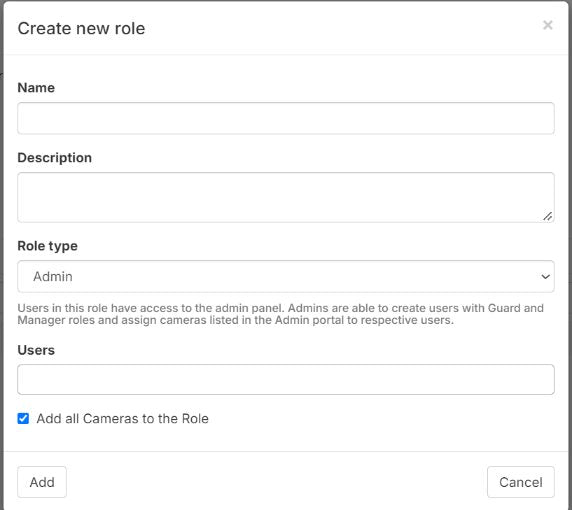
Roles decide who sees which cameras. A good habit is one role per site. Then you can give a group of people one site, or several. See Roles: who can see and do what.
- Create alerts
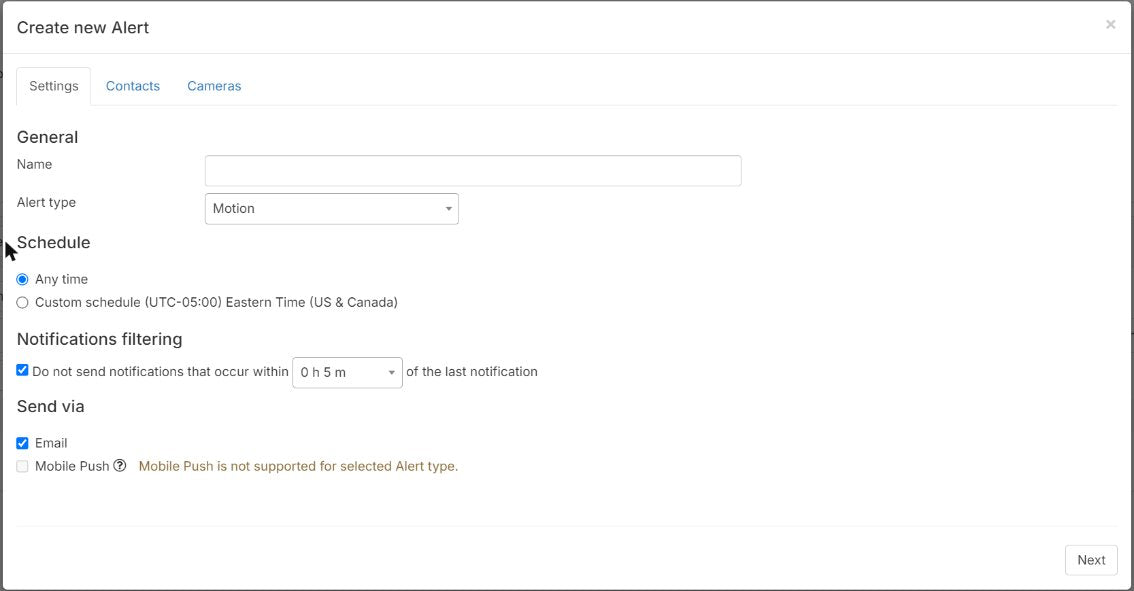
In Alerts, set up alerts so you hear about motion and other events. Also set up a daily health check so you know if a camera goes offline. See Daily health check.
- Make layouts
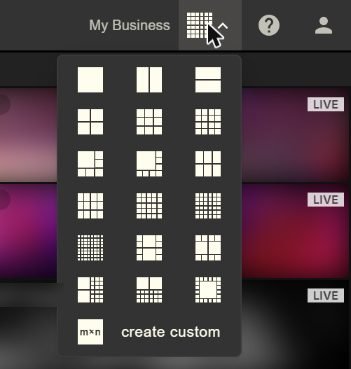
A layout is a screen that shows several cameras at once. Pick a grid, then put cameras in the boxes. You don't have to fill every box. Up to 9 cameras works on almost any device. More needs a strong graphics card and fast internet.
- Group layouts in folders
Group layouts into categories and sub-categories. For example, a category for each area and a sub-category for each site. Drag and drop layouts into them.
- Learn the time-savers
If you only check now and then, learn the mobile app and how to open alerts. If you look into incidents, learn the thumbnail grid, events, the timeline and clips. These tools save a lot of time.
Common questions
Can I add my recorder (NVR or DVR) to this site?
Yes. Connect the NVR or DVR to the Silarius Gateway, and each camera on it is added on its own. See Connect your NVR or DVR.
Can someone help me set this up?
Yes. Contact Silarius support: get free remote setup help or email us.
Still stuck? We'll do it with you, free.
Silarius customers can get free remote help: sign in, click one button, and a Silarius technician joins your computer.