
Find your way around
A quick tour of the Silarius Cloud web app and Silarius Cloud Admin.
By the end you will know the main parts of the web app and the main menus in Silarius Cloud Admin, so nothing feels strange.
Two places, two jobs
- Silarius Cloud web app: where you watch live and recorded video.
- Silarius Cloud Admin: where owners and admins set things up, like cameras, people and alerts.
Guards (people who only watch) use the web app and the mobile app. They can't open Silarius Cloud Admin.
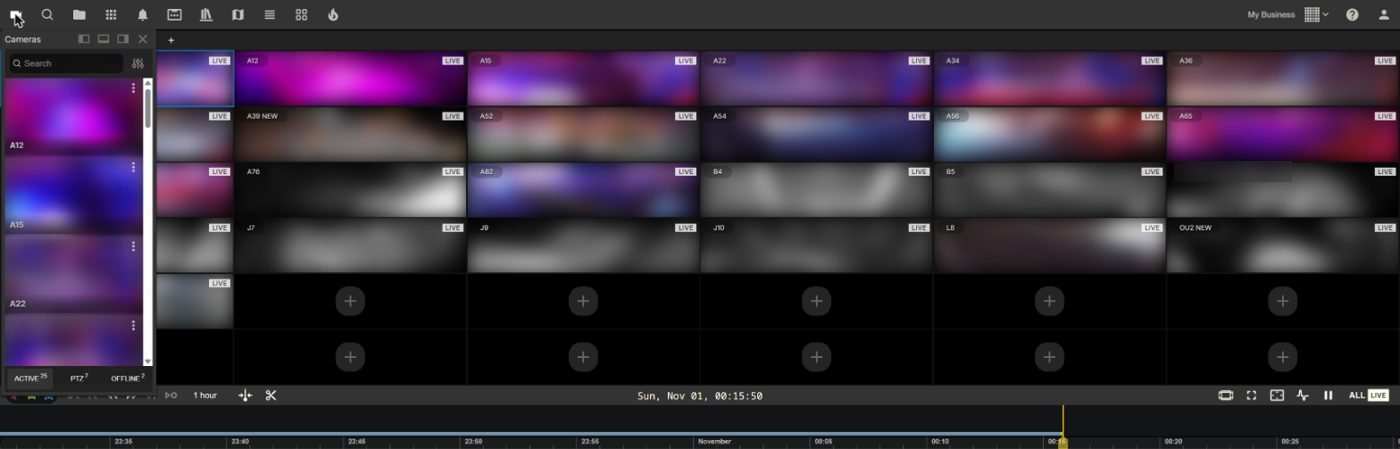
The web app screen
- Top menu bar: opens the main features and lets you arrange your screen. Help and your Profile are here too.
- Camera controls: move your mouse over a camera picture to show its buttons. The buttons you see depend on what the camera can do.
- Bottom toolbar: more tools at the bottom of the screen.
- Thumbnails: small pictures from your cameras.
- Timeline: the bar you use to move back and forth through recorded video.
Silarius Cloud Admin menus
- Dashboard: the first page you see. It shows numbers for a date range, like storage used, connection numbers, and how many cameras you have and their status. Pick a start date and end date, then click Show. Click Charts to see numbers camera by camera.
- Users: add people and change their access.
- Roles: choose which cameras people can see and what they can do.
- Cameras: add and set up cameras. It has three tabs: Cameras, Shared and Deleted.
- Alerts: get told by email or phone when something happens or a camera goes offline.
- Events: a list of everything your cameras noticed or that happened to them.
- Share: a list of every time a camera was shared, and the Share button to share one.
- Logs: what each person did and when.
- Profile: your own name, password, username and two-factor sign-in.
Reading the camera list
- The small picture is a recent snapshot. Offline or turned-off cameras show a plain symbol.
- A checkmark means the camera is on and recording.
- A crossed circle means the camera is turned off. New video from it is not stored.
- Click a camera's name to open its settings.
Camera settings tabs
When you open a camera, wait for its settings to finish loading. You will see tabs like these:
- General: name, maker, model, and the microphone on/off switch.
- Network: the camera's addresses and a connection test (not used for Silarius X cameras).
- Quality: resolution, FPS, image quality and bitrate.
- Recording: how long video is kept.
- Analytics: motion and other smart features.
- Location: where the camera is on a map.
- Events: what this camera noticed.
- Logs: when the camera went on or offline.
- Troubleshooting: helps you find what is wrong.
Tables work like spreadsheets
Most lists in Silarius Cloud Admin work like a spreadsheet.
- Click the arrows on a column to sort it.
- Type in a column header to search. Part of a name works too.
- Click Columns to choose which columns you see.
- Reset Filters clears your searches. Reset Settings puts the table back to normal.
- Lists don't update by themselves. Click Refresh to see the newest status.
Good to know
- If a camera's status looks old, click Refresh. Lists only update when you open them or refresh.
Still stuck? We'll do it with you, free.
Silarius customers can get free remote help: sign in, click one button, and a Silarius technician joins your computer.