
Camera info and description
Read a camera's info page and write a neat description for it.
By the end you will understand what a camera's info page tells you, and how to add a tidy description to a camera.
Step by step
- Open the General tab
Open the camera and click the General tab.
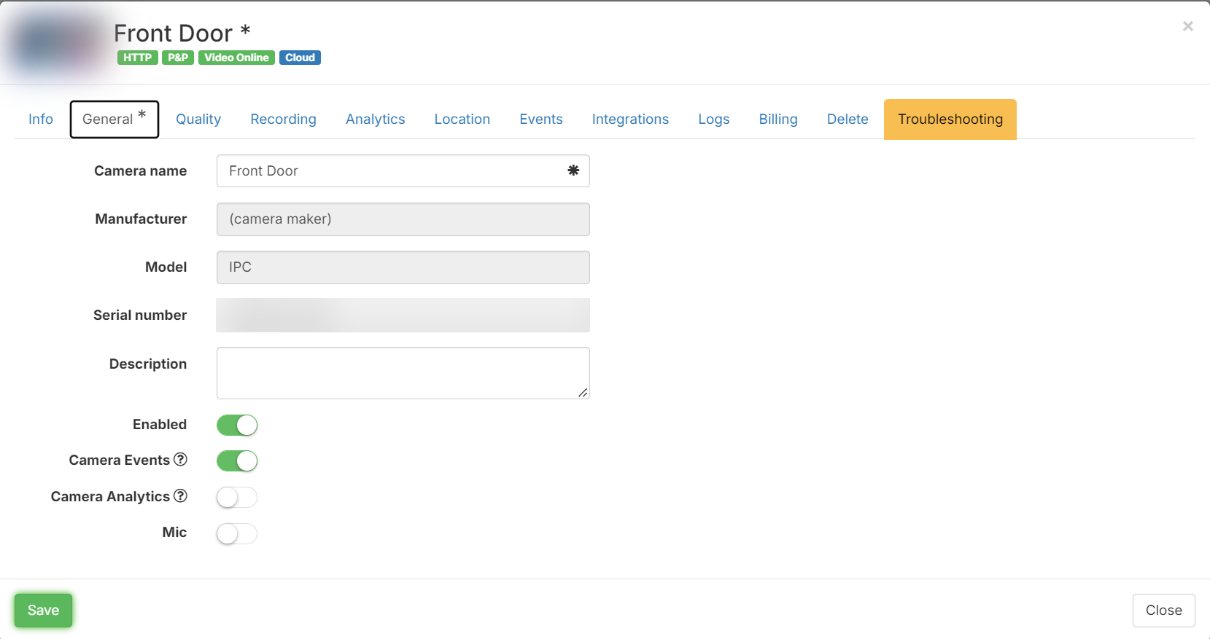
- Write a description
Type a description in the Description box. Keep it to 250 characters or fewer. A good description tells people what the camera sees, like "Back door, loading dock".
- Add formatting if you like
The description understands Markdown, a simple way to style text with symbols. To make words bold, type two star symbols right before and right after them. To make a small table, put a | symbol between columns and a row of dashes under the top row.
- Save
Click Save. Screens that show the description will show it formatted.
Open the info page
In Silarius Cloud Admin, click Cameras, then the camera's name. Wait for the settings to finish loading.
The colored lights at the top
Small lights at the top show what is working.
- Green means it works. For example, a green HTTP Available means the camera connected over ONVIF.
- Red means that part isn't connected or has a problem. Open the Troubleshooting tab to learn more.
The lights only check once, when you open the camera. To check again, close the camera and open it again.
General info
This part shows the camera's name, maker, model and ID. It also shows:
- Whether the camera is turned on or off.
- Whether it is reachable over ONVIF.
- Whether video is coming in.
- Its plan and how long video is kept.
- Which account it belongs to.
ONVIF analytics modules
This list shows smart features you can set up from Silarius Cloud.
If one says Not available, the camera may still have it. It just can't be set up from here. Set it up on the camera's own web page instead. For a Silarius X camera, open the Troubleshooting tab and use the button that makes a short-time link (Generate URL). For an ONVIF URL camera, copy the link from the Network tab.
The other parts
- Thumbnail: a small picture from the camera. It updates every 15 minutes while the camera is online.
- Roles: every role that can see this camera. Click it to open the list.
- Share: whether the camera is shared by a link or a widget.
- Statistics: storage used, data sent, total length of saved clips, and the camera's average bandwidth for the dates you pick.
Good to know
- Put a short site name in each camera's name and description. It makes cameras easy to find when you have many sites.
Still stuck? We'll do it with you, free.
Silarius customers can get free remote help: sign in, click one button, and a Silarius technician joins your computer.