
Add a camera to the gateway with its RTSP stream
Add any IP camera to the Silarius Gateway by typing in its RTSP stream details.
By the end you will be able to add any IP camera to the Silarius Gateway using its RTSP stream. RTSP is a common way cameras share live video on a network.
What you need
- The camera's local IP address, for example 192.168.9.216
- The camera's RTSP port (usually 554)
- The camera's RTSP user name and password
- The camera's RTSP media path, for example /live1s3.sdp
HTTP Port must be 0 for RTSP. Any other number makes the gateway try a different kind of connection, and the camera won't add correctly.
Step by step
- Open the Cameras page
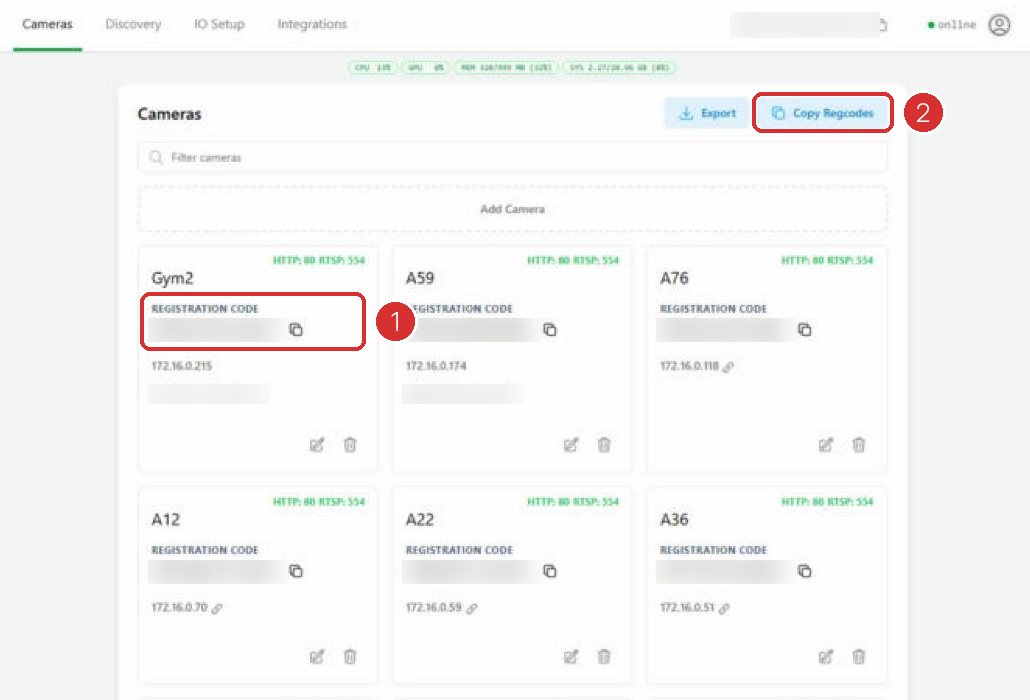
Sign in to the gateway's web page. Click the Cameras tab at the top.
- Click Add Camera
Click the Add Camera button. It is the dashed box near the bottom of the list. A form opens.
- Fill in the details
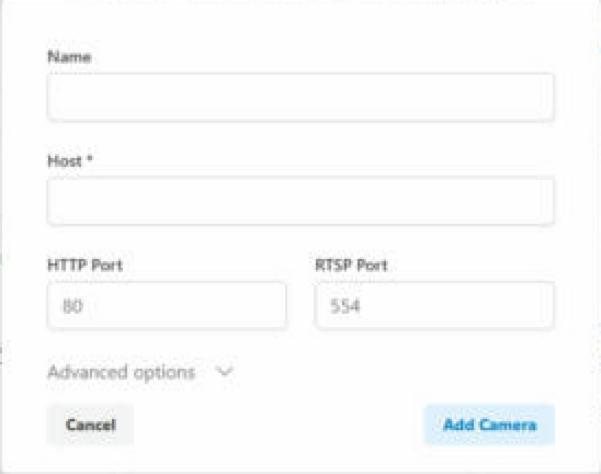
Type a Name you will recognize. Enter the camera IP in Host. Set HTTP Port to 0. Enter the RTSP Port, RTSP Username, RTSP Password and Media Path.
- Test the connection
Click Test Connection. If it works, green text appears under Media Path. It shows the picture size, frame rate and codec, like "Connection success 176x144, 15 fps, h264".
- Add the camera
Click Add Camera. The button turns on only after a good test. The camera now shows in the list.
- Add it to Silarius Cloud
Copy the camera's registration code from the gateway. In Silarius Cloud Admin, add it as a P&P Camera with that code.
Read your camera's RTSP address
An RTSP address looks like this:
rtsp://root:pass12345@192.168.9.216:554/live1s3.sdp
Here is how it breaks down:
- User name: root
- Password: pass12345
- Host (camera IP): 192.168.9.216
- RTSP port: 554
- Media path: /live1s3.sdp (everything after the port)
Not sure of yours? Look on the camera's own web page, often under video or stream settings, or under network and RTSP. Or check the camera's manual.
Good to know
- After adding, you can set recording length, motion sensitivity and stream quality in the camera settings in Silarius Cloud Admin.
- The gateway can convert the video to save internet and storage. This works for both H.265 and H.264 cameras.
Common questions
The test failed. What should I check?
Check that the camera IP is right and the camera is on the same network as the gateway. Check the RTSP port, the user name and password. Make sure the media path starts with a slash (/) and matches exactly.
Still stuck? We'll do it with you, free.
Silarius customers can get free remote help: sign in, click one button, and a Silarius technician joins your computer.