
Gateway static IP and password reset (advanced)
Give the Silarius Gateway a fixed IP address, or reset its web password if you forgot it.
By the end you will be able to give your Silarius Gateway a fixed address and reset its password. These are advanced jobs. If you'd rather not, contact Silarius support: get free remote setup help or email us.
What you need
- A computer on the same network as the gateway
- An SSH app (a program for typing commands to another device over the network), or a monitor and keyboard plugged into the gateway
- For a static IP: the IP address, router (gateway) address and DNS servers you want to use
A wrong static IP can make the gateway unreachable. Write down the old settings first.
Step by step
- Static IP: type the command
Once signed in, type this command. Swap in your own numbers: nmcli connection modify "Wired connection 1" ipv4.method manual ipv4.addresses "192.168.0.105/24" ipv4.gateway "192.168.0.2" ipv4.dns "your DNS servers"
- Static IP: know what each part means
ipv4.addresses is the fixed address and network size. ipv4.gateway is your router's address. ipv4.dns is the DNS servers you want to use, separated by a space.
- Static IP: restart
Type sudo systemctl reboot and press Enter. The gateway restarts with its new address.
- Password reset: make the reset file
Sign in by SSH. Type touch reset_password and press Enter. This makes an empty file that tells the gateway to reset.
- Password reset: restart
Type sudo systemctl reboot and press Enter.
- Password reset: set a new password
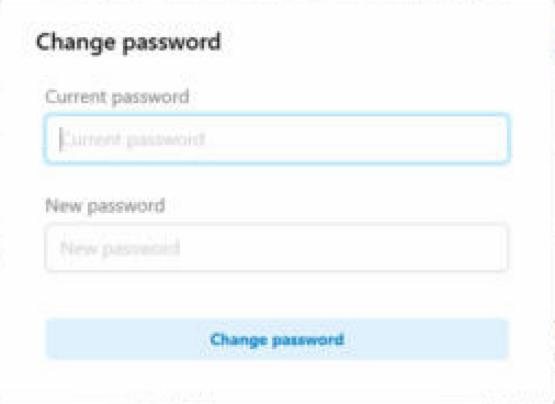
When the gateway is back, open its web page. Sign in with the default user name and password (ask Silarius support if you don't have them). Set a new, strong password.
Two ways to get in
- SSH: connect to the gateway's current IP address on port 22. Sign in with the SSH user name and password Silarius support gives you.
- Monitor and keyboard: plug a screen into the gateway's HDMI port and a keyboard into a USB port. No password is needed this way.
Good to know
- Pick a static address outside your router's automatic (DHCP) range so two devices don't clash.
- Can't connect after the change? Check that the new address and router address match your network.
Still stuck? We'll do it with you, free.
Silarius customers can get free remote help: sign in, click one button, and a Silarius technician joins your computer.