
Back up and copy gateway settings
Save your gateway's camera list to a file and load it onto the same or a new gateway.
By the end you will be able to save your gateway's camera list as a backup. You will also be able to load it onto a new gateway.
What you need
- Access to the gateway's web page (on the same network, or by remote link)
Restoring replaces any cameras already on that gateway with the ones in the backup.
Step by step
- Open the old gateway
On the same network, type camera-gateway.local or the gateway's IP address in your browser. If the gateway is added in Silarius Cloud Admin, you can also open it with Generate URL on the Troubleshooting tab.
- Export the list
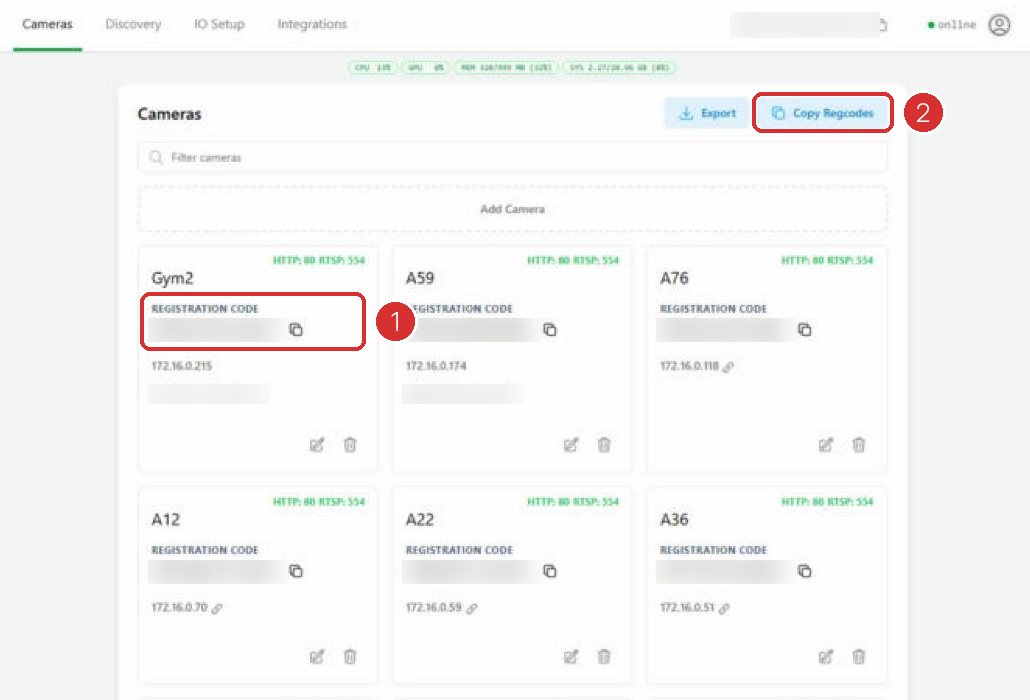
Click the Cameras tab, then Export. A .json file with all your devices downloads to your computer. Keep it somewhere safe.
- Open the new gateway
Sign in to the gateway you want to copy to. If it is brand new, set it up first. See Set up your Silarius Gateway.
- Restore from the file
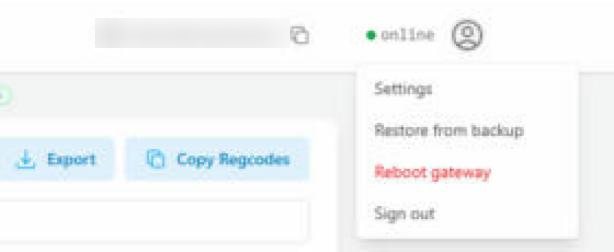
Click the profile menu button at the top right. Choose Restore from backup. Upload the .json file you saved.
- Check the cameras
The gateway loads the devices from the file. Check the Cameras tab to see them.
Good to know
- Export a fresh backup after you add or remove cameras.
- Copy All copies every registration code in the order the devices were added.
Still stuck? We'll do it with you, free.
Silarius customers can get free remote help: sign in, click one button, and a Silarius technician joins your computer.