
Turn on lights, sirens or locks with the gateway's outputs
Use the Silarius Gateway's output pins and a webhook to switch devices when an event happens.
By the end you will know how to make the Silarius Gateway switch a light, siren or lock when a camera sees something. You will also know when you need a relay.
What you need
- A Silarius Gateway with output pins
- The gateway's registration code and its web sign-in
- A relay module for anything bigger than a tiny load
Wall power can hurt you. Have a licensed electrician wire any high-voltage device to the relay.
Step by step
- Open the webhooks page
In Silarius Cloud Admin, open the Alert tab and choose Webhooks. Click Create Webhooks.
- Pick push gateway mode
Set the mode to Push gateway mode. Enter the gateway's registration code in its box.
- Set the path
In Path, type /api/v2/gpio/pins/out1/activate. Swap out1 for the pin you want: out1, out2, configurable_1 or configurable_2.
- Set the method and sign-in
Set Delivery Method to POST. Turn on Use Credentials and enter the gateway's web sign-in.
- Finish the webhook
Pick JSON as the payload type. Finish the rest of the webhook setup and save.
- Make the off webhook
Make a second webhook the same way to switch the pin back off.
What the outputs do
The gateway has output pins. A pin is a small metal connector. The gateway can turn a pin on or off when it gets a message.
That message is a webhook. A webhook is an automatic message one system sends to another when something happens. For example, a camera sees a person at night, and the gateway turns on a light.
The pins are normally open (off until switched on). There are two kinds:
- OUT1 and OUT2: connect the pin to ground when turned on.
- Configurable_1 and Configurable_2: send 3.3 volts out when turned on.
One webhook for on, one for off
Right now, each webhook only switches a pin one way. So you need one webhook to turn a pin on, and a second webhook to turn it off.
Bigger loads need a relay
The pins can only give 3.3 volts and 50 milliamps. That is too weak to run most lights, sirens or locks directly. Use a relay. A relay is a switch that a small signal can flip to control a bigger load.
Any relay that a 3.3 V, 50 mA signal can trigger will work. A common choice is a 5 V single-channel relay board.
Wire it like this:
- Gateway 5V output to relay VCC (powers the relay).
- Gateway GND to relay GND (shared ground).
- A gateway output pin to relay IN (the on/off signal).
- Some relays also need a diode or resistor between the pin and IN, to protect the gateway.
Then connect your device to the relay's COM terminal and either NO (normally open) or NC (normally closed), depending on how you want it to switch.
Control a relay board (Modbus TCP)
The Silarius Gateway can also control a relay board on your network. A relay board is a box of switches that can turn things like gates, lights or sirens on and off. It must speak Modbus TCP (a common language for these boards).
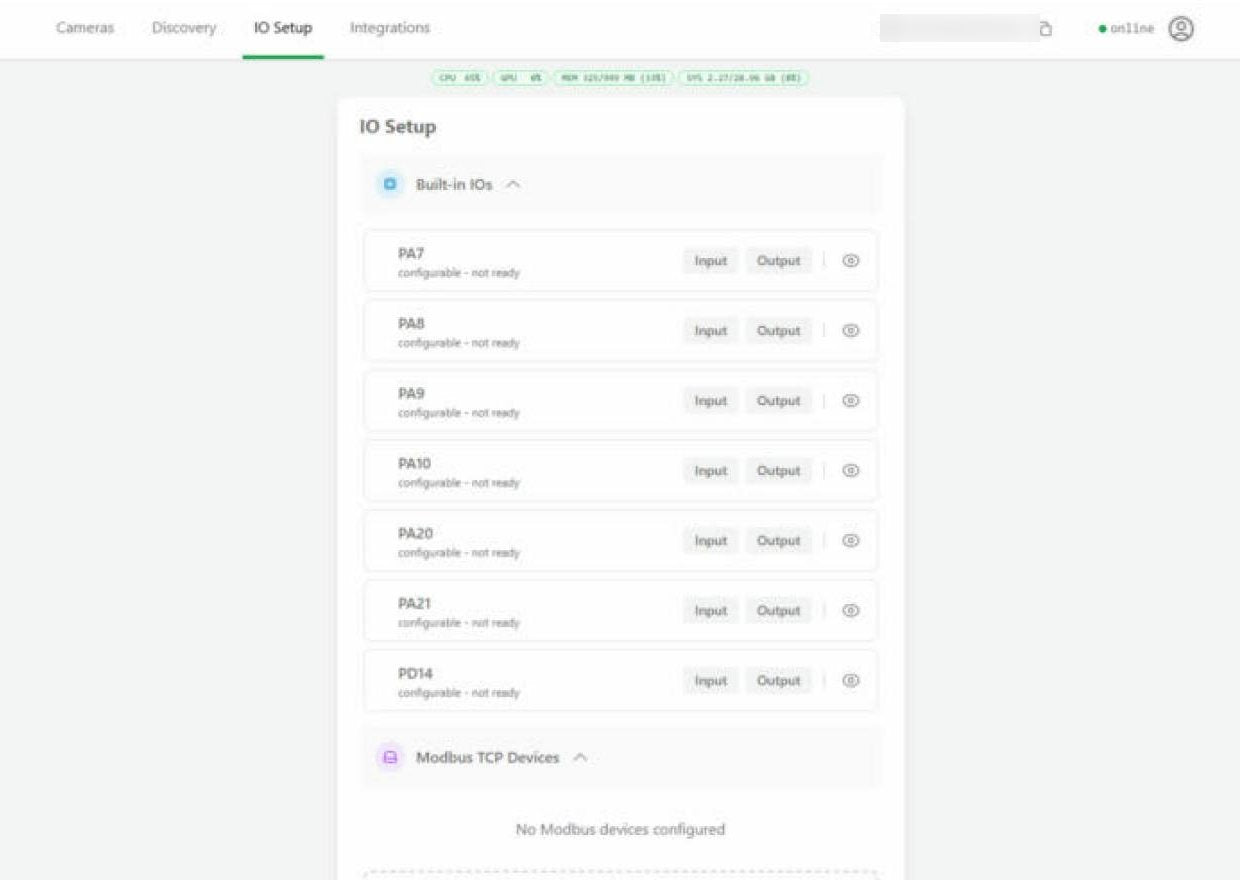
- On the Gateway's page, open the IO Setup tab.
- Open Modbus TCP Devices and click Add Modbus TCP Device.
- Type a clear name, the board's IP address and port (usually 502), and how many relays it has. Click Add Device.
- Click the eye icon next to the board. Each relay has four links: Activate (on), Deactivate (off), Pulse (on for a moment) and Get State (is it on?).
- Test a link from a computer at the same site first.
- Then make a webhook in Silarius Cloud Admin with that link, so an alert can flip the relay.
Need help? Contact Silarius support: get free remote setup help.
Good to know
- When you pick an event, "Analytics" means object detection.
Still stuck? We'll do it with you, free.
Silarius customers can get free remote help: sign in, click one button, and a Silarius technician joins your computer.