
Use less internet: frame rate, compression and smart codecs
Change a few camera settings to cut how much internet your cameras use.
By the end you will know the three camera settings that save the most internet. You will also know which frame rate works best on slow internet.
What you need
- Access to your camera's own web page, or its settings in Silarius Cloud Admin
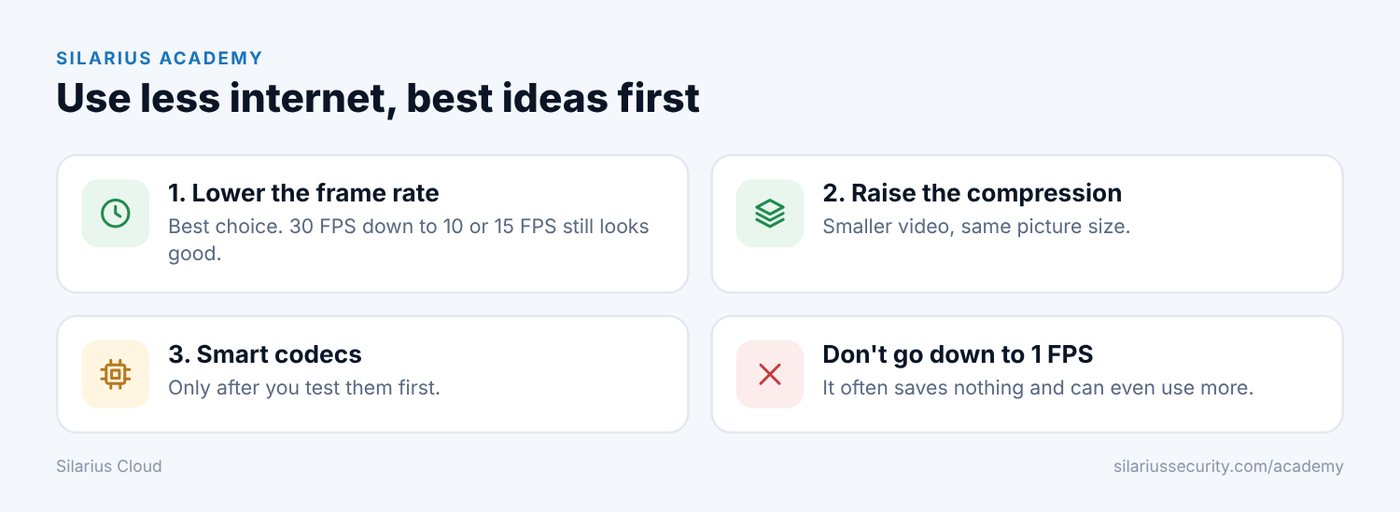
1. Lower the frame rate (best choice)
Frame rate is how many pictures the camera takes each second. It is called FPS (frames per second).
Lowering FPS is the quickest way to save internet. Going from 30 FPS down to 10 or 15 FPS still gives smooth video. It does not hurt cloud recording, playback, AI analytics or object detection.
2. Raise the compression
Compression squeezes the video so it is smaller. More compression lowers the bitrate but keeps the same picture size. In most places you won't notice a difference in live or recorded video.
3. Smart codecs (only if you test first)
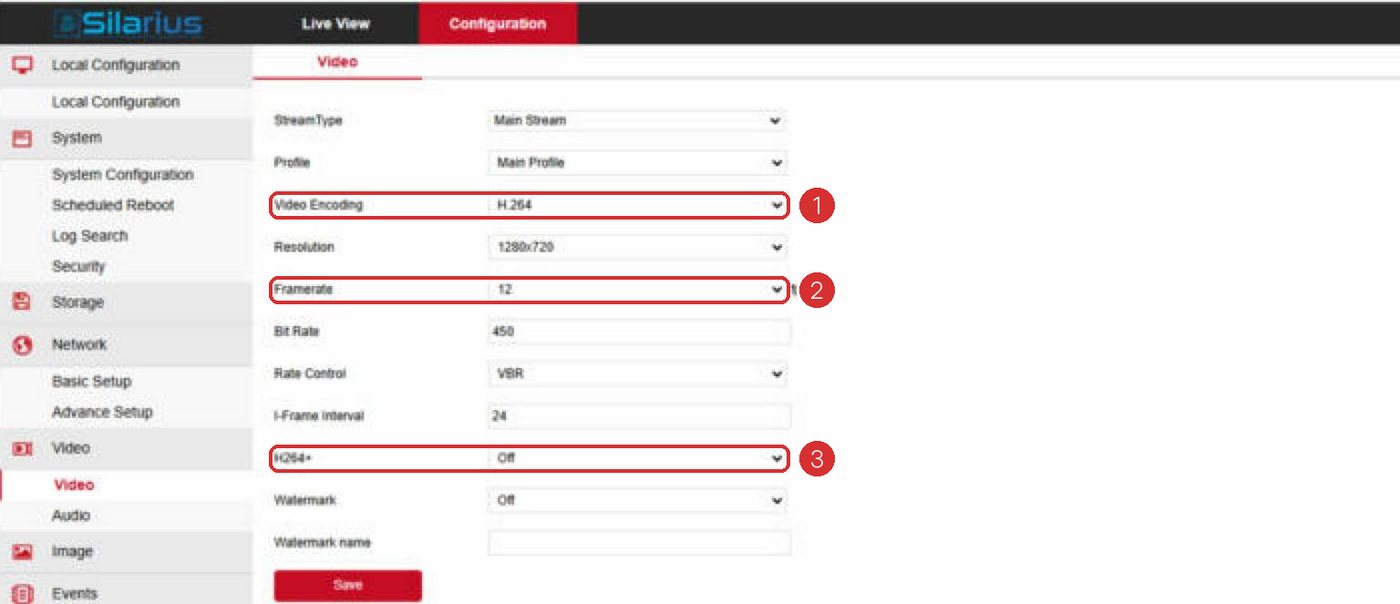
A codec is the way a camera packs video. Some cameras have extra-saving options. These include H.265, "smart" codecs, and features that change how often full pictures are sent.
They can save more internet, but there are catches:
- Some devices may have trouble playing the video.
- Live video can lag, because the camera holds on to more video before sending.
- Not all browsers and phones play these formats well.
Only use them after you test them on the devices you watch with. Silarius Cloud plays H.264 in the browser. See Why Silarius Cloud uses H.264.
Don't go down to 1 FPS
It sounds smart to set 1 FPS to save internet. But it often doesn't help, and it can even use more.
Here is why. Cameras send a full picture (called an I-frame) now and then. In between they send only the changes (called P-frames). Full pictures are much bigger.
At 1 FPS the camera may wait a long time between full pictures. Then it sends a very big one all at once. One test camera jumped above 500 Kbps at 1 FPS. At 3 FPS it stayed around 160 to 180 Kbps.
For most cameras, 3 FPS or 5 FPS is a better balance. You get smoother video for only a little more data.
Test before you choose
Try the camera at 1, 3 and 5 FPS. Compare the average bitrate and the highest bursts in real use. Then pick the one that works best.
Good to know
- Going from 12 FPS to 3–5 FPS can save 30–40% of internet, as long as you don't need to catch very fast movement.
- Many cameras also run more smoothly at lower FPS because they work less hard.
Still stuck? We'll do it with you, free.
Silarius customers can get free remote help: sign in, click one button, and a Silarius technician joins your computer.