
Camera locked: "illegal login lock"
Unlock a camera that locked itself after wrong passwords, and stop it from happening again.
By the end you will know why a camera locks itself while you add it. You will know how to unlock it and add it safely.
Step by step
- Disable the camera first
In Silarius Cloud Admin, disable the camera. This stops the cloud from trying again and locking it more.
- If the ONVIF user already exists
Wait for the lock to end. Then enter the right password on the Troubleshooting tab.
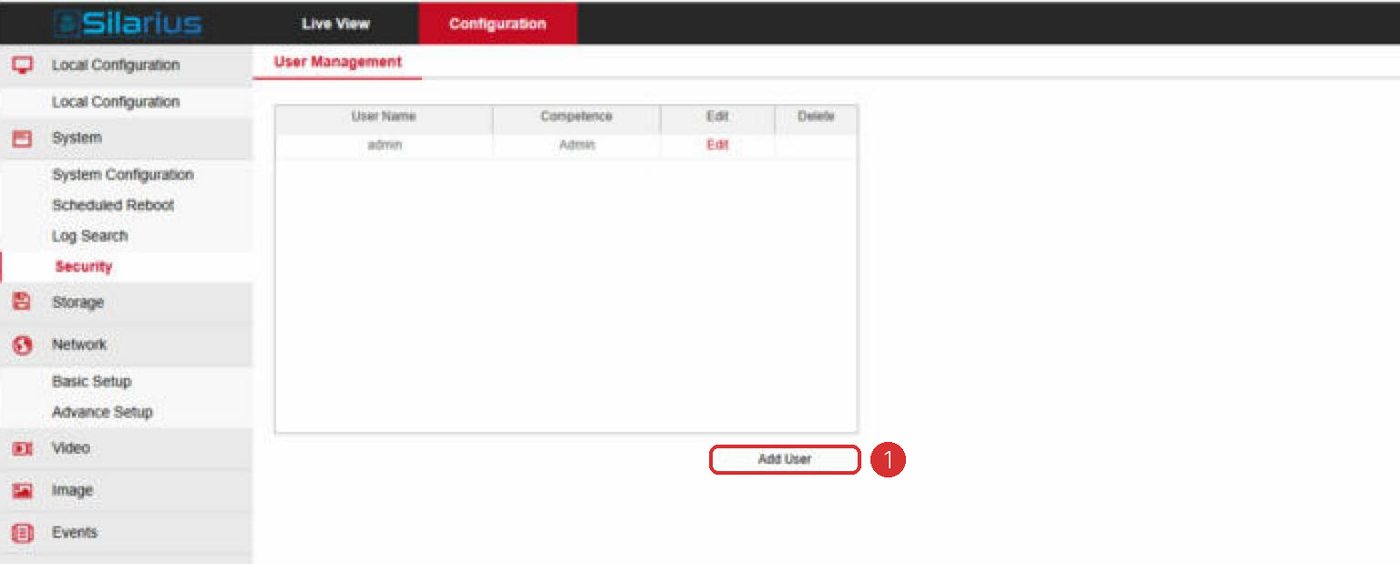
- If the ONVIF user doesn't exist yet
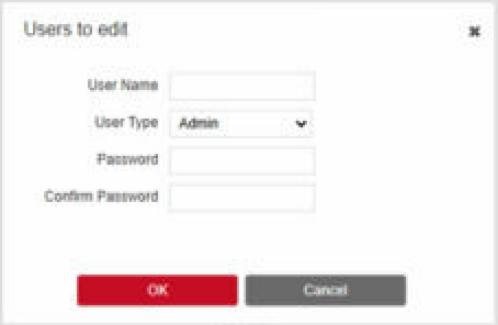
Make an ONVIF user on the camera's own web page. Restart the camera to save it. Then open the camera settings in Silarius Cloud Admin and enter the new user name and password.
- Turn the camera back on
Enable the camera again in Silarius Cloud Admin.
Why the camera locked
Some cameras have an "illegal login lock" feature. After a few wrong passwords, the camera locks itself. This stops people from guessing passwords.
While locked, no one can sign in, even with the right password. The lock can last from 15 minutes to several hours.
When you add a camera, Silarius Cloud tries to connect many times by itself. If the password is wrong, or the ONVIF user isn't set up yet, those tries can trigger the lock. The camera stays locked even after you fix the password.
Good to know
- Restarting the camera sometimes clears the lock.
- If not, wait for the lock to end or do a factory reset.
- Some cameras let you turn the lock feature off.
Still stuck? We'll do it with you, free.
Silarius customers can get free remote help: sign in, click one button, and a Silarius technician joins your computer.