
Fix "ONVIF Authentication Failed"
What the ONVIF Authentication Failed message means and how to fix the camera's user name and password.
By the end you will know why you see "ONVIF Authentication Failed". You will know how to fix it so the camera connects.
Step by step
- Open the camera's own web page
Sign in to the camera's own web page as the admin.
- Find the ONVIF settings
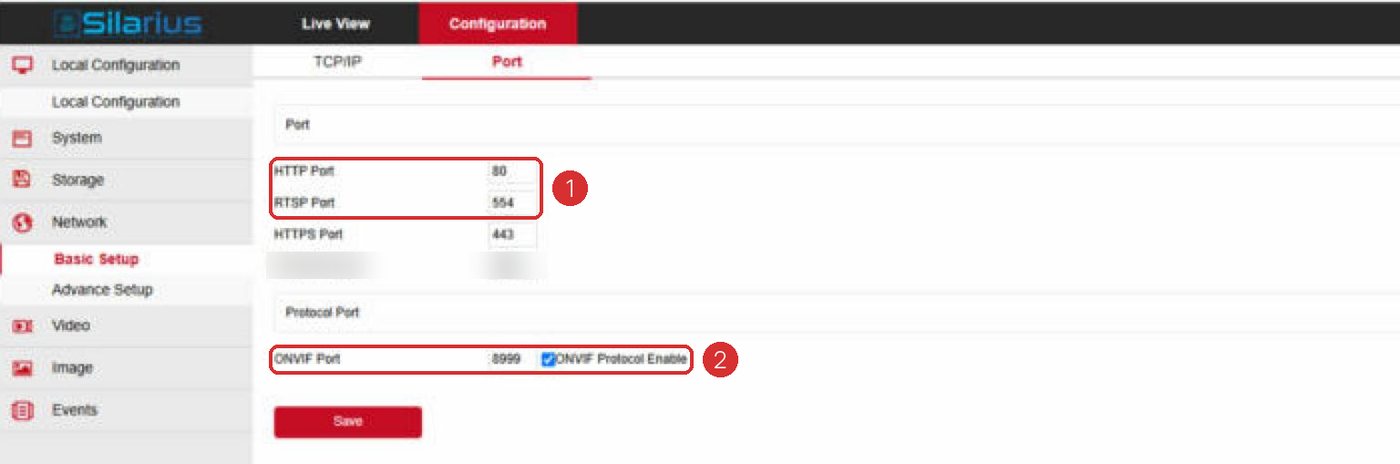
Look for ONVIF. It is often in the system menu, or in the network menu under advanced or integration settings.
- Turn ONVIF on
If there is a box to enable ONVIF, tick it.
- Make an ONVIF user
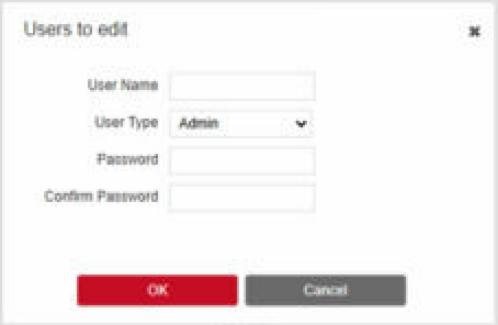
Add a new user. Give it Administrator permissions. Save.
- Update Silarius Cloud
In Silarius Cloud Admin, open the camera's settings. On the Troubleshooting tab, enter the ONVIF user name and password. For cameras added by ONVIF, you can also change them on the Network tab.
What it means
The user name and password you gave don't match the camera's ONVIF user. ONVIF is the common language the cloud uses to talk to your camera.
This can also happen after someone changes settings on the camera itself.
Avoid these characters in passwords
Some symbols can break ONVIF sign-in: , . / @ ? # + %
If your camera password uses any of them, change it to one that doesn't.
Some cameras need a separate ONVIF user
You may be sure the user name and password are right. If you still see the message, your camera probably needs a separate ONVIF user. That is a second user, on top of the admin user you use for the camera's web page.
Many cameras need this. On some others, you only need to turn ONVIF on, with no extra user. Check your camera's manual for the exact steps.
Good to know
- If you typed the wrong password many times, the camera may lock you out. See Camera locked: "illegal login lock".
Still stuck? We'll do it with you, free.
Silarius customers can get free remote help: sign in, click one button, and a Silarius technician joins your computer.