
Coloured stripes or smears in the video
Find and fix the cause of coloured stripes or broken-looking video.
By the end you will know the four usual causes of coloured stripes in video. You will know how to check and fix each one.
Step by step
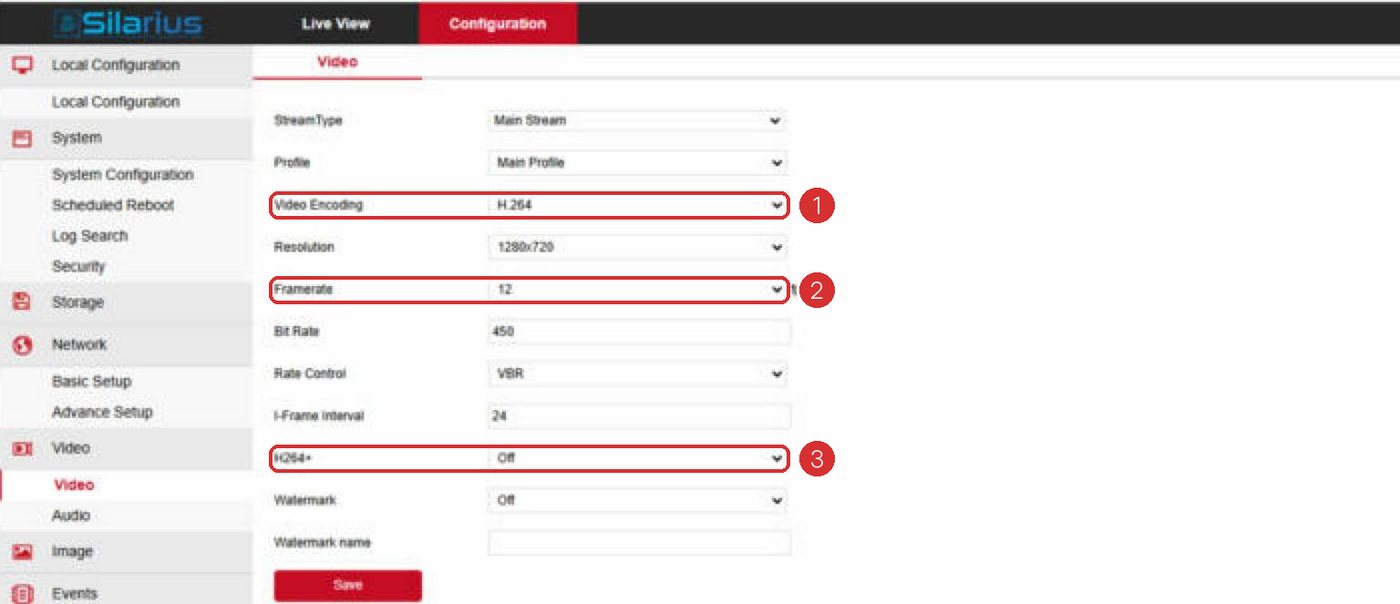
- Turn off smart codec
Sign in to the camera's own web page. Find the smart codec settings. If smart codec is on, turn it off. Check the video again.
- Check the bitrate in live view
In the web app, open the camera in live view. Click the camera name and open Stats. Watch the bitrate.
- Look for drops to zero
If the bitrate often drops to zero for several seconds, your upload speed is probably too low. Test your internet speed. Think about a faster plan or using less data.
- Check if the camera is overloaded
Is the camera also used by another system, like a local recorder? Make all systems use the same stream (main or sub). Keep the camera settings the same everywhere.
- Restart and watch
Restart the camera. Watch the video for a few hours. If the stripes don't come back, it was a one-time glitch. If they return, the camera may have a firmware or hardware fault.
Still stuck? We'll do it with you, free.
Silarius customers can get free remote help: sign in, click one button, and a Silarius technician joins your computer.