
Camera shows "offline"
Find out why a camera says it is offline and get it back online.
By the end you will know the most common reasons a camera shows offline. You will know the fix for each one.
Step by step
- Run the Troubleshooting tab
In Silarius Cloud Admin, open the camera's settings and click the Troubleshooting tab. Wait up to 2 minutes. You will see a summary of the problem.
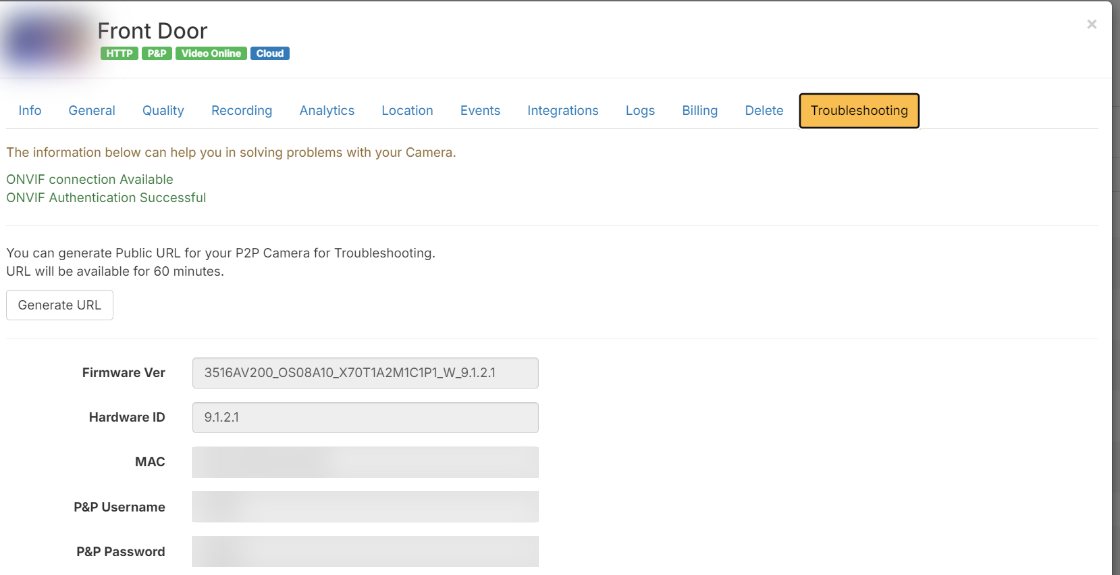
- Match the message below
Find the case below that matches your situation or message. Follow its fix.
"Make sure the camera is online and connected to the internet"
This message can mean a few things:
- New Silarius X camera: see Silarius X camera won't connect.
- Camera was moved to a new place: its network settings may not fit the new network. Check its IP address, router (default gateway) and DNS settings.
- Camera stopped after a firmware update: see Silarius X camera won't connect.
"ONVIF Authentication Failed"
The user name or password Silarius Cloud has doesn't match the camera anymore. Maybe someone changed it. Or the camera needs a separate ONVIF user. See Fix "ONVIF Authentication Failed".
An ONVIF camera stopped and nothing changed
Your internet company probably changed your site's public IP address.
Open the camera's Network tab and enter the correct address. To stop this from happening, use a dynamic DNS service or ask your internet company for a static IP address. Or switch to the Silarius Gateway, which doesn't care if your address changes.
Works by ONVIF but not as plug and play
A plug-and-play camera needs to reach the internet by itself. Check the camera's network settings for mistakes.
Also check the camera's clock. Some cameras can't get online or look up names correctly when the time is wrong.
Offline, but the camera's page opens with Generate URL
Many cameras now block remote connections until you change the default password.
- Close the camera settings in Silarius Cloud Admin.
- Change the password for the camera's ONVIF user on the camera itself.
- Open the camera settings in Silarius Cloud Admin again.
- Go to the Troubleshooting tab and wait for the check to finish.
- It will see the password is wrong and ask for the new one.
- Enter the new user name and password and click Save.
Too many cameras for your internet
If many cameras go offline or time out together, your upload speed may be full.
- Disable some or all cameras for a while to free up your internet.
- Lower the stream you send to the cloud: 720p or less, 4 to 6 FPS, and about 250 to 500 Kbps.
- Turn cameras back on one at a time. Watch that the total stays within your upload speed.
- For less important spots, the smallest picture size (like 640 × 480) may be enough.
- If your camera records to an SD card, keep the high-quality main stream for that, and send the lower sub-stream to the cloud.
On cellular (4G/5G) internet, check that your internet company isn't slowing you down.
Good to know
- Use ONVIF instead of a camera maker's own protocol where you can. It keeps settings predictable.
Still stuck? We'll do it with you, free.
Silarius customers can get free remote help: sign in, click one button, and a Silarius technician joins your computer.