
Play a voice warning on an IP speaker
Add an IP speaker and make it play a recorded warning when a camera event happens.
By the end you will have an IP speaker in Silarius Cloud that plays a recorded message, like "You are on camera," when an event happens.
What you need
- An IP speaker (a speaker that plugs into your network) that supports ONVIF
- Access to the speaker's own web page
- Access to Silarius Cloud Admin
- A short warning sound file in MP3 or WAV format
Step by step
- Connect the speaker
Plug the speaker into your network. Follow its manual to get it running. Set its audio format (codec) to G.711U.
- Add it like a camera
In Silarius Cloud Admin, open Cameras and click the green Add button. Add the speaker the same way you add a camera. In its General tab, turn on Mic.
- Turn on ONVIF on the speaker
In the speaker's web page, open the ONVIF menu. Turn ONVIF on. Type a username and password, and save. You'll need them later.
- Upload your sound file
In the speaker's media menu, upload your MP3 or WAV file. Use only letters and numbers in the file name.
- Set up the alarm sound
In the speaker's alarm menu, make a pattern with your sound file. Choose how long it plays and how it repeats. Turn on the option that allows playing by web link (it may be called Play URL Enable). Copy the link it gives you.
- Create the webhook
In Silarius Cloud Admin, open Alerts, then Webhooks, then Create Webhook. Pick Push Gateway as the Delivery Method. Enter the speaker's registration code and port 80.
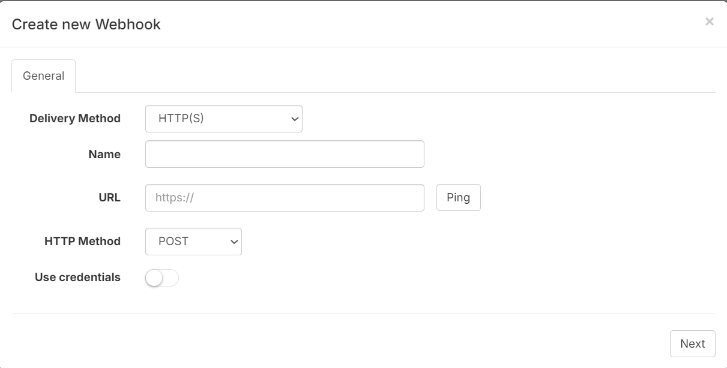
- Use the right registration code
If the speaker connects on its own, use its own registration code. If it connects through the Silarius Gateway, use the code the gateway made for the speaker.
- Add the path and sign-in
In the path box, paste the speaker's link, starting from "/api". Pick GET as the HTTP method. Enter the speaker's username and password.
- Pick events and finish
Pick which events should play the warning, like Analytics for AI detections. Pick the role with the right cameras. Click Create.
- Test it
Wait for the event to happen, like walking in front of the camera. You should hear the speaker play your message.
What you can do
An IP speaker lets you talk to people at your site. A webhook can make it play a recorded warning when a camera spots something. This can scare off people before they do harm.
If you use a professional monitoring service, its guards can also use the speaker to talk live or play recorded messages.
Good to know
- Keep the message short and clear, like "You are being recorded. Please leave the area."
- Need help setting it up? Contact Silarius support: get free remote setup help or email us.
Still stuck? We'll do it with you, free.
Silarius customers can get free remote help: sign in, click one button, and a Silarius technician joins your computer.