
Send events to another system (webhooks)
Use a webhook so a camera event can tell another device or website to do something.
By the end you will know what a webhook is and how to create, test and delete one in Silarius Cloud Admin.
What you need
- Access to Silarius Cloud Admin
- The web address (URL) of the device or website that should get the event
- That device's manual, to see what commands and sign-in it accepts
Step by step
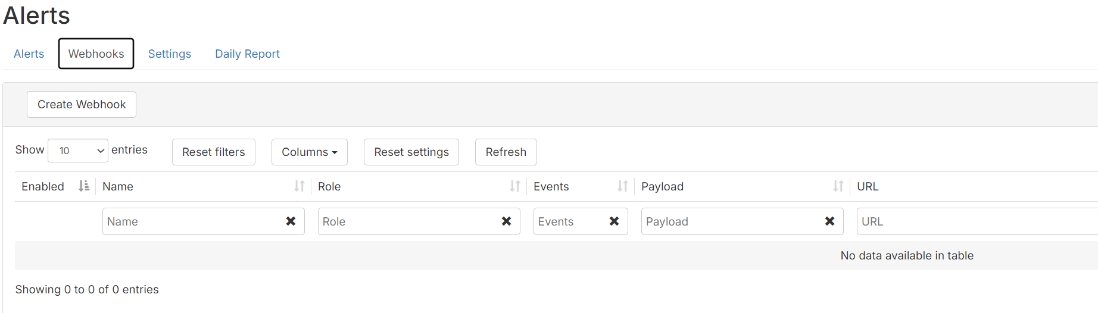
- Open Webhooks
In Silarius Cloud Admin, open the Alerts menu (pick the customer first if you manage several). Click the Webhooks tab.
- Create a webhook
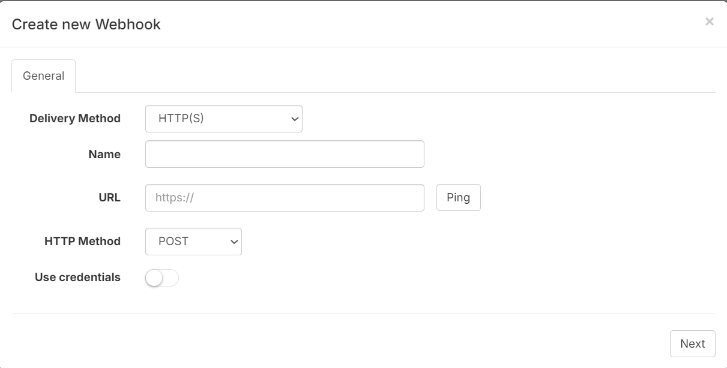
Click Create Webhook. Pick a Delivery Method. Type a Name and the URL. Check the HTTP Method, and add Credentials if your device needs a sign-in.
- Test the link
Use Ping to test the address. If the address answers, you move on to the next step.
- Pick event types
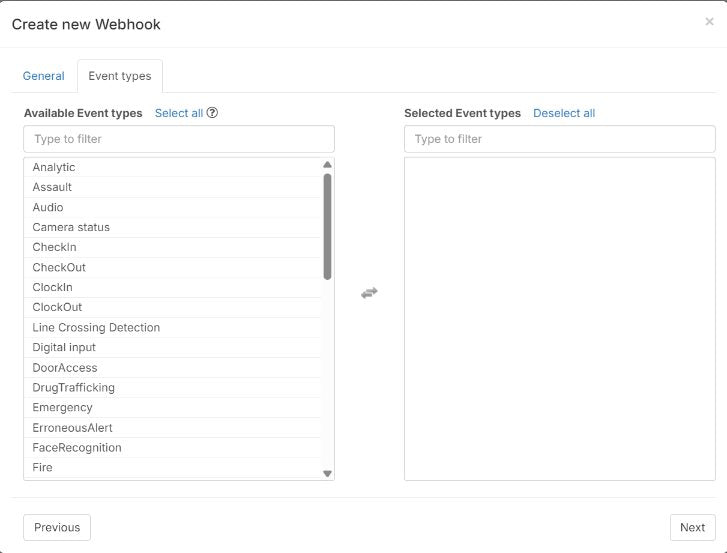
Pick one or more events that should send the webhook. Use Select all or Deselect all to save time. Click Next.
- Pick AI event types
If you picked Analytics, you can choose which AI events count, like loitering. Click Next.
- Pick the role
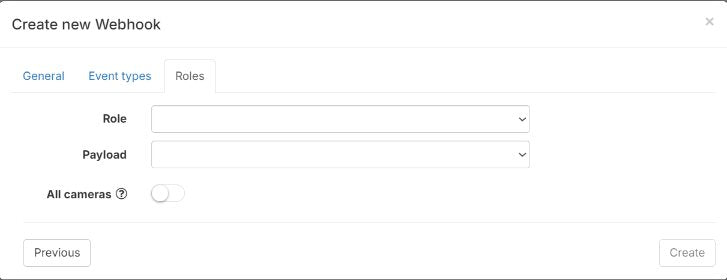
Pick a role. A role is a group of cameras and permissions. Only cameras in that role send this webhook. Need cameras from several roles? Make a new role with all of them first.
- Pick the payload and finish
Pick the Payload, like JSON. Click Create.
What is a webhook?
A webhook is an automatic message from Silarius Cloud to a web address. It's sent when an event happens.
The device or website at that address can then do something. For example, it can turn on a light wired to your camera's output, or start another action. You choose what event info goes in the message.
What "Analytics" means here
In the webhook event list, Analytics means AI object detection. That's detections made by Silarius Cloud or by smart cameras.
AI webhooks are sent only when the AI is at least as sure as the confidence number on the camera's Analytics tab.
What's in the message
The JSON payload (a standard text format computers read) includes basic info about the camera and the event. That can include the event type, start and end times, the objects found, a thumbnail picture link and a link to the video.
If your device needs a different kind of request
A webhook sends a request in a set way. Some devices only accept other kinds of commands. In that case, you need a middle service that changes the request into one your device understands. Check your device's manual.
Good to know
- To delete a webhook, click its name, open Delete, and type DELETE. The button turns red. Then click it.
Still stuck? We'll do it with you, free.
Silarius customers can get free remote help: sign in, click one button, and a Silarius technician joins your computer.