
Recording schedules and event-only recording
Learn your recording choices, and why turning cameras off on a schedule is a bad idea.
By the end you will know the two ways Silarius Cloud can keep video, the risks of event-only recording, and why cameras should stay on all the time.
With event-only recording, video with no event is deleted for good. Make sure your camera's motion detection is tuned first.
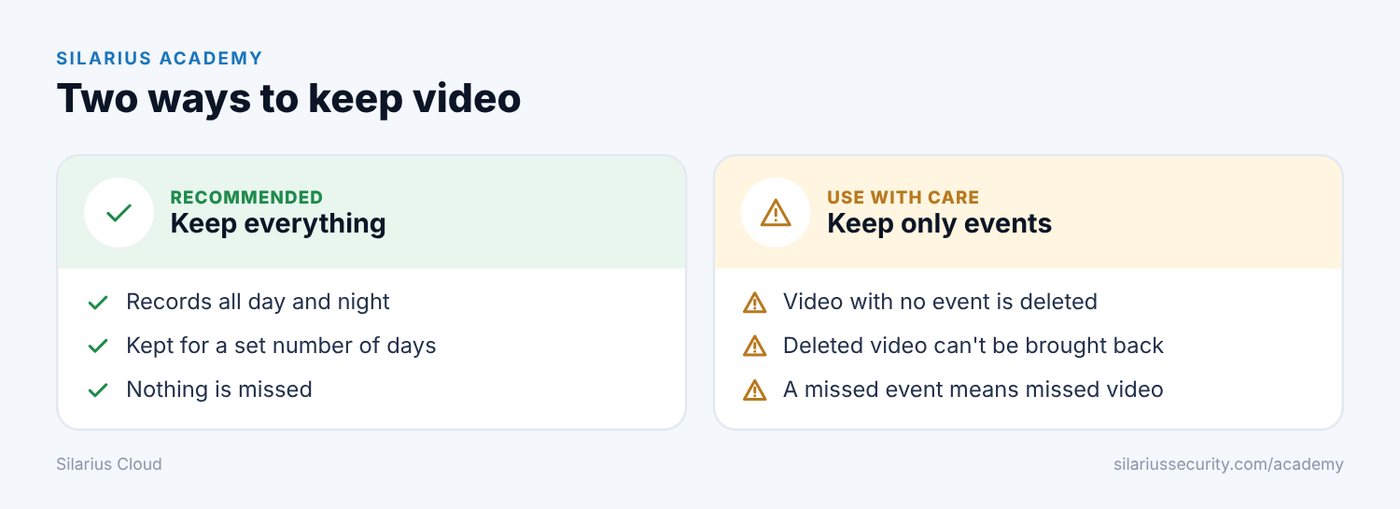
Two ways to keep video
1. Keep everything for a set number of days. 2. Keep only events. Video is kept only when the camera sends motion or another ONVIF event.
Events that can be used include motion, line crossing, intrusion, tampering (someone messing with the camera), people detection and more.
The big risk of event-only recording
With event-only recording, Silarius Cloud deletes any video that has no event start from the camera.
If the event message never reaches the cloud, that video is deleted and can't be brought back. This can happen because of internet trouble or bad camera sensitivity settings. Use this option with great care.
With continuous recording, the footage is there even if no event happens. Events just help you find the right part.
Event-only recording facts
- No event can be longer than 2 minutes. If activity keeps going, a new event starts every 2 minutes.
- If a camera doesn't say when an event ends, each event lasts at least 30 seconds. It can stretch up to 2 minutes if activity goes on.
- You can use more than one detector at once. Set each one up well. Some cameras only allow one at a time.
- The camera's detector doesn't have to be set up through ONVIF. But the camera must send its events the ONVIF way.
- It does not save internet data. The camera still streams to the cloud all day and night.
Can I turn cameras on and off on a schedule?
Silarius Cloud has no setting to turn cameras on and off at set times. Cameras are made to stay on all the time.
When a camera is off:
- nothing is recorded
- no alerts or AI events happen
- there's a gap in your video
- it can take a few minutes to stream again after it turns back on
- sometimes it needs to be set up again to reconnect
For steady recording and alerts, keep cameras powered and online all the time.
If you still want a schedule
It must be done outside Silarius Cloud, with your own equipment. Some ways:
- a camera with its own sleep or schedule mode (rare)
- a smart plug or timer that cuts power
- network settings that block a device's internet at certain times
The best choice depends on your equipment and network.
Good to know
- To get messages only at certain hours, keep cameras on and use an alert schedule instead. See Create alerts for camera events.
Still stuck? We'll do it with you, free.
Silarius customers can get free remote help: sign in, click one button, and a Silarius technician joins your computer.