
Add a camera by its video link (Generic Device)
Add almost any camera that has an RTSP video link, even when it does not support ONVIF.
By the end you will add a camera using its video link. This is for cameras that do not work with ONVIF, or when other ways do not work. RTSP is the kind of video link most cameras have. It looks like rtsp://address:port/path.
What you need
- You are an owner or admin in Silarius Cloud Admin
- The camera's RTSP video link (it is in the camera's manual or on its own web page)
- Access to your router, to set up port forwarding
- The camera's user name and password, if it has one
This way needs a door opened on your router (port forwarding). That is less safe. If you can, use a Silarius X camera or the Silarius Gateway instead.
Step by step
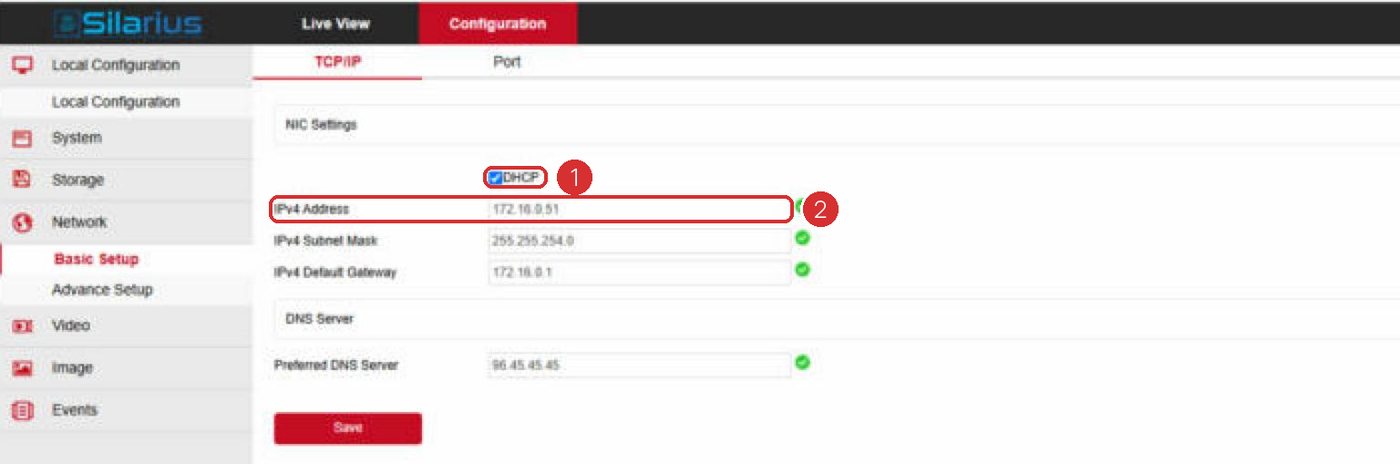
- Give the camera a fixed address
Set the camera to a fixed IP address on its own web page. If the address changes later, the camera will stop working in Silarius Cloud.
- Open a door on your router
On your router, make a port forwarding rule. For the inside (local) port, use the camera's RTSP port. It is usually 554. For the outside (public) port, pick any free number. Pick TCP and UDP (some routers call this "Both" or "Dual"). Enter the camera's IP address. See Port forwarding.
- Find your site's internet address
On a computer at the same site, search the web for "what is my IP". Write the number down. This is your site's public address.
- Start a Generic Device
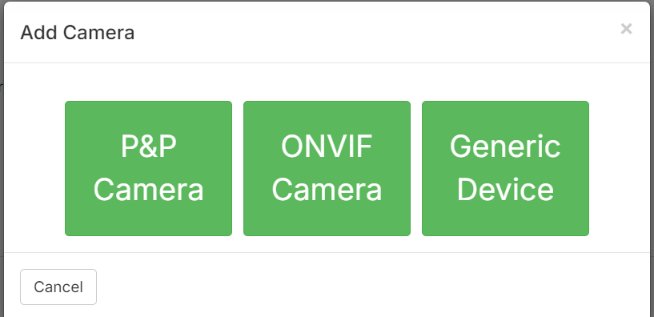
Go to silariussecurity.com/login and sign in to Silarius Cloud Admin. Click Cameras, then Add. Click Generic Device.
- Fill in the General tab
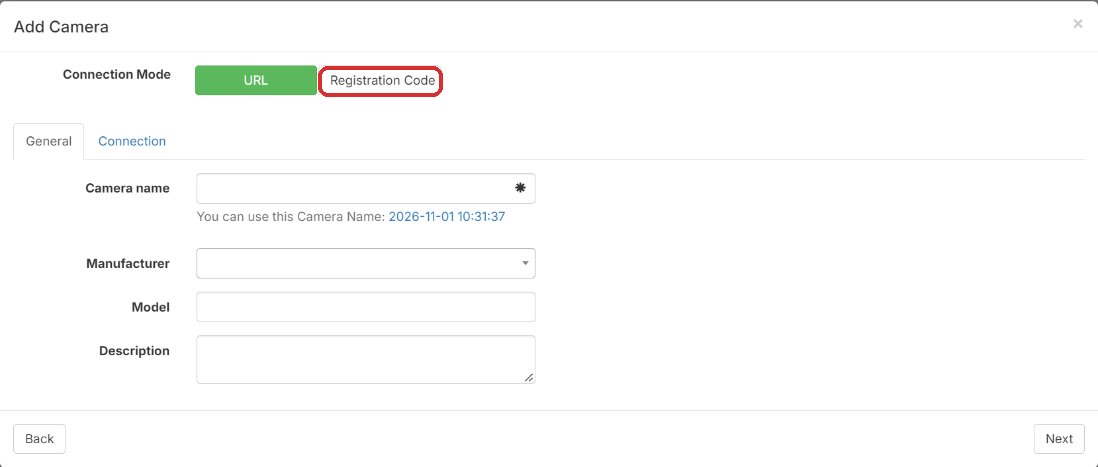
Keep URL picked at the top. Type a Camera name. The maker, model and description are optional.
- Fill in the Connection tab
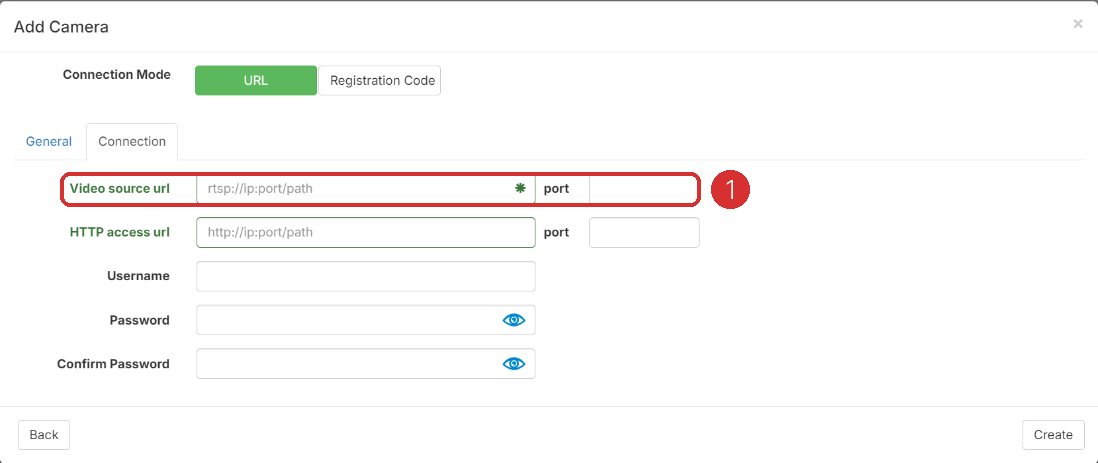
Click the Connection tab. In Video source url, type rtsp:// then your site's public address, then the outside port, then the camera's video path. If the camera needs a sign-in, type its user name and password.
- Create it
Click Create. The camera shows up in your camera list. Give it a minute or two to show video.
My internet address keeps changing
Many internet companies change your site's address from time to time. When it changes, the camera stops working. A dynamic DNS service gives your site a name that always points to the right address. Ask your internet company or Silarius support.
The Registration Code choice
The Generic Device form also has a Registration Code choice. It is for cameras that are on the Silarius Gateway but don't work with ONVIF. Silarius support can help you with it: get free remote setup help.
Still stuck? We'll do it with you, free.
Silarius customers can get free remote help: sign in, click one button, and a Silarius technician joins your computer.