
Ways to connect your cameras
Pick the best way to get each camera into Silarius Cloud.
By the end you will know the three ways a camera can join Silarius Cloud, and which one fits you best.
Have an NVR or DVR? Its cameras can connect through the Silarius Gateway too. See Connect your NVR or DVR.
The three ways
- Silarius X cameras (plug and play): the camera talks to the cloud by itself.
- Silarius Gateway: a small box on your network brings in the cameras you already own.
- ONVIF: you add a camera straight to Silarius Cloud using ONVIF (a common language that most IP cameras speak).
Have an NVR or DVR? Its cameras can connect through the Silarius Gateway too. See Connect your NVR or DVR.
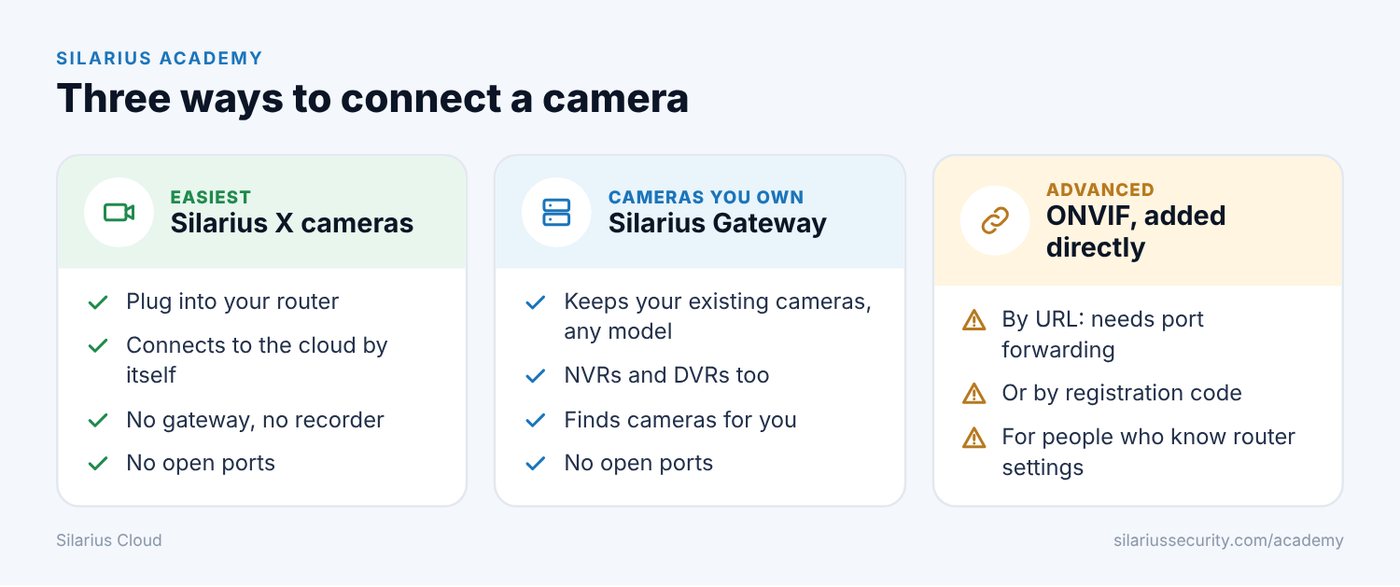
1. Silarius X cameras (plug and play)
This is the easiest and safest way. You plug the camera into your router (the box that gives your building internet). The camera then reaches the cloud on its own. There is no recorder and no gateway.
- Video travels through an encrypted tunnel (a private, locked path). It uses AES 256 encryption, which scrambles both the video and the details about it.
- You do not need port forwarding (opening a door in your router). Nobody on the internet can reach the camera directly.
- It sends video over port 443, the same door that normal secure websites use. Internet providers rarely block it.
- If your internet provider changes your address, or you move the camera, it keeps working. You don't have to change anything in Silarius Cloud.
- The camera can still run its own smart features, like line crossing.
If you send a camera to a new site already set up, it shows up in Silarius Cloud as soon as it gets internet.
2. Silarius Gateway
The Silarius Gateway is the easiest way to bring in the cameras you already own. It sits on your network and finds your cameras for you. You add each one with a click.
- It also uses an encrypted tunnel, so you don't need port forwarding.
- If your internet provider changes your address, the gateway reconnects by itself.
- It is ready to look for cameras a couple of minutes after you turn it on.
- Each camera you add gets its own registration code (a code that tells Silarius Cloud which camera is which).
- It finds cameras using ONVIF. A camera without ONVIF can be added to the gateway by hand.
For the gateway to find your cameras, two things must be true. Each camera must have ONVIF turned on. And your network's firewall (its security guard) must allow multicast traffic (a "hello, who's out there?" message sent to every device).
3. ONVIF, added directly
There are two ways to add an ONVIF camera directly.
- By URL: you type in the camera's internet address. This needs port forwarding on your router. It relies only on the camera's own security. If your internet provider changes your address, the camera stops sending video until you update it. It is best done by someone who knows networks well. See Add a camera with ONVIF (URL).
- By registration code: this works for a camera that is already in Silarius Cloud as a Silarius X camera or through the gateway. It adds a second copy of that camera, for example with a different video stream. See Add a camera with ONVIF (registration code).
Which one should I pick?
- Buying new cameras? Pick Silarius X cameras. See Silarius cameras.
- Keeping the cameras you have? The Silarius Gateway is the easiest and safest.
- Comfortable with router settings and have just a camera or two? ONVIF by URL can work.
Good to know
- Not sure which way is right for you? Contact Silarius support: get free remote setup help or email us.
Common questions
Can I connect my NVR or DVR?
Yes. Connect the NVR or DVR to the Silarius Gateway, and each camera on it is added on its own. See Connect your NVR or DVR.
Do I have to open ports on my router?
Not for Silarius X cameras or cameras on a Silarius Gateway. Only the ONVIF URL way needs port forwarding.
What is the most reliable way to connect?
Silarius X cameras (plug and play). They use an encrypted tunnel and need no open ports and no port forwarding rules.
Still stuck? We'll do it with you, free.
Silarius customers can get free remote help: sign in, click one button, and a Silarius technician joins your computer.