
Add a camera with ONVIF (registration code)
Add a second copy of a camera that is already connected, using its registration code.
By the end you will know when to use the registration code way, and how to add a camera with it.
What you need
- The camera's registration code
- The camera's ONVIF username and password
- An owner or admin sign-in for Silarius Cloud Admin
Step by step
- Start adding a camera
In Silarius Cloud Admin, click Cameras, then Add. Choose ONVIF Camera.
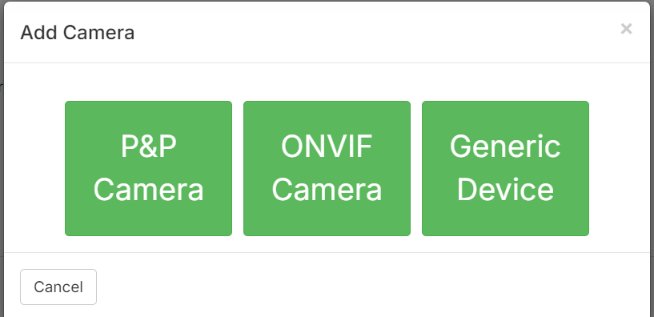
- Pick registration code
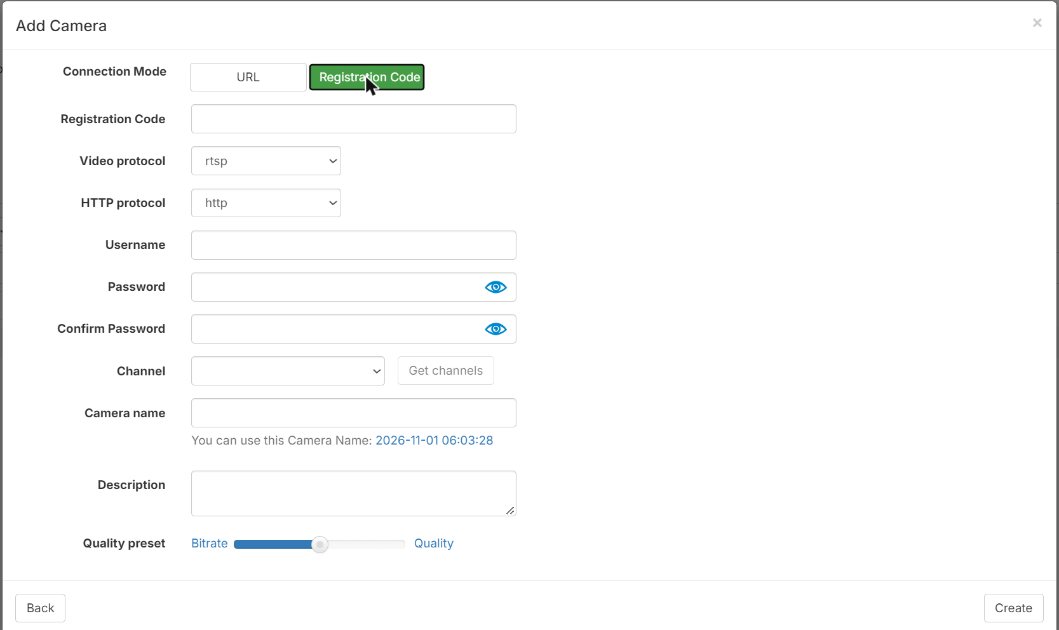
In the new window, set Connection mode to Registration Code.
- Enter the code
Type the registration code. You can find it on the camera's own web page. If the camera is on a Silarius Gateway, use the copy button there.
- Choose the video settings
Pick the Video Protocol (RTSP or RTMP, whichever the camera uses). Then pick the HTTP Protocol from the list.
- Enter the camera's sign-in
Type the camera's ONVIF username and password. They are often the same as the camera's web page sign-in. If the camera has a separate ONVIF user, use that.
- Get channels
Click Get Channels. Pick the video profile you want from the list.
- Name it and set quality
Type a name and a short description. Move the Quality Preset slider to the quality you want.
- Create the camera
Click Create. The camera is added to your list.
- Fine-tune if needed
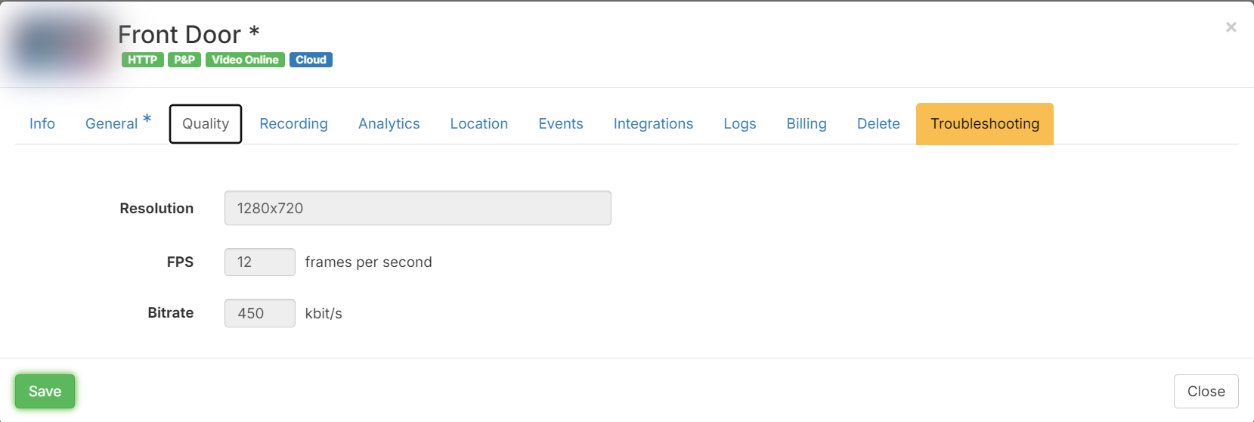
Click the camera name. Use the Quality tab for profile, resolution, image quality and bitrate. Use the Recording tab for how long video is kept. Use the Analytics tab for motion, line crossing and smart analytics, if the camera supports them.
When to use this
Use this way when the camera already connects through a Silarius X camera link or a Silarius Gateway. It adds a second copy of the same camera with a different video stream. For example:
- You want a second copy at a different quality, to make a timelapse (a fast-forward movie of a long time).
- You have a camera with more than one lens or sensor, and you want to add another of its video streams.
Common questions
Can I use this for a camera behind an NVR or DVR?
Yes. Add the recorder in the Silarius Gateway once for each camera, then use each code here. See Connect your NVR or DVR.
Still stuck? We'll do it with you, free.
Silarius customers can get free remote help: sign in, click one button, and a Silarius technician joins your computer.