
Stretch or fit the camera picture
Choose if camera pictures fill their boxes or keep their true shape, now or every time you sign in.
By the end you will choose how camera pictures fit their boxes. You will set it for right now, or save it so it stays every time you sign in.
What you need
- You are signed in to the Silarius Cloud web app
Step by step
- Change one camera for now
Move your mouse over the camera. Click the Aspect ratio button on its toolbar.
- Change all cameras for now
Click the aspect ratio button in the bottom toolbar. All cameras on the screen change.
- Open your preferences
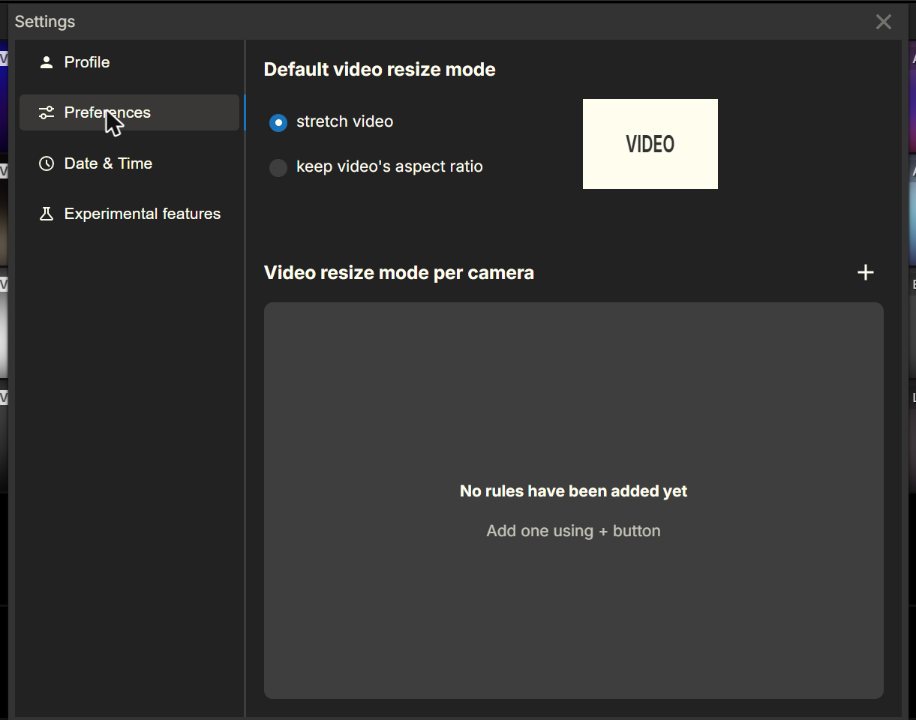
To keep a choice every time you sign in, click Profile in the top bar. Then click Preferences.
- Set the default for all cameras
Choose a Default video resize mode. All your cameras use it each time you sign in.
- Set it for single cameras
Under Video resize mode per camera, click +. Pick a camera. Switch it between Fit and Stretch. This beats the default for that camera.
Fit or stretch?
Aspect ratio is the shape of the picture, like wide or square.
- Stretch fills the whole box. The picture may look a bit squashed or pulled.
- Fit keeps the camera's true shape. You may see black bars on the sides, or on the top and bottom.
Good to know
- Your preferences follow you to any computer you sign in on.
- These settings only change what you see. Other users keep their own settings.
Still stuck? We'll do it with you, free.
Silarius customers can get free remote help: sign in, click one button, and a Silarius technician joins your computer.