
Camera features work on the camera but not in Silarius Cloud
Fix PTZ, motion masks, video quality and resolution problems that only happen in Silarius Cloud.
By the end you will know why some camera features don't work in Silarius Cloud. You will know how to fix the most common ones.
Step by step
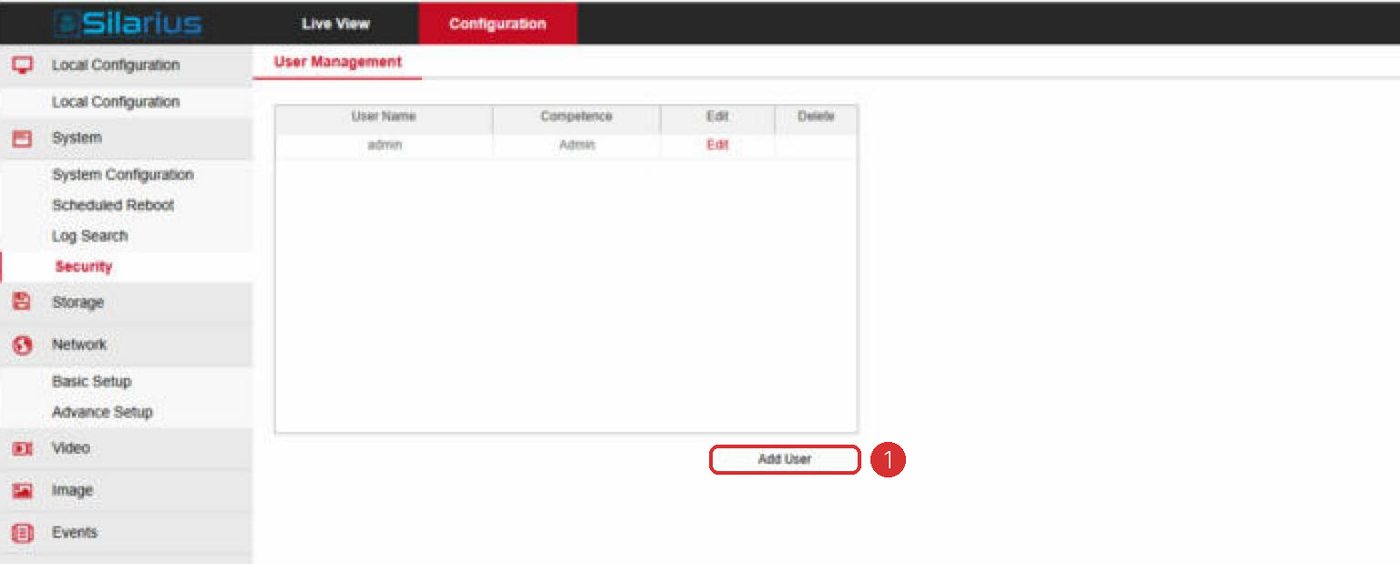
- Change the camera's default password
On the camera's own web page, change the default password to a strong one.
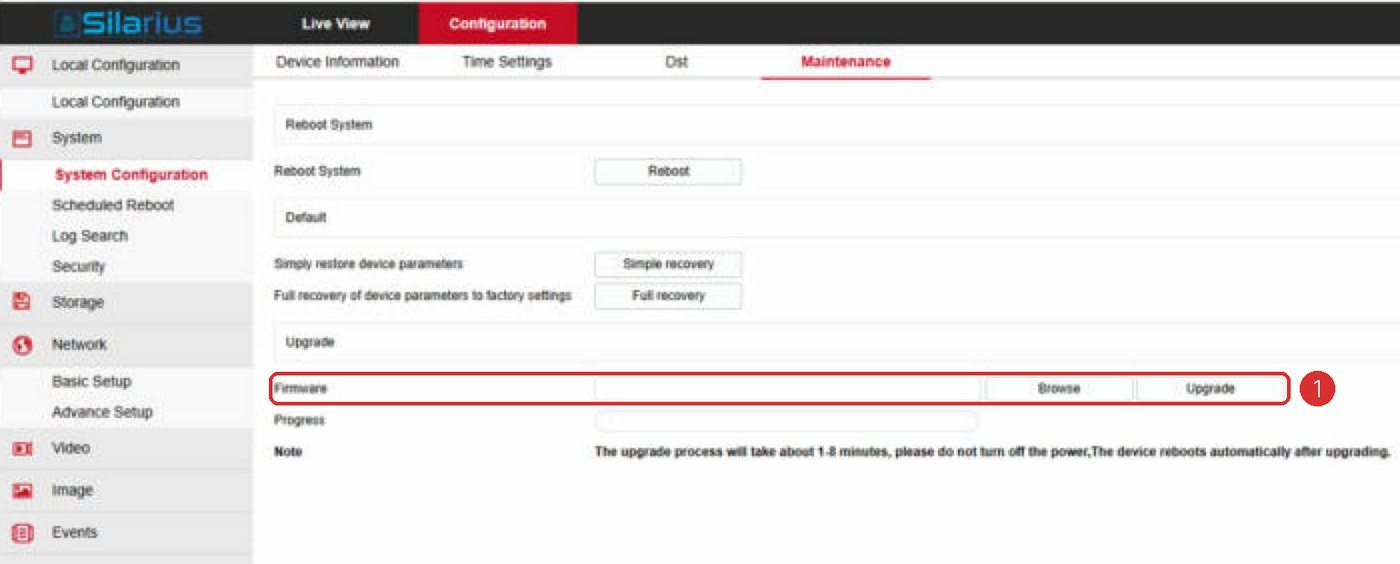
- Restart the camera
Restart the camera. Sign in again with the new password to make sure it saved.
- Update the password in Silarius Cloud
In Silarius Cloud Admin, open the camera settings and enter the new password. Click Save.
- Try the feature again
Try PTZ or the other feature again. It should work now.
PTZ, audio or outputs don't work
PTZ means pan, tilt and zoom (moving the camera remotely). Many cameras turn off remote controls like PTZ, two-way audio and outputs until you change the default password. This keeps strangers out.
Fix it with the steps below. On some cameras, you also need to allow remote PTZ in the camera's advanced security menu.
Motion masks don't work
Some cameras show Motion Detection or other detectors as Unavailable in Silarius Cloud Admin. That means you can't set them up through ONVIF. Set them up on the camera's own web page instead.
In this case, Silarius Cloud looks at the whole picture, not just the area you masked on the camera. That's because the camera doesn't tell the cloud which part it is watching. So movement anywhere in the picture can be reported, based on your object detection rules.
What "Available" and "Not Available" mean
On the camera's Info tab, the ONVIF analytics section lists the camera's detectors.
- Available (green): you can set it up in Silarius Cloud Admin on the Analytics tab.
- Not Available (red): set it up on the camera's own web page.
To open the camera's own page:
- ONVIF camera: wait for ONVIF to turn green under the camera name. Go to Troubleshooting, copy the HTTP access link, and paste it in your browser.
- Plug-and-play camera: wait for P&P to turn green. Go to Troubleshooting, click Generate URL, then Open.
Sign in with the camera's web user and set up the detector there.
Video quality is higher or lower than you set
Your plan sets the stream quality. But a camera may keep switching settings. This usually happens when the camera is also connected to another system, like a local recorder.
- Set every system using the camera to the exact same quality.
- Or give each system its own stream, if the camera's sub-streams support the sizes you need.
- If a recorder uses the camera maker's own protocol, it may take over the camera. Switch it to ONVIF so the camera behaves the same for everyone.
Video jumps between high and low quality
Some cameras claim to support picture sizes that don't really work. This is usually a firmware bug. Update the firmware. If no fix exists yet, pick a lower picture size or frame rate that works.
Motion settings won't save
Some cameras keep separate settings for ONVIF and for their own web page. A sign: every time you open the camera in Silarius Cloud Admin, it asks whether to use stored settings or settings from the camera.
This is a firmware issue. Update the firmware. If there is no update, find the camera's limits by trying different values.
Only 1080p shows on an 8 MP camera
Some cameras have a setting often called Capture Mode. It decides the largest picture size the camera can use.
Silarius Cloud Admin lists only the sizes the camera says it supports. If you don't see the size you want, change Capture Mode on the camera's own page. Then check again.
Still stuck? We'll do it with you, free.
Silarius customers can get free remote help: sign in, click one button, and a Silarius technician joins your computer.