
Camera won't show video
What to check when a camera shows no video, including right after you add a new camera.
By the end you will know how to find out why a camera shows no video. You will have clear steps to get it working.
Step by step
- Wait 5 minutes
After you add the camera, wait up to 5 minutes. The camera is switching to its new settings. Meanwhile, open its Troubleshooting tab and look for errors.
- Check network settings
Make sure the camera's network settings fit the network it is on.
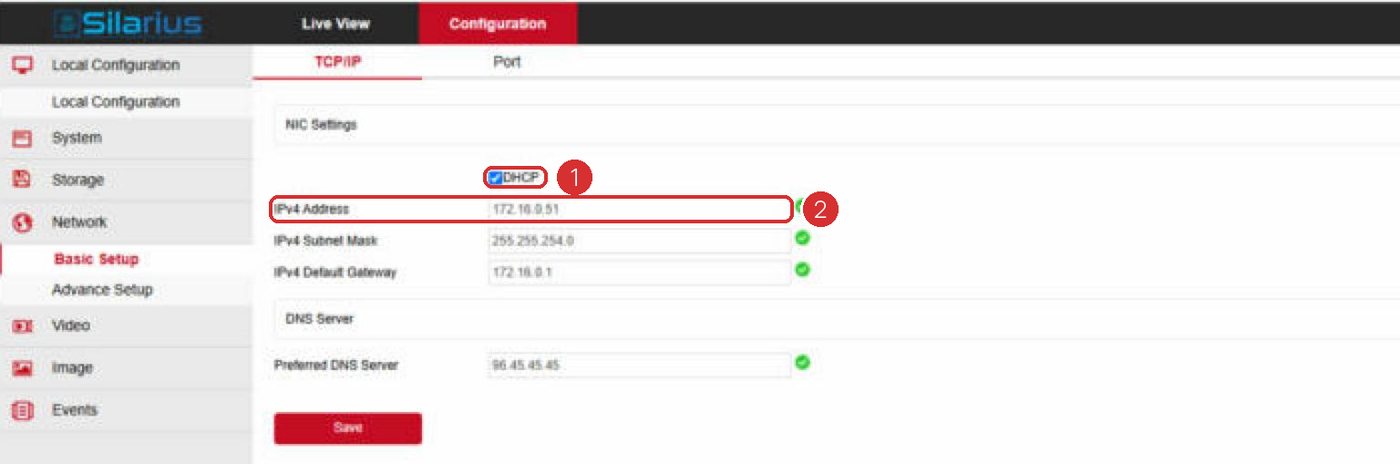
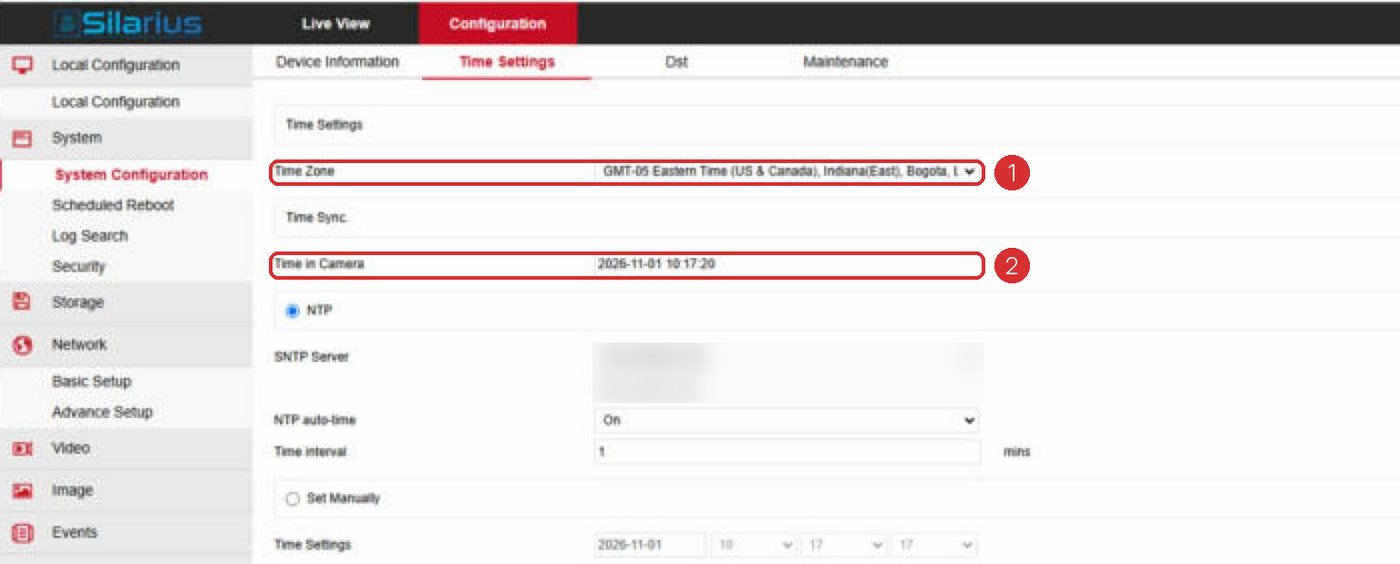
- Check the clock
Make sure the camera shows the right time and can update it from an internet time server (NTP).
- Check the user's permissions
The camera user you entered must have Administrator permissions on the camera.
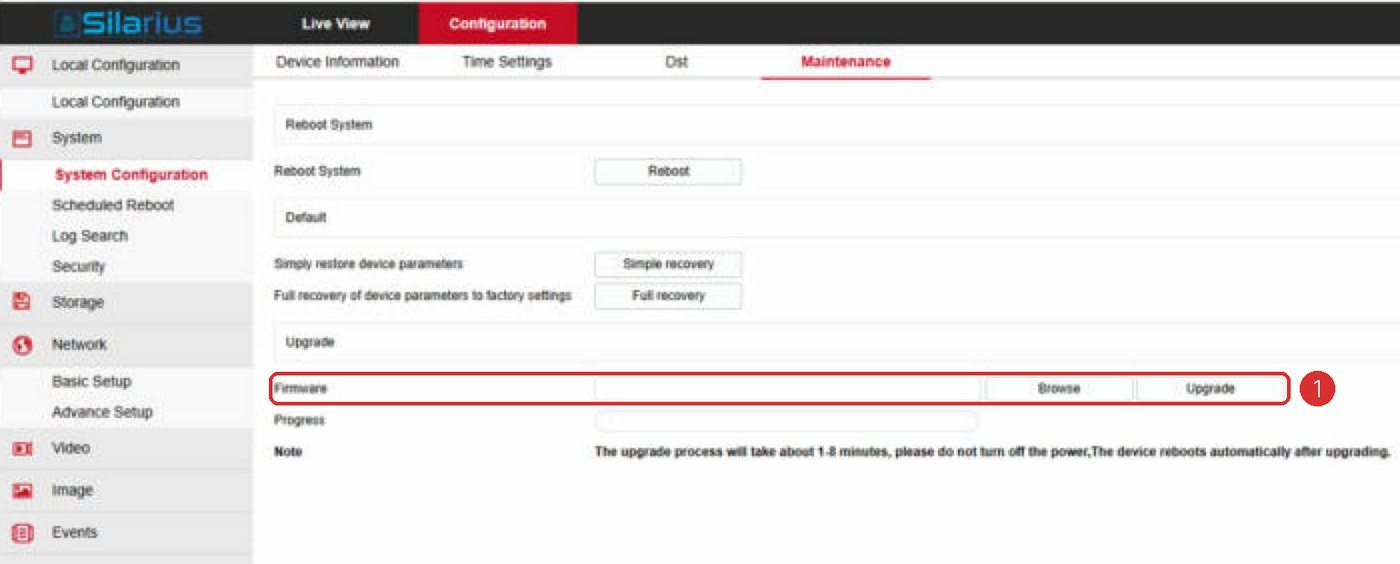
- Restart the camera
Restart it. Wait 3 to 4 more minutes.
- Test the internet speed
Run a speed test from another device on the same network as the camera.
- Unplug other systems
If the camera is also connected to a recorder or other system, disconnect it for a while. Restart the camera and check again.
Start with the message
Look at the message on the camera in the web app.
- Camera is offline: the problem is usually at the camera. See Camera shows "offline".
- Camera is disabled: someone with permission turned the camera off in Silarius Cloud Admin. Check the logs to see who and when. To turn it back on, use the camera's General tab in Silarius Cloud Admin.
Common reasons a new camera shows no video
A new camera can take up to 5 minutes to start. If it takes longer, the cause is often one of these:
- A smart codec is on, so the video settings jump around too much.
- The site's upload speed is too low.
- A firewall at the site is blocking the camera.
- The camera can't do the picture size or frame rate you picked.
- The camera is also connected to another system, like a local recorder, and can't open one more connection.
Good to know
- Turn off smart codecs and set the camera to H.264. See Why Silarius Cloud uses H.264.
Still stuck? We'll do it with you, free.
Silarius customers can get free remote help: sign in, click one button, and a Silarius technician joins your computer.