
Silarius X camera won't connect
Get a Silarius X (plug and play) camera online, and understand its plug-and-play status.
By the end you will know how to get a Silarius X camera online. You will also know what each plug-and-play status means.
Step by step
- Give it time
Some cameras take up to 10 minutes to start up and connect. Wait before you change anything.
- Restart the camera
Unplug the camera and plug it back in. Then wait 10 minutes.
- Check automatic addressing
If the camera gets its address automatically (DHCP), make sure it got an address that can reach the internet. Fix it if needed, then restart the camera.
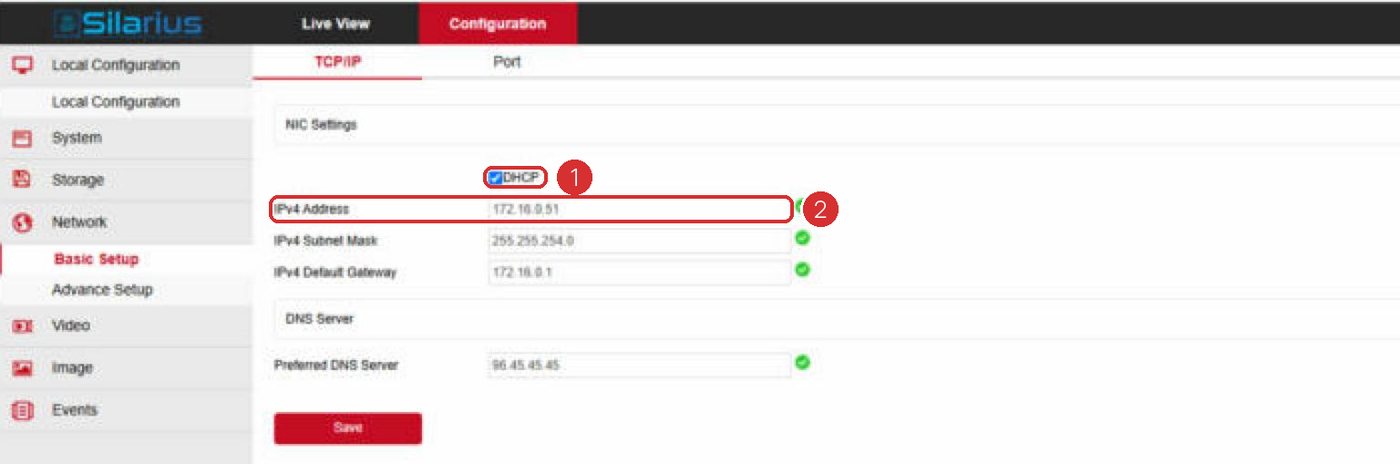
- Check a fixed address
If the camera has a static (fixed) IP address, make sure the Default Gateway (router address) and DNS servers fit this network. Fix them if needed, then restart the camera.
- Look for address clashes
Make sure no other device on the network uses the same IP address as the camera.
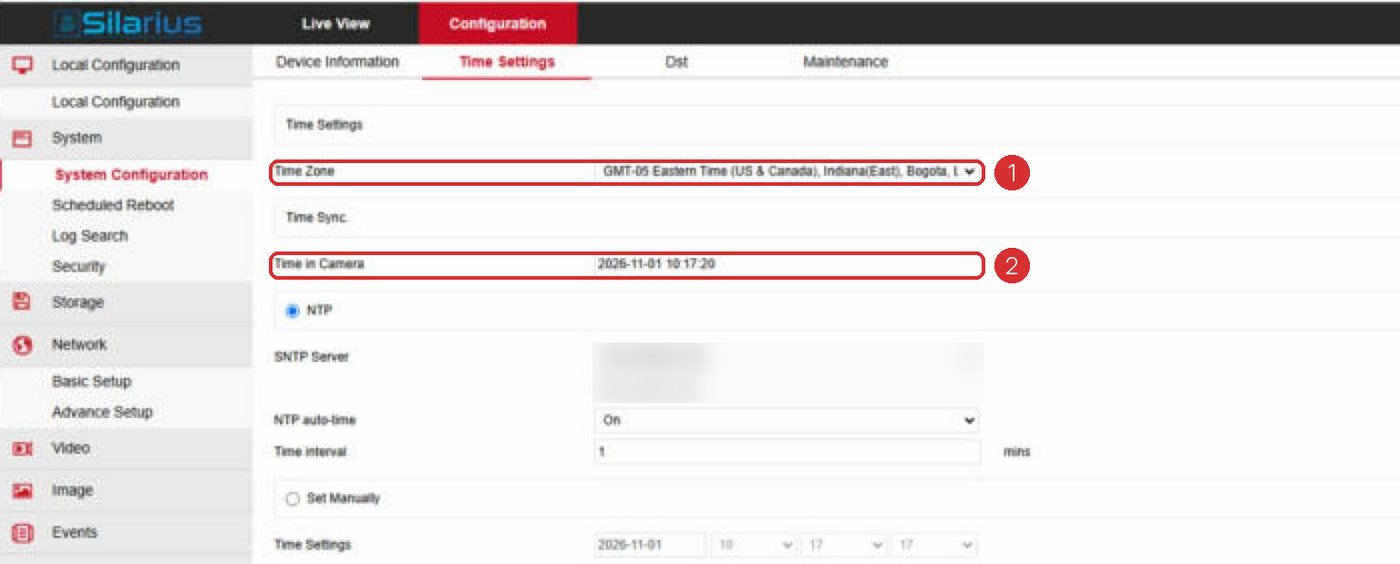
- Test the internet with the clock
On the camera's own page, open its time settings. Choose to sync with an internet time server (NTP). If it works, the camera can reach the internet. If it fails, the network settings or a firewall are blocking it.
- Check the firewall
If your network has a firewall, allow all outgoing TCP traffic on port 443 for the camera.
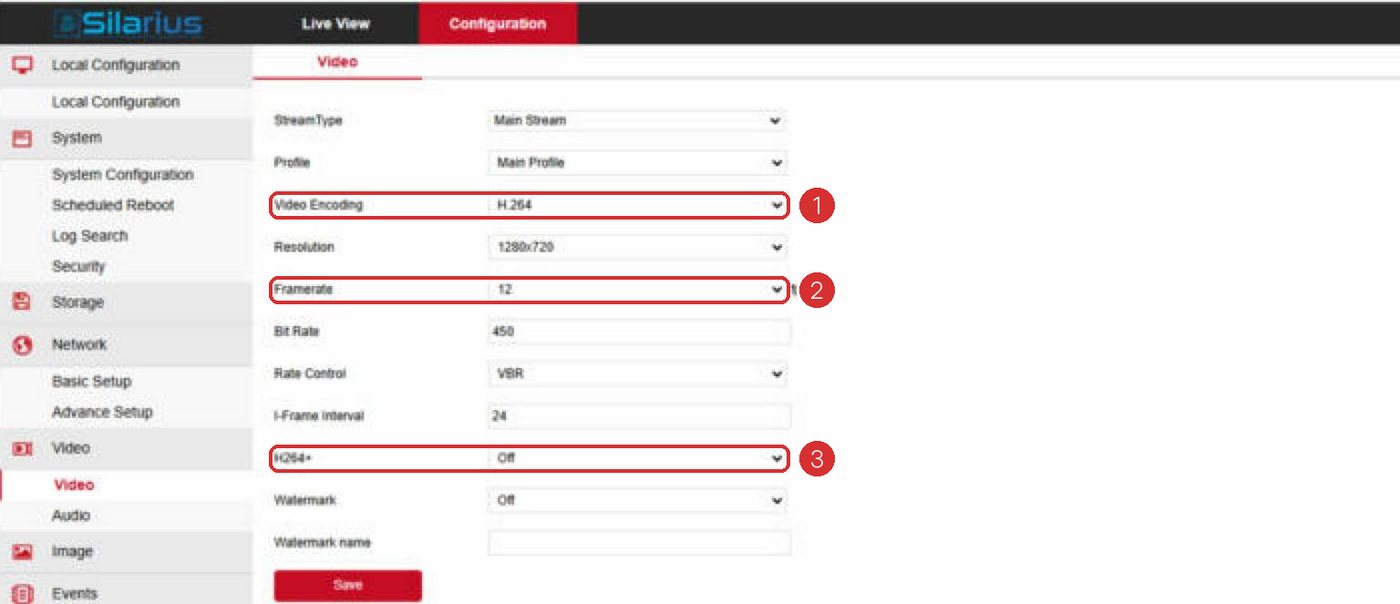
- Check video settings
Set the camera to the H.264 codec and turn smart codec off.
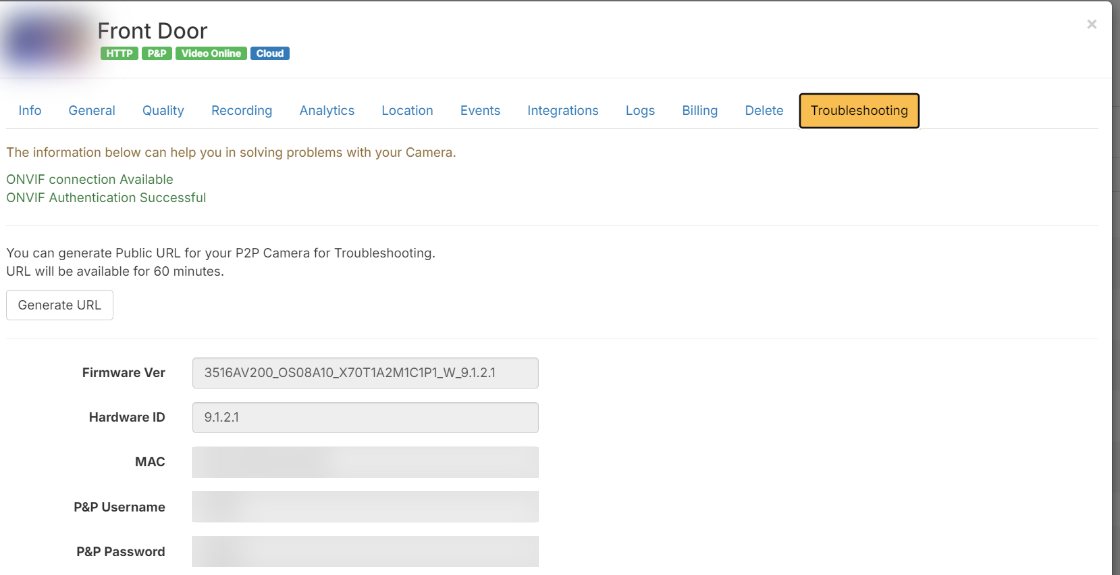
- Run the Troubleshooting tab
In Silarius Cloud Admin, open the camera and click Troubleshooting. Let the check finish and read the result.
Camera was used before
A camera that was set up for something else can be full of old settings. That can leave no room for the cloud connection.
Restore the camera to factory defaults. Choose the option that does not keep the current network and user settings. Then set it up again.
If the camera is also connected to another device or service, factory reset it. Add it to Silarius Cloud first. Once it works, connect the other device.
Camera went offline after a firmware update
If the camera worked fine and went offline right after a firmware update, the update may have removed the cloud connection part. The camera may still work fine on your local network. Contact Silarius support: get free remote setup help or email us.
What the plug-and-play status means
You can see a camera's plug-and-play status in Silarius Cloud Admin.
- Assigned, Not Initialized: the camera was added to an account but has never been online. This changes to Connected the first time it comes online.
- Connected: the camera is fully set up. It is online now, or has been online at least once.
- Initialized, Not Assigned: the camera was pre-registered but not added to an account yet. Once it is installed, it just needs to be added to the account.
- Ready and Registered: old statuses that are no longer used.
Good to know
- Some cameras need a separate ONVIF user or service turned on. See Fix "ONVIF Authentication Failed".
Still stuck? We'll do it with you, free.
Silarius customers can get free remote help: sign in, click one button, and a Silarius technician joins your computer.