
Show live cameras on a TV or video wall
Set up a screen that shows live cameras all day with no one touching it, or put a TV at your entrance.
By the end you will set up a video wall. That is a screen that shows live cameras all the time, with no mouse or keyboard needed. You will also learn a simple way to show a camera on a TV by your front door.
What you need
- An Owner or Admin user in Silarius Cloud Admin
- A TV or monitor with a computer that has a modern web browser and steady internet
- A second computer or phone to finish setup
Step by step
- Open the Videowalls tab
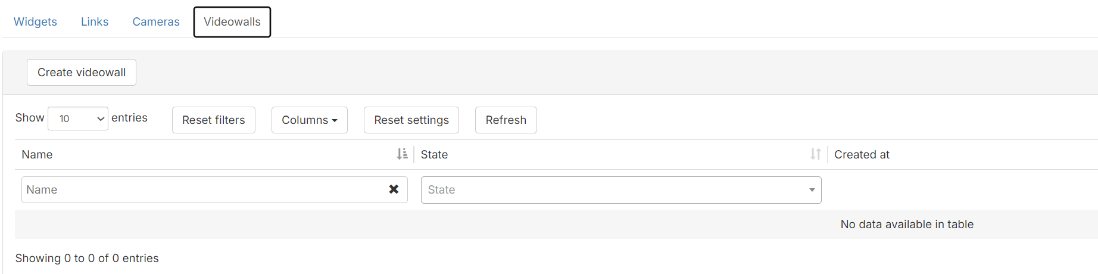
In Silarius Cloud Admin, go to the Sharing menu. Open the Videowalls tab. You see your video walls and an option to make a new one.
- Create a video wall
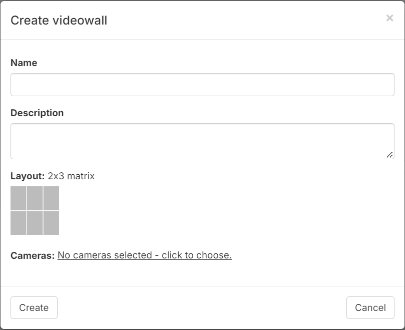
Click Create Videowall. Type a name. Add a description if you like.
- Pick the screen pattern
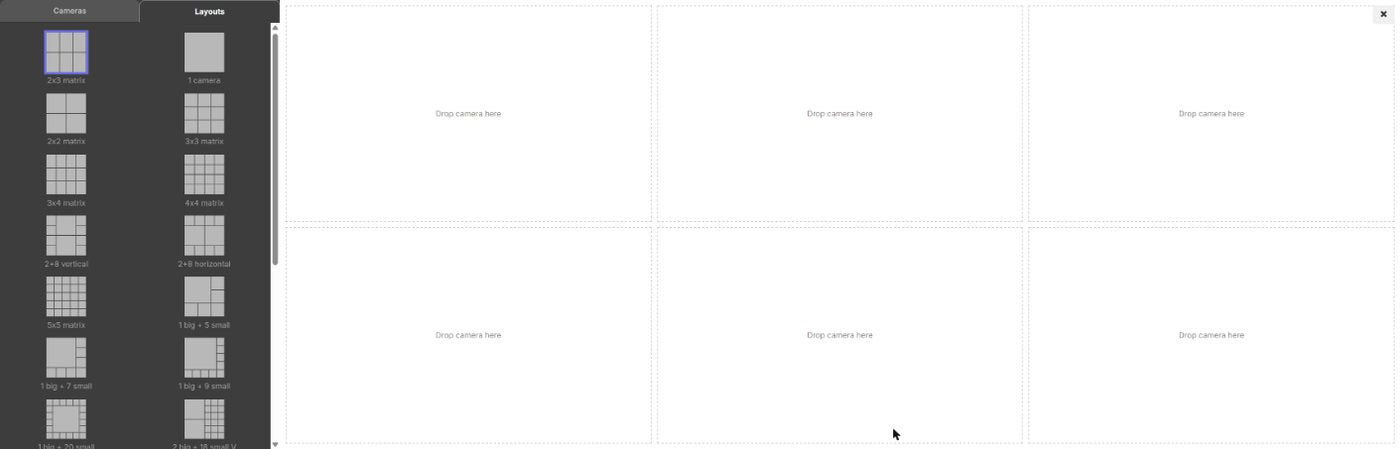
Click the link to edit the video wall. Open the Layouts tab. Pick how many camera boxes to show.
- Add the cameras
Open the Cameras tab. Drag cameras into the boxes. Drop a camera on a full box to swap it. Click X at the top right to leave the editor.
- Save it
Click Create. Your new video wall shows in the list.
- Open the video wall page on the TV
On the computer hooked up to the TV, open the video wall page in the web browser. The page shows an activation code. If you don't have the page address, contact Silarius support: get free remote setup help or email us.
- Enter the code
On another computer or phone, open Silarius Cloud Admin. Pick your video wall from the list. Type the code in the Authorize line. Do this within 3 minutes. If the code runs out, refresh the page on the TV to get a new one.
What a video wall does
A video wall shows live cameras on a screen all day. It fixes itself after errors. If a camera goes down and comes back, the video comes back too.
People at the screen can't change it. There are no controls. That makes it good for a lobby or a guard desk.
A TV at your entrance
A TV by the door that shows the entrance camera tells visitors that cameras are watching. People who know they are on camera are less likely to cause trouble.
For this, streaming from the cloud is often not the best choice. A simple local setup can work better:
- Connect a small local recorder straight to the TV with an HDMI cable. Mount it on the back of the TV. Run a network cable to it.
- The same IP cameras can keep sending video to Silarius Cloud at the same time. The local recorder is separate. It isn't part of Silarius Cloud unless you connect it. Have an NVR or DVR? Its cameras can connect through the Silarius Gateway too. See Connect your NVR or DVR.
- Because the video stays inside your building, it uses no extra internet.
Things to plan for:
- Local recorders can freeze. Silarius Cloud can't warn you about a recorder it doesn't see. Someone should check the TV now and then.
- Keep a wireless mouse nearby, so staff can restart the recorder or go full screen from the floor.
- Put a power switch for the recorder somewhere only staff can reach. Then they can turn it off and on without a ladder.
- A remote power switch lets your installer restart it from far away.
Not sure which way is best? Contact Silarius support: get free remote setup help or email us.
Good to know
- The video wall stays live as long as its computer stays on and online with enough internet speed.
- Set the browser to start when the computer starts and to open the last page. Then the video wall comes back by itself after a restart.
Common questions
Can I use a recorder (NVR or DVR) to feed the TV instead?
Yes. A recorder can drive a TV on its own. You can also connect that recorder's cameras to Silarius Cloud through the Gateway, so you have both. See Connect your NVR or DVR.
Still stuck? We'll do it with you, free.
Silarius customers can get free remote help: sign in, click one button, and a Silarius technician joins your computer.